
Task verification - Accepting, Rejecting, Returning for correction
On this page
Description of the functionality
The system lets you assign a task to a user in one of two modes:
- with acceptance of results (i.e. the answers given must be checked
- without acceptance, where tasks performed by users (the answers they gave) automatically receive the accepted status.
A task performed in the mode with acceptance receives the “for verification” status once it is completed. Tasks with this status are visible in the task verification view, where they are presented as a results table that can sort and filter data. The evaluating user can review the answers given and evaluate the whole task or individual commands within the task.
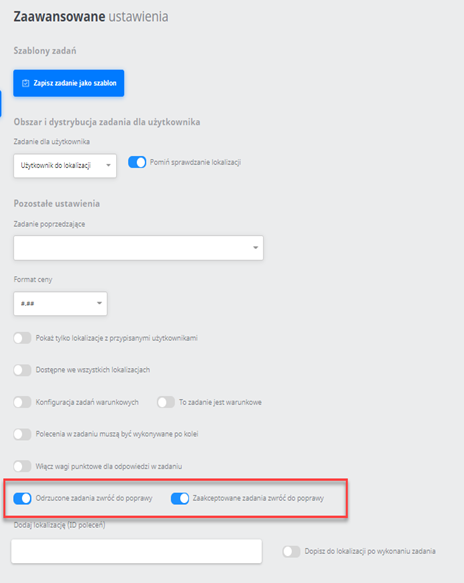
A task for verification requires the “Does it require acceptance?” parameter to be configured. Additional settings that are not mandatory but provide extra options during task verification are: “Return rejected tasks for correction” and/or “Return accepted tasks for correction”
Note: you can generate a pdf report of a task execution.
Configuring the “Does it require acceptance?” parameter
The configuration of this parameter is described in the article: Does the task require acceptance? - Description of the parameter
Configuring the “Return rejected tasks for correction” and/or “Return accepted tasks for correction” parameters
The “Return rejected tasks for correction” and/or “Return accepted tasks for correction” parameter is available when creating or editing a task in “Advanced settings”
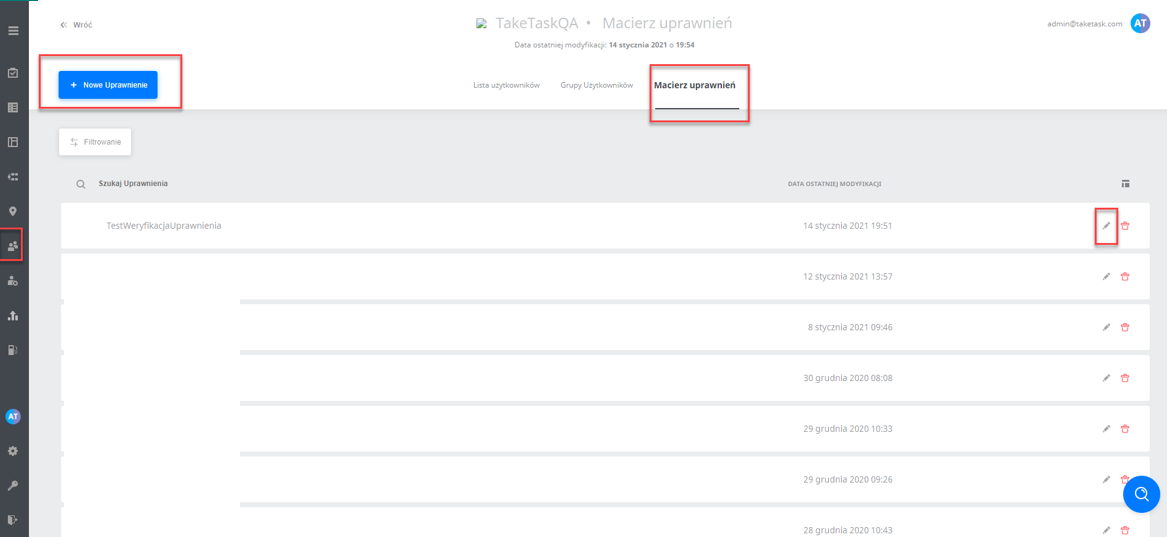
User permissions for task verification:
To configure permissions, we go to the users tab, then the permission matrix, where we can create a new permission or edit an existing one and then assign it to the appropriate user in the user settings edit. The user permission matrix is described in more detail in the articles: User permissions / Permission matrix and Why don’t I see tasks for verification?
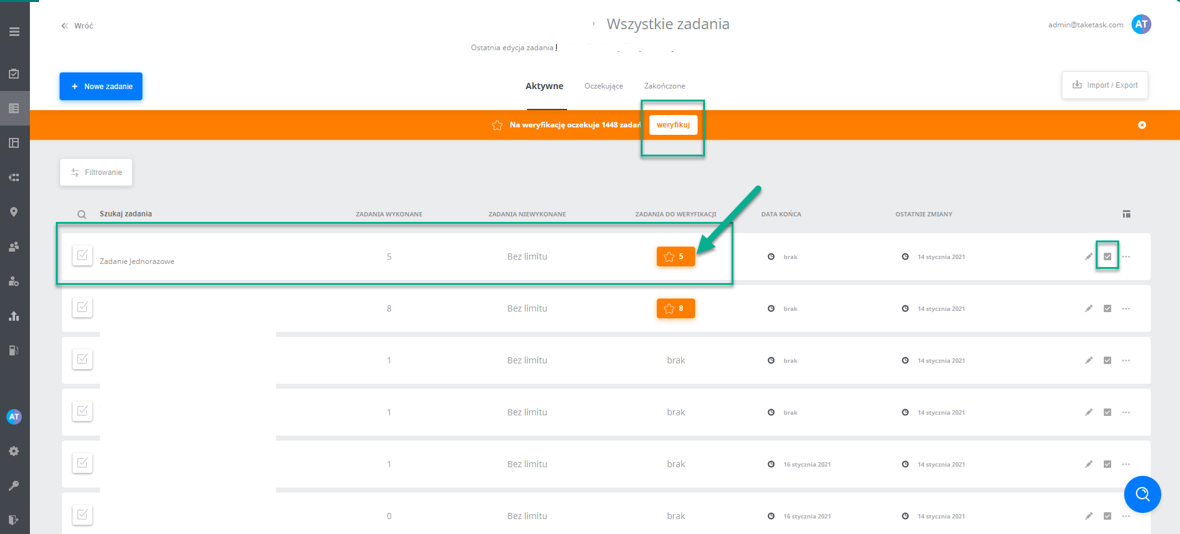
Task verification view - How do I go to verification?
Going to the view where task verification takes place: in the all tasks tab, we can start verification with:
-
The “Verify” button visible on the orange bar indicates that new task executions have appeared for evaluation in all the tasks visible on this screen. The counter in its text shows the total number of answers to be checked/evaluated (from all tasks). Pressing the verify button takes you to the verification view, where the answers given in all tasks with the “for verification” status are visible (a filter applied by default, which can be removed)
-
The button with an orange background marked with a star, visible for a single task, signals that this task contains executions that have not been evaluated. The counter next to the star shows the number of new results to evaluate. Pressing the verify button takes you to the verification view, where the answers given in this specific task with the “for verification” status are visible (a filter applied by default, which can be removed)
-
The grey ✓ icon - takes you to the verification view, where the answers given in this specific task with any status are visible (not limited to the “for verification” status)
 After going to verification in one of the ways above, we are in a view with the tabs:
- Tasks for verification - the tasks for verification presented as a results table. After opening the details of a task for verification, the next ones appear automatically without having to leave the view.
- Photos for verification - The view is used to preview photos taken within the task/tasks for which a filter has been set in this view. The view cannot be used to evaluate completed tasks, only to browse them in bulk with the option of exporting the photos (bulk photo download).
Column visibility during task verification
The type of data (columns) displayed can be changed with the “Column visibility” button on the right; by default the columns shown in the picture below are displayed:
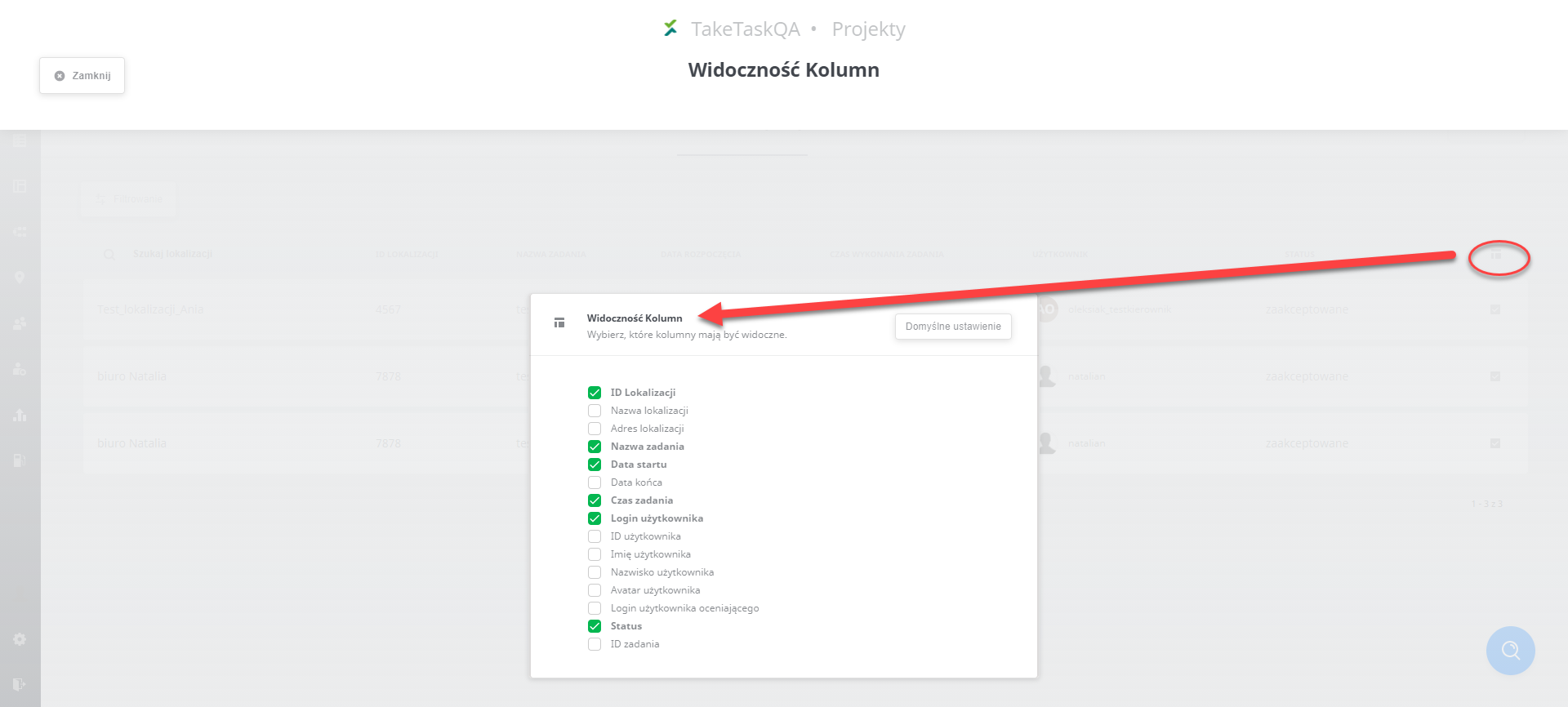
Since version 2.62 there is an “Evaluating user login” column showing the Login of the person who changed the execution status to Accepted or Rejected.
View of the details of the answers given during task verification
After opening the verification of a given task, the following view appears:
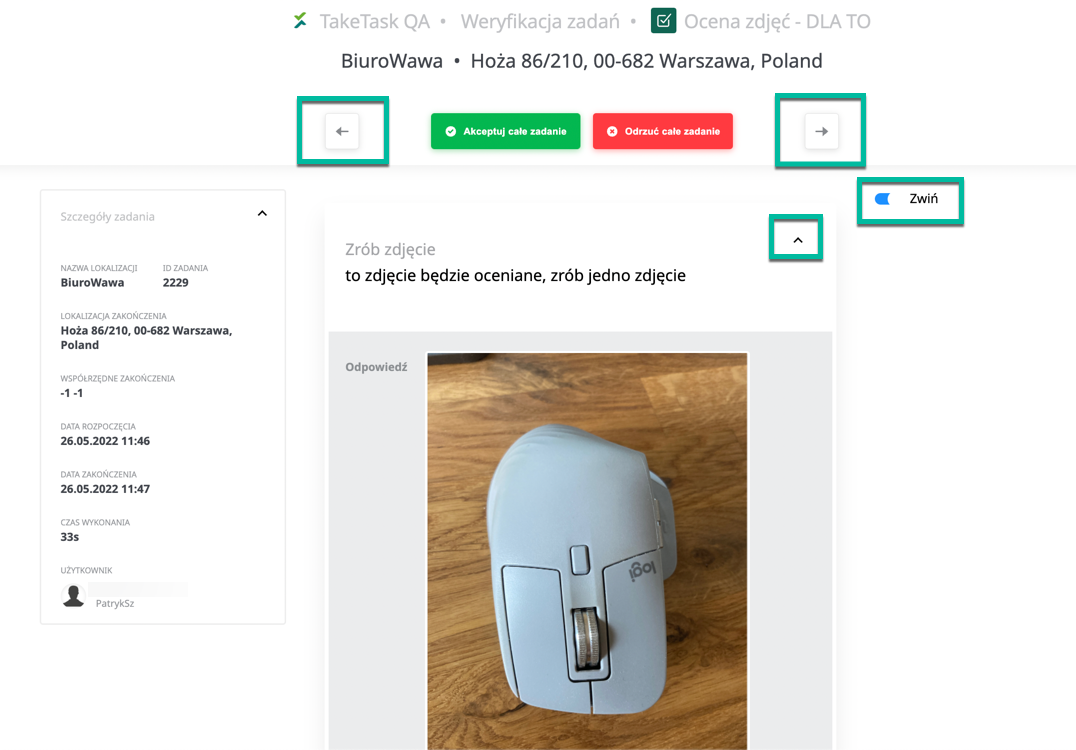 Commands can be collapsed/expanded with the “Collapse” or “^” button (marked in green above). By default all commands are expanded.
The arrows on the left and right next to the task status change buttons let you go to the next or previous photo.
The left arrow scrolls the user to executions further and further in the past.
The right arrow scrolls the user to newer and newer executions.
Scrolling between executions with the arrows takes into account the filters previously applied to the list of executions.
Since version 2.62 you can rotate the photos available in task verification. To rotate a photo, hover the mouse cursor over it. An icon appears at the bottom of the photo. After clicking the button, the photo rotates 90 degrees to the left.
Statuses/scenarios during task verification
statuses:
- Rejected – final status, no further options
- Accepted – final status, no further options
- Accepted, returned for correction (with a comment!) – related to the configuration of the “return accepted for correction” parameters; in this case the task is returned to the user who performed it, but in this task they only have to confirm reading the comment given by the evaluator (i.e. press the “finish” button), after which the process ends; final status, no further options (there is no way to reply to the evaluator). For an accepted task to return to the user with a comment, the comment must be added.
- Rejected, returned for correction – related to the configuration of the “return rejected for correction” parameters. The task can be returned in whole or in part. The verifying user can add a comment to the whole task (the main reason for rejection) and/or to individual rejected commands/command groups. The corrected task goes back to verification; the verifier can again return all of it, or accept part of it and return the rest. The user is obliged to correct the results and send them once they are able to start the task, e.g. in the correct location or within the next cycle.
- Task rejected, returned for correction, aborted by the user obliged to correct it (refusal to correct) – final status, no further options. The user to whom the task was returned for correction does not do so and aborts the task with the Abort button.
scenarios:
We distinguish the following task evaluation scenarios when we open a new task (not evaluated before),
- the parameters: “Return rejected tasks for correction” and “Return accepted tasks for correction” are inactive:
-
The user presses: Accept the whole task - Pressing the button at the top of the view immediately accepts the whole task and returns to the list of all tasks for verification. The task receives the state: Task accepted. The process ends.
-
The user presses: Reject the whole task - Pressing the button at the top of the view rejects the whole task, but before returning to the list of all tasks for verification, a window appears in which a main comment for the rejection can be added. The comment will be visible in the task verification details (under the task name, where the evaluation buttons are). The task receives the state: Task rejected. The process ends.
-
The user presses: Accept on one of the answers (any of them), a field for adding a comment appears; after pressing Accept, this command has been accepted. The user now has the following possible scenarios:
- They accept manually by Accepting the remaining answers (i.e. press the Accept button under each command) - in this case the whole task receives the state Task accepted with a comment, and when the last command is evaluated a popup appears that lets you add a main comment to the task. The task will be returned to the user so they can read the comments added to individual commands and/or the main comment.
- They reject manually by Rejecting the remaining answers (i.e. press the Reject button under each/or a selected command) - in this case the whole task receives the state Rejected, and when the last command is evaluated a popup appears that lets you add a main comment to the task. The task receives the rejected state when at least one answer has been rejected.
- They press the Accept remaining answers button - in this case all answers that have not been evaluated yet are accepted. When this button is used, comments cannot be added to individual answers. The whole task receives the accepted status, because no answer has been rejected. Before leaving for the list of tasks for verification, a popup appears in which a main comment can be added to the whole task (because one answer was accepted manually, which means the task receives the state Accepted with a comment)
- They press the Reject remaining answers button - in this case all answers that have not been evaluated yet are rejected. When this button is used, comments cannot be added to individual answers. The whole task receives the rejected status, because at least one answer has been rejected. Before leaving for the list of tasks for verification, a popup appears in which a main comment can be added to the whole task, because the task receives the Rejected status, and a main comment can always be added to this state.
- The user presses: Reject on one of the answers (any of them), a field for adding a comment appears; after pressing Reject, this command has been rejected. The whole task now has the Rejected status, because at least one answer has been rejected. The user now has possible scenarios analogous to point 3.
- Parameters: “Return rejected tasks for correction” and “Return accepted tasks for correction” - when these parameters are active, the application behaves the same as in the scenarios described in point 3, with this difference:
- a command accepted with an added comment (commands without a comment are not returned) will be returned to the user. In the mobile application the user will see a task to correct (the answers they previously gave to the returned commands). The submitted answers together with the evaluator’s comment are visible in the mobile application; the user can review them and finish the task. The process ends.
- a command rejected with a comment will be returned to the user for correction. In the mobile application the user will see a task to correct (the answers they previously gave to the rejected commands) and must modify an answer (any of them) to be able to send the result again. In the mobile application the user sees only the returned commands (they do not see the whole task, unless the whole task was returned for correction). The user’s corrected result is visible in the web panel as a task for verification. The details of this task show all answers (from the first execution and from the correction); the returned / corrected answers require acceptance or rejection again; if they are rejected the task goes back to the user again, and if they are accepted the process ends.
Bulk verification, rejection, acceptance of tasks
The functionality is described in the article: Bulk acceptance / rejection of tasks
You can also change the statuses of all tasks performed in a given period of time; this functionality is described HERE.
Exceptions – rejecting decision commands
There are three decision commands in the generator:
- YES/NO
- Single Selection
- Dynamic Single Selection
- A rejected decision command that could change the path the user chose cannot be corrected, because such a change of answer could show the user a new path of commands to perform.
Example 1: when YES leads to “Take Photo”, but selecting NO leads to the “Add Price” command instead, the decision command cannot be rejected (it will not be possible to change the answer given from YES to NO)
- ! An exception is, for example, a situation in which the decision commands lead to the same paths (Selecting YES leads to the “Take Photo” command and selecting NO leads to the “Take Photo” command) !
Example 2, we have a process in which we used the YES/NO command, and both the YES answer and the NO answer lead to the same Take Photo step; in this case, when the command is rejected and returned for correction, the user can change the answer from YES to NO, because the NO answer does not change the decision and does not start a different decision path.
Automatic view change during verification of executions
The view change is controlled by the configuration variable GoToNextTaskResultInVerification
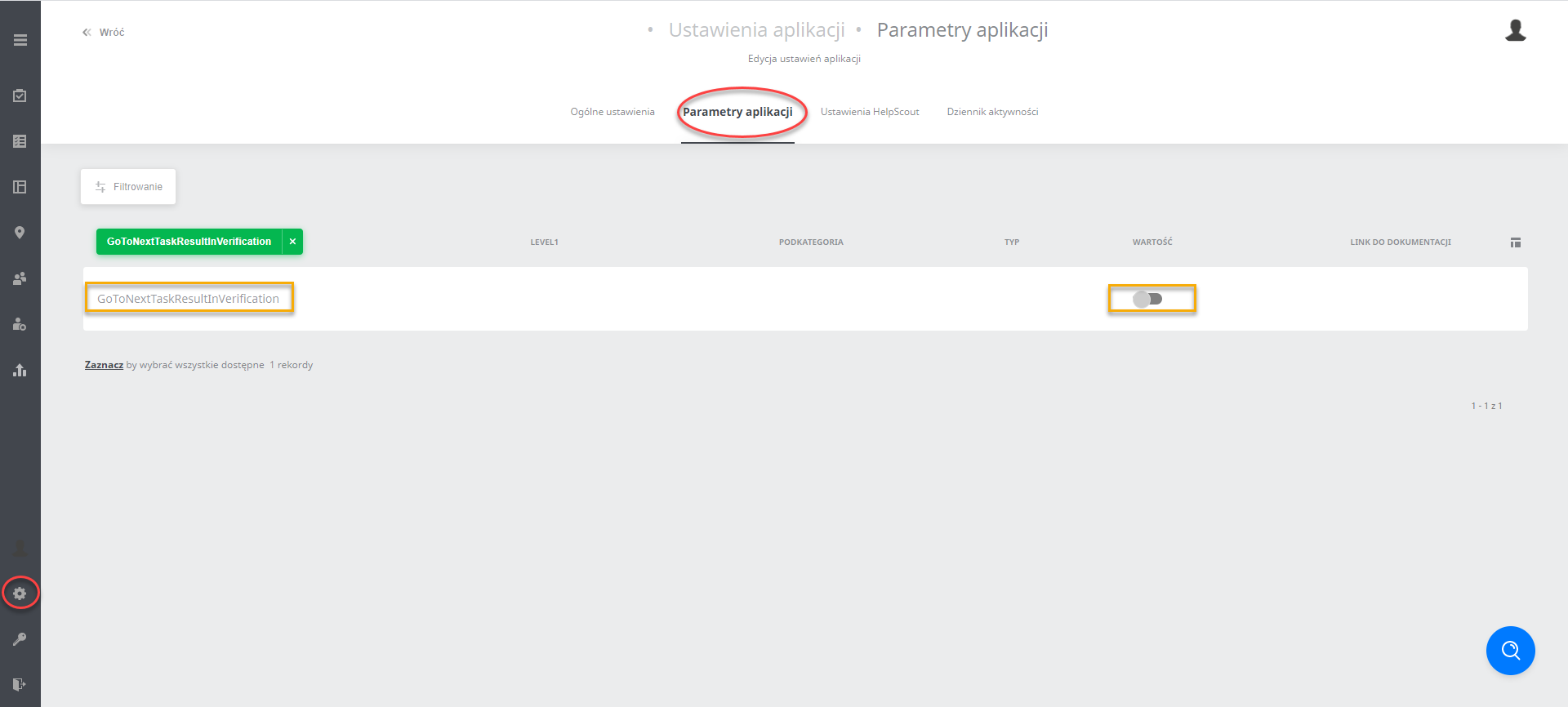
- If the variable’s value is enabled: during verification of executions, after they are accepted or rejected, the view automatically changes to the next execution
- If the variable’s value is disabled: during verification of executions, after they are accepted or rejected, the view does not automatically change to the next execution; it stays on the current view, and in that case you have to go to the next execution manually to verify it
Note: This variable is global, which means it changes the behaviour of the panel for all users in all tasks.
NOTE: Before editing the process in a task with answer evaluation, make sure that all tasks have been accepted. If the user has a given task with answer evaluation and modifies the process in the task generator, the user will not be able to verify the answers in the web browser. The answers will not be displayed in the web browser, but the results will appear in the xlsx report generated from this task. The task can be accepted.