
The "My tasks" tab
The “My tasks” tab is located in the main menu on the left side of the screen. In this tab the user can check the tasks they are assigned to and perform them through the web panel.
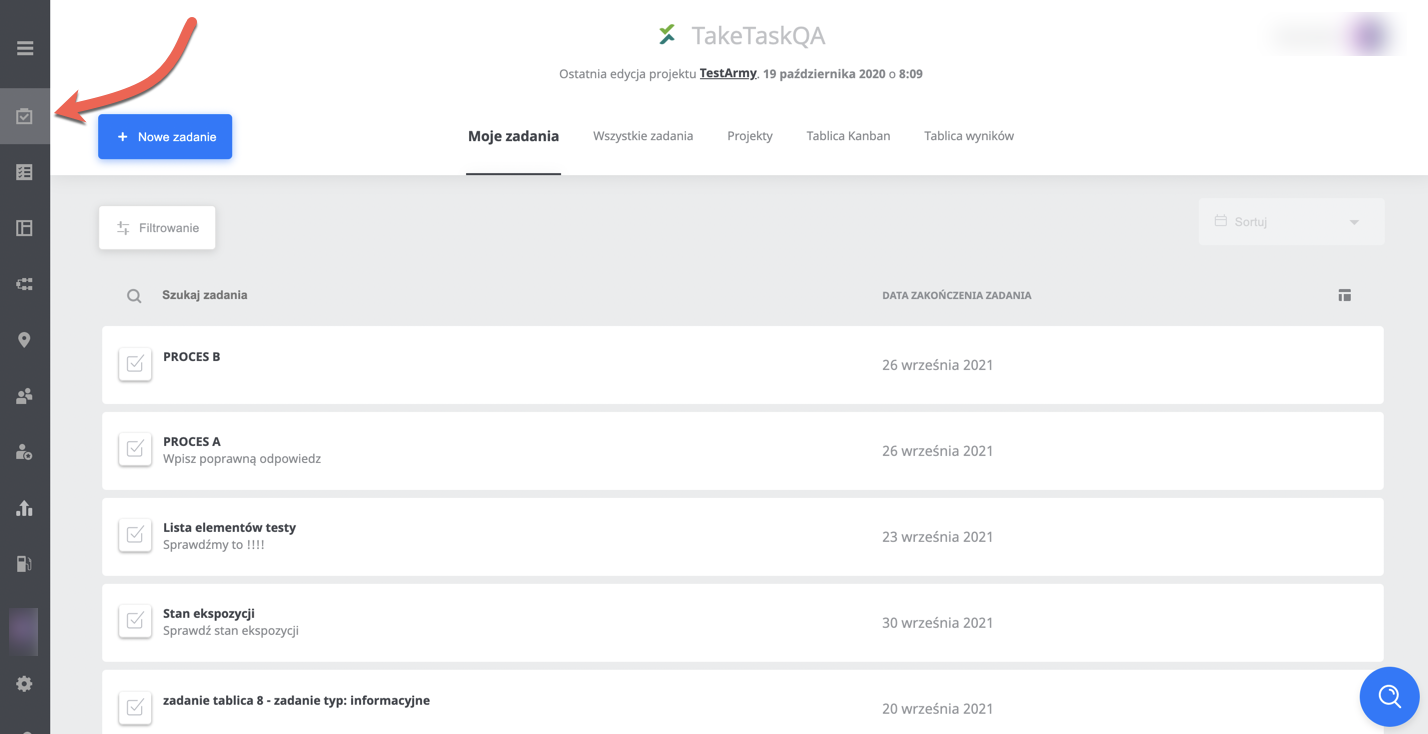
To check which tasks we are assigned to, simply open the “My tasks” tab. The tasks displayed are the tasks assigned to the given user. To find a specific task you can use the “Search task” or “Filtering” option. You can find more about data filtering here.
 From this tab we can also create a new task by pressing the “+ New task” button. The user is then taken to the task creation window. Creating a task from the “My tasks” tab does not assign the task to this user. For the user to be assigned to the task, all the conditions required for that must be met.
Performing a task through the web panel
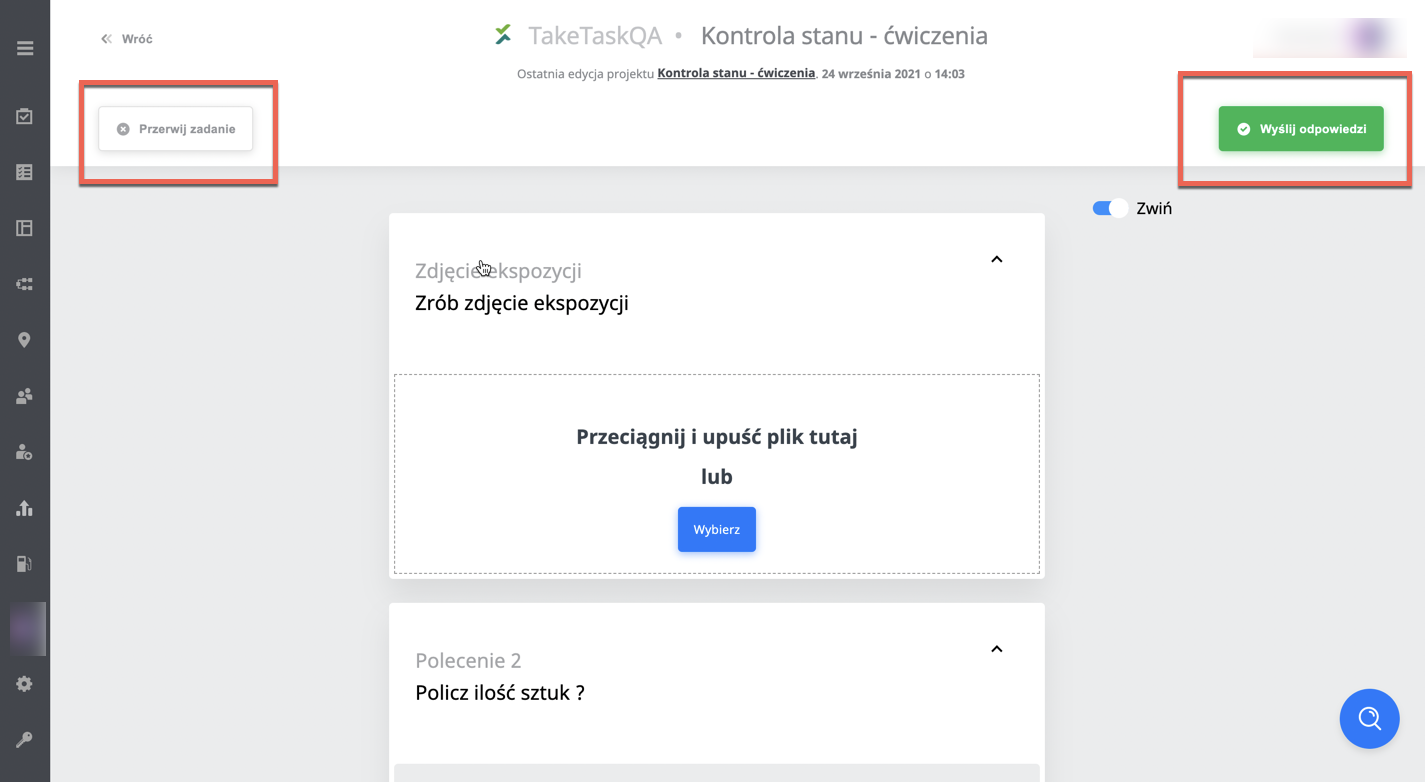
A task can be performed with the mobile application, but it can also be performed through the web panel from the “My tasks” tab. After opening this section, simply select the task you want to perform. After clicking the task, we are taken to the window in which the task is performed. After completing the task, we send the response with the “Send response” button. The panel also lets us abort the task. Simply press the “Abort task” button.
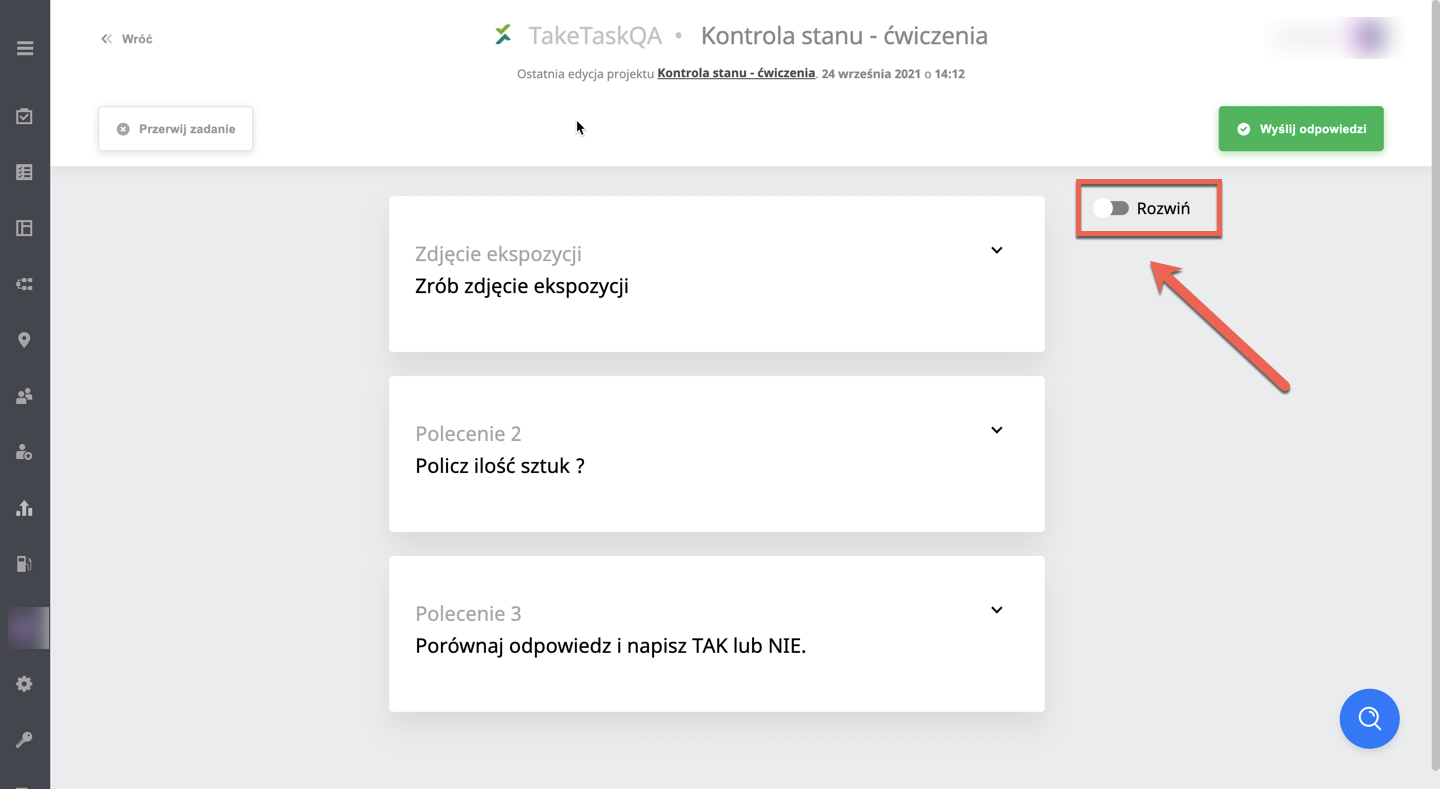
To see more clearly which commands the task consists of, you can collapse the commands with the “Collapse” option. After clicking it, the commands collapse. The view of the commands in the panel after collapsing is shown below.
 Through the panel we can complete tasks that contain any of the commands from the task generator. The way they are performed and certain limitations, broken down by command, are presented below.
- Open Question - the command works the same as in the mobile application.
- Yes/No - the command works the same as in the mobile application.
- Add Price - the command works the same as in the mobile application.
- Number - the command works the same as in the mobile application.
- Counting Question - in the panel this command is identical to the “Number” command.
- Take Photo - we upload a file with the jpg, jpeg, png or webp extension.
- Multiple Choice - the command works the same as in the mobile application.
- Single Selection - the command works the same as in the mobile application.
- Dynamic Single Selection - this command is identical to the “Single Selection” command. The only difference is that there are different answers for different locations.
- Dynamic Multiple Choice - this command is identical to the “Multiple Choice” command. The only difference is that there are different answers for different locations.
- Item List - not supported in the web panel. A field for a comment is shown.
- Rating - the command works the same as in the mobile application.
- Record Video - this command has a field for adding a file with the mp4 extension. The min/max video length conditions from the backend are skipped.
- Record Audio - this command has a field for adding a file with the wav extension. The min/max recording length conditions from the backend are skipped.
- NPS - in the panel this command is identical to the “Single Selection” command
- Watch Video - the command works the same as in the mobile application.
- Promo Code - the command works the same as in the mobile application.
- Read Text - the command works the same as in the mobile application.
- Date - the command works the same as in the mobile application.
- RTR - not supported in the web panel, only a field for a comment is displayed.
- Signature/Drawing - in the panel this command is identical to the “Take Photo” command, only without an image limit.
- Summary - this command is not supported by the panel, only the “Next” button is shown.
- External link - the command works the same as in the mobile application.
- Duplicate - the command works the same as in the mobile application.
- Calculation - the command is a function command and is displayed only when performing tasks in the mobile application.
NOTE:
Tasks with grouped commands are supported only by the mobile application. Tasks with grouped commands cannot be performed through the web panel.