
Scheduled report of completed tasks
On this page
Scheduled report of completed tasks
This is a report whose sending date can be set well before it is actually generated.
How to set up a scheduled report?
To set up a scheduled report, follow the steps below.
-
Log in to the web panel and then select the tile named Reports in the left menu bar. After clicking the tile directly or selecting New report from the list, the report generator view appears.
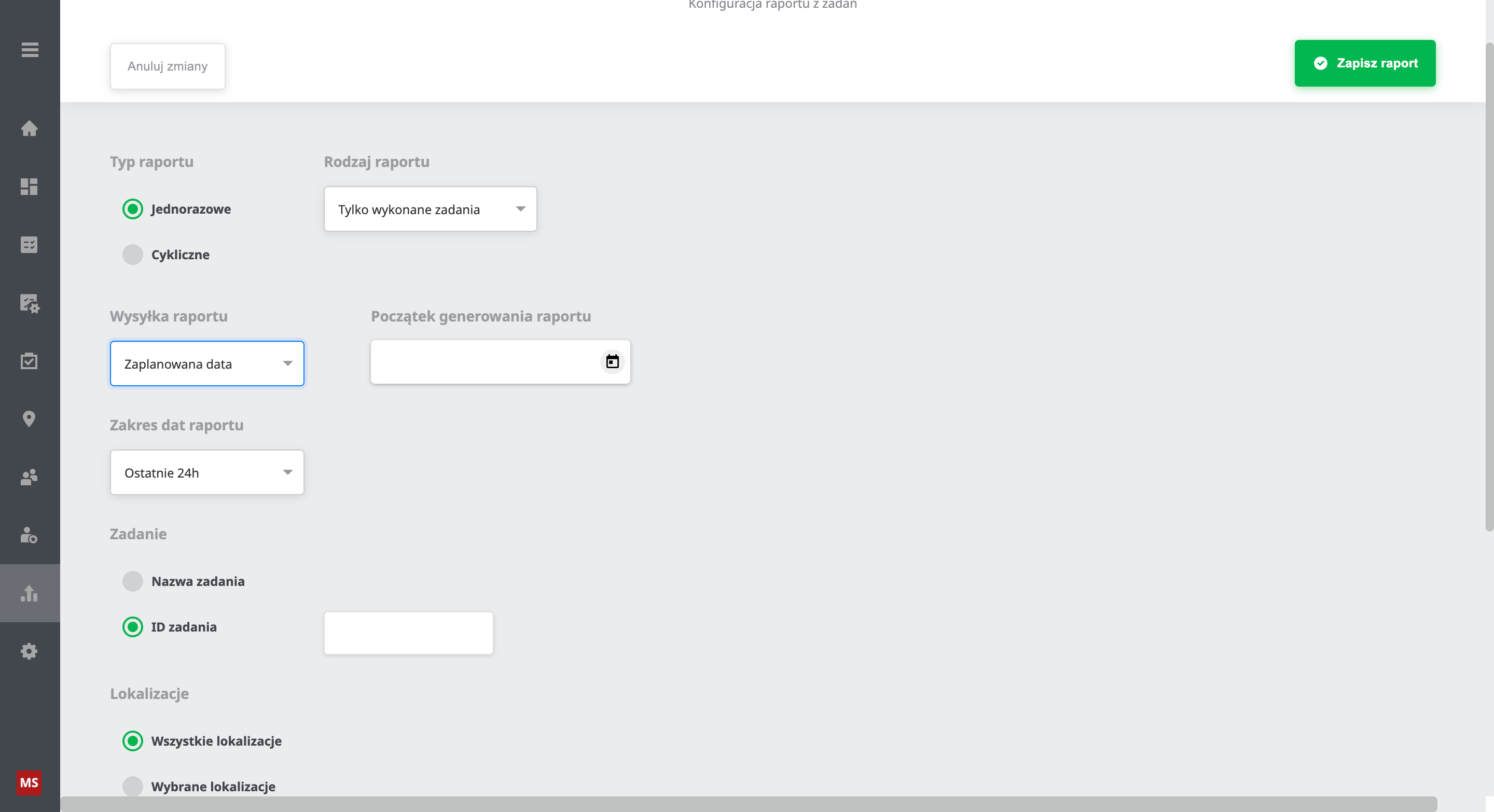
Report generator view
-
A scheduled report can only be set up with the one-time type and the Completed task only report kind. These settings are already selected by default.
-
To set up a scheduled report correctly, select the Scheduled date option in the report sending.
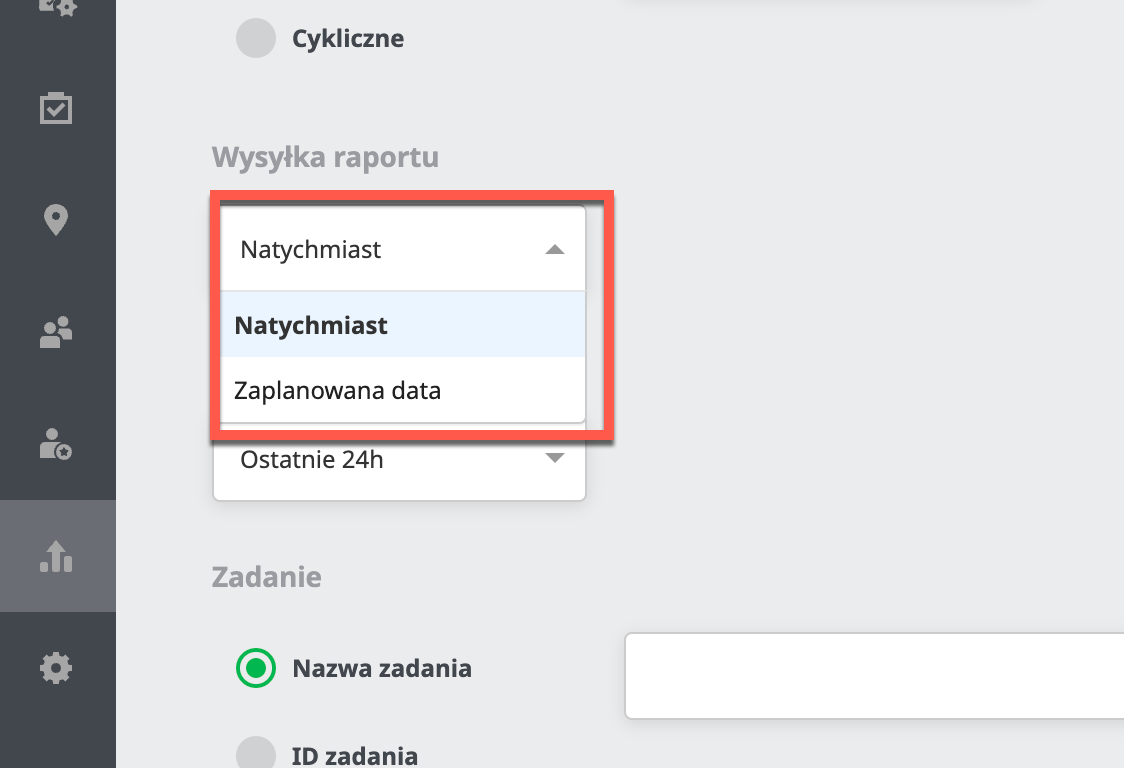
After selecting the option above, an additional field with the Report generation start appears. Choose the date and time when you would like the report to be generated and sent.
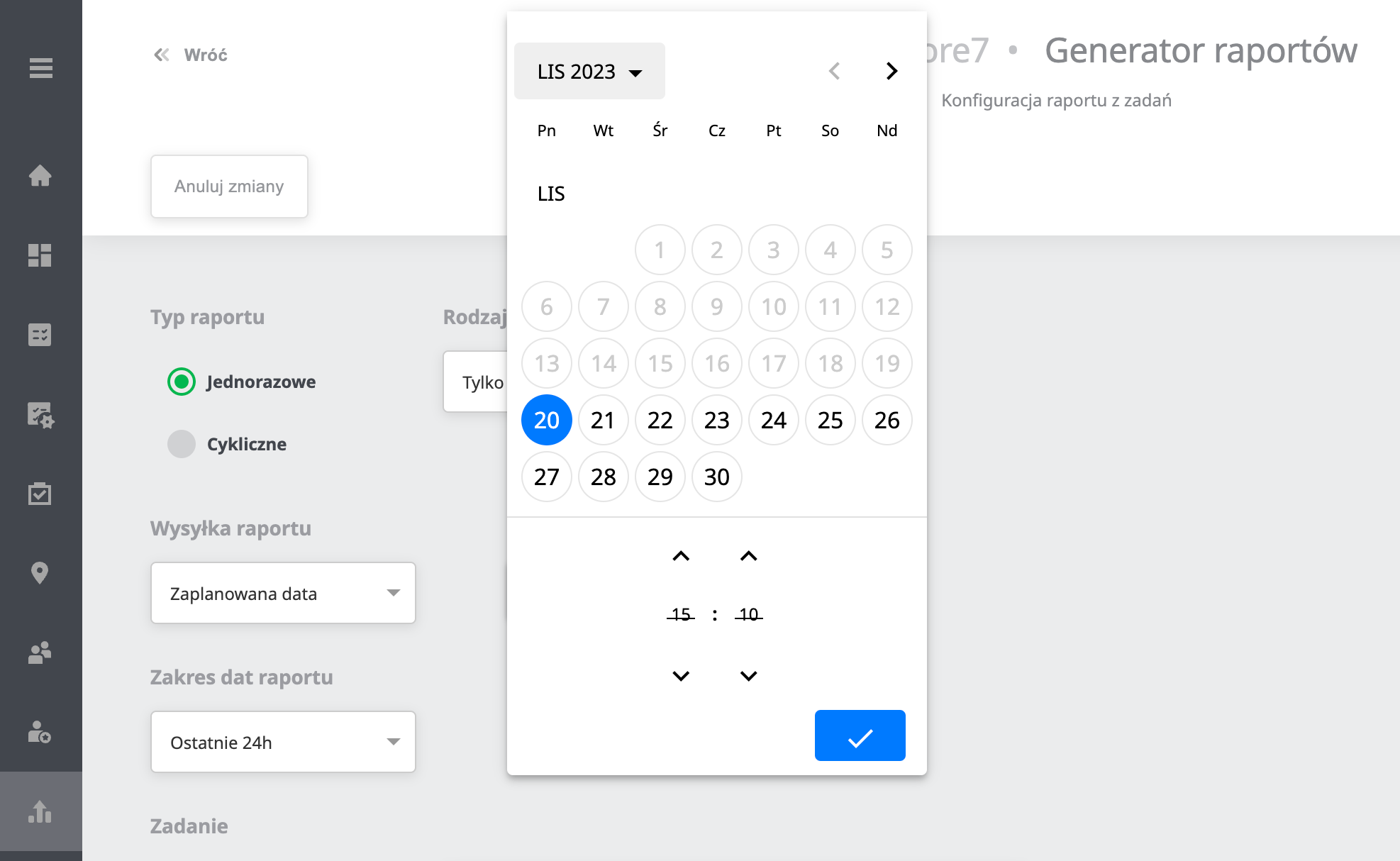
-
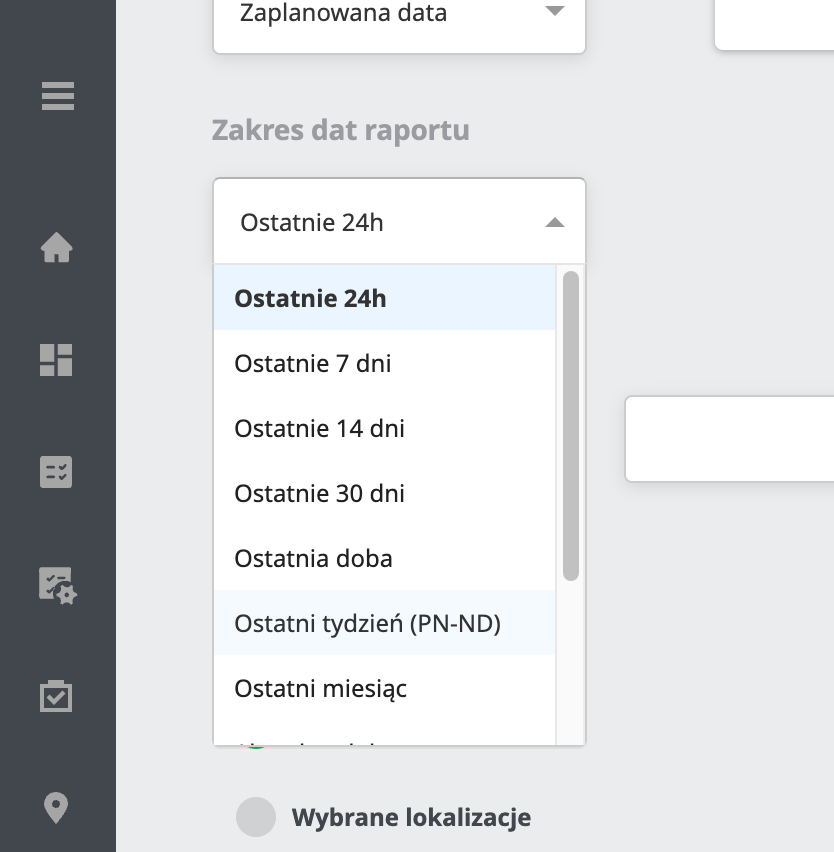
Another setting worth remembering is the Report date range. Choose the date range from which you want the report to be generated. The range applies to the moment the report is generated, so if you want
-
You can generate a scheduled report by selecting the task by its name or ID. A field for entering this data appears next to the selection.
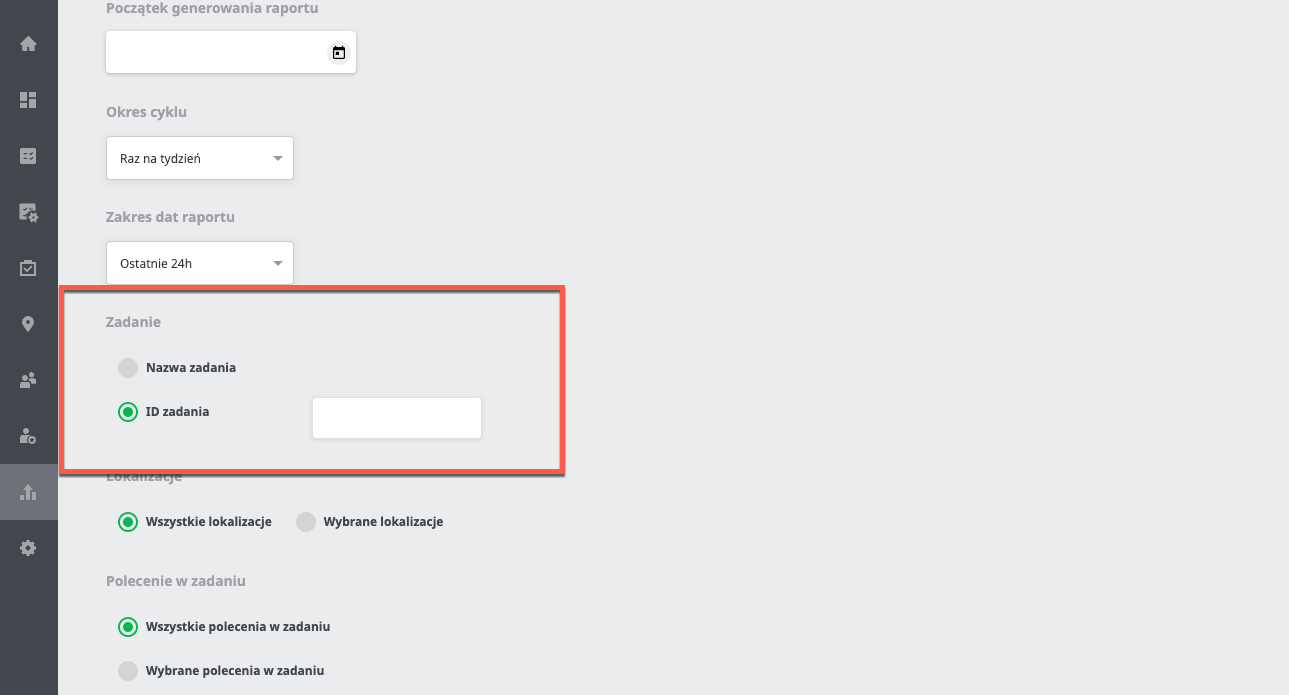
-
The last steps needed for the report to generate correctly are selecting the right options for the locations and commands in the task. With the last option, you can decide which columns the report should contain by default.