
Report - recurring
On this page
What is a recurring report used for?
As the name suggests, a recurring report is generated repeatedly according to the cycle settings. The following cycles are available in the panel:
- Daily
- Once a week
- Once every two weeks
- Once every 4 weeks
How to set up a recurring report?
To set up a recurring report, follow the steps below.
-
Log in to the web panel and then select the tile named Reports in the left menu bar. After clicking the tile directly or selecting New report from the list, the report generator view appears.
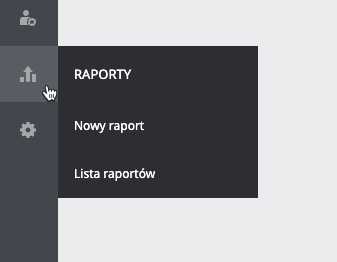
Reports tile view
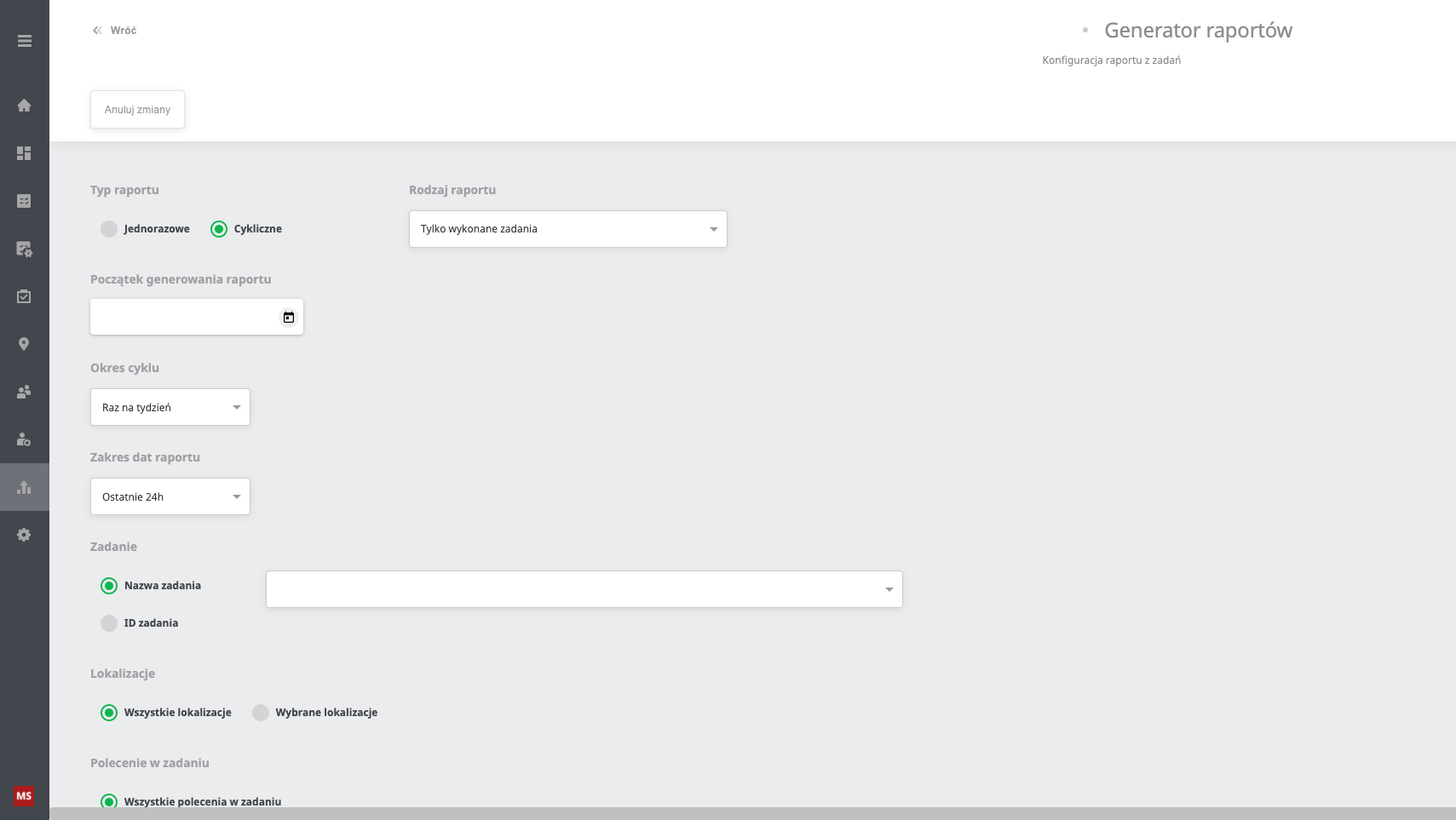
Report generator view
-
Start setting up the report by choosing its type. There are two types to choose from:
- One-time
- Recurring (select the Recurring option)
-
To the right of the report type selection is the Report kind. “Completed tasks only” is set by default, but you can also choose:
-
Incomplete recurring tasks
-
Duplicate command report
-
-
It is important to select the start date and time of report generation.
THERE IS NO END DATE FOR REPORT GENERATION; THE REPORT WILL BE GENERATED UNTIL IT IS DELETED IN THE REPORT LIST TAB.
After selecting the date and time of report generation, confirm your choice by clicking the blue tick at the bottom of the calendar, below the time.
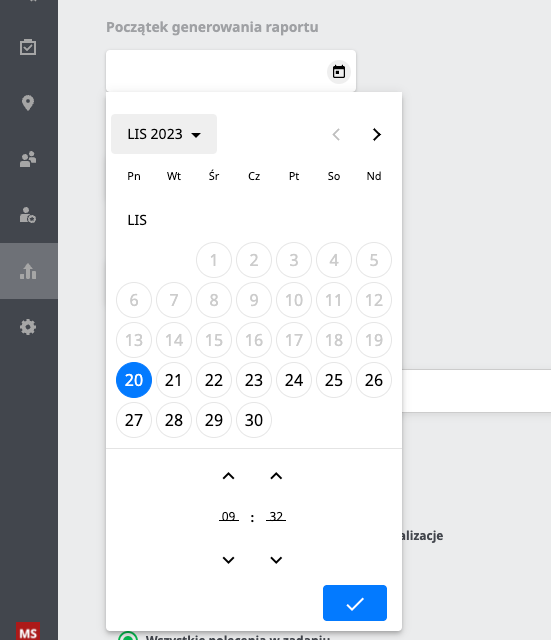
-
The next important step is choosing the cycle period. This setting determines how often the reports are generated.
-
There are 10 options to choose from in the report date range. You can choose a report from 24h up to 30 days. You can also choose the current day, week or month.
-
You can generate a recurring report by selecting the task by its name or ID. A field for entering this data appears next to the selection.
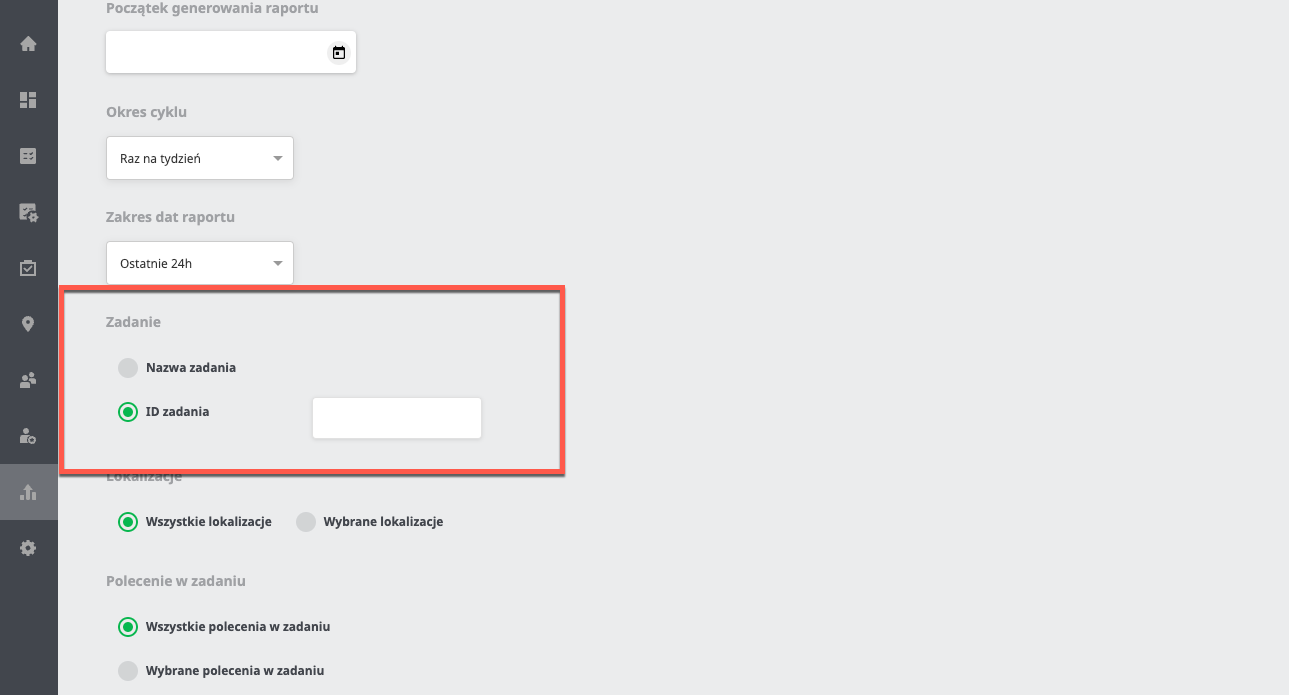
-
The last steps needed for the report to generate correctly are selecting the right options for the locations and commands in the task. With the last option, you can decide which default columns the report should contain.
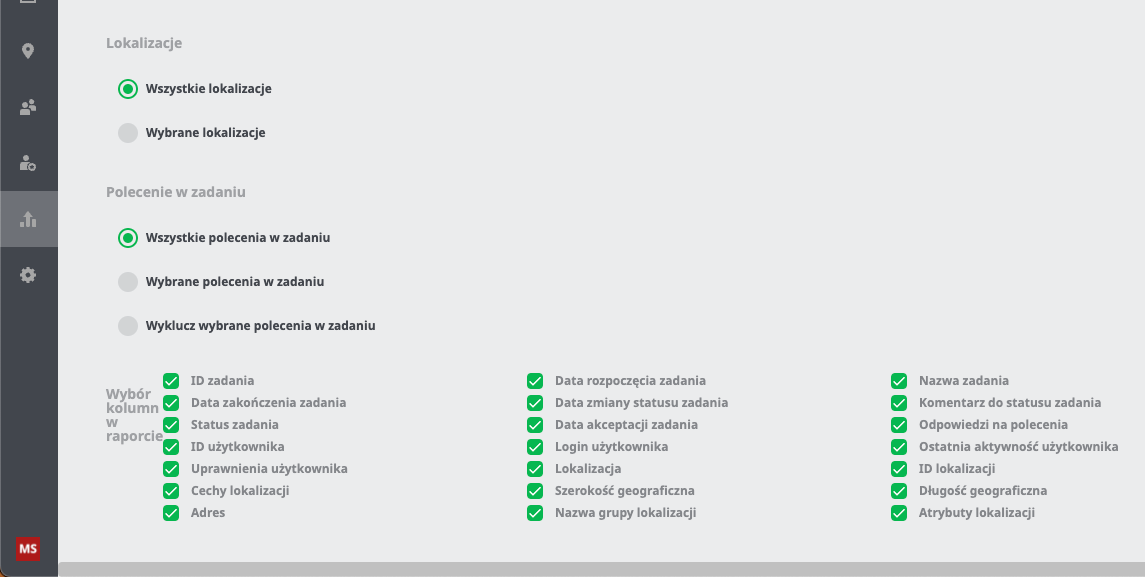
After completing the steps above, confirm your settings by clicking the Save report button in the top right corner.
How to delete a report?
When creating a report, you can set its start date but not its end date. In the Reports tab, after selecting report list, all created reports are shown. Clicking the bin button and then confirming your choice deletes the report and cancels its sending.
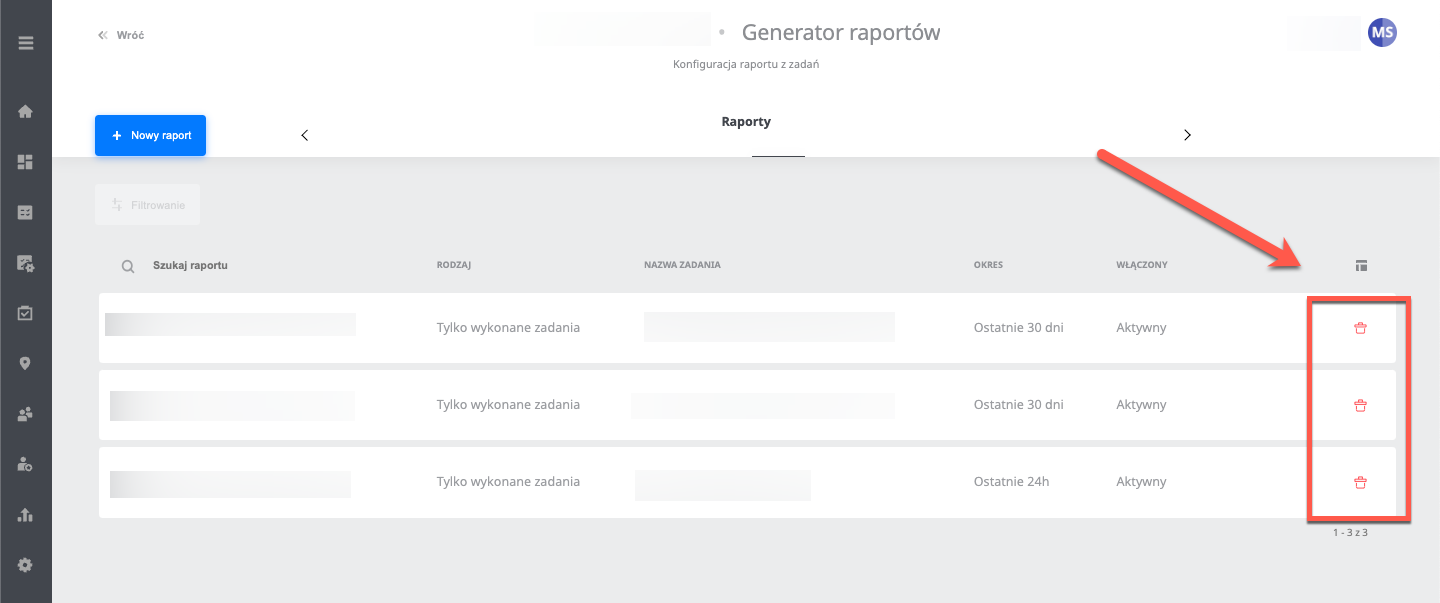
Report list view