
RTR (Real Time Recognition) command
On this page
The RTR (Real Time Recognition) command uses artificial intelligence to recognise specific objects.
Currently the RTR command can be used to read fuel prices from petrol station stanchions and to recognise prices on labels. The prices can be automatically sent to the customer’s system in the format required.
**Please Note:**This command is available only in certain instances.
You can read more about reading prices from thestanchions by usingRTR in the article.
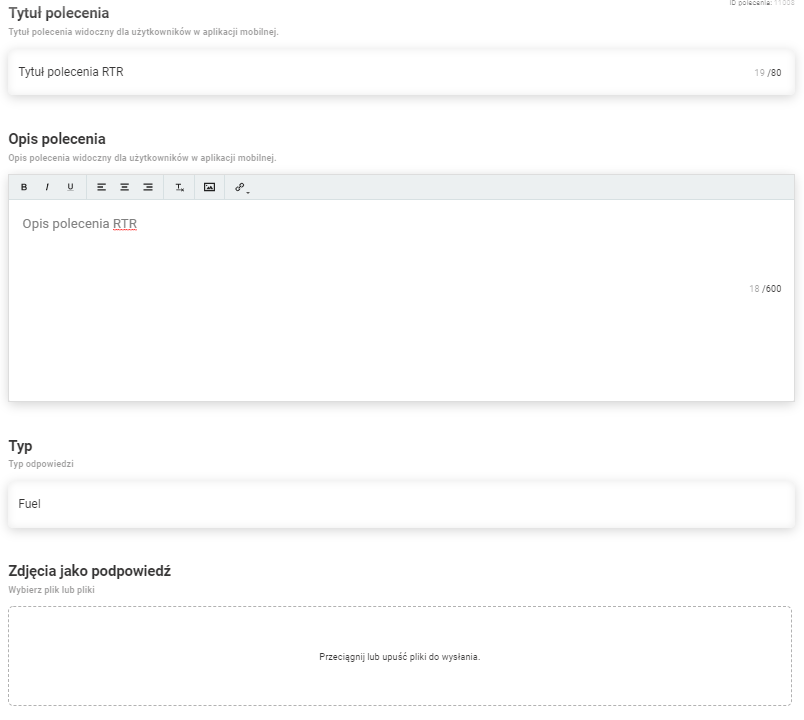
Parameters required for configuration:
- Command title (up to 80 characters)
- Command description (up to 600 characters)
- Type (type of recognized value)
- Photos as a hint
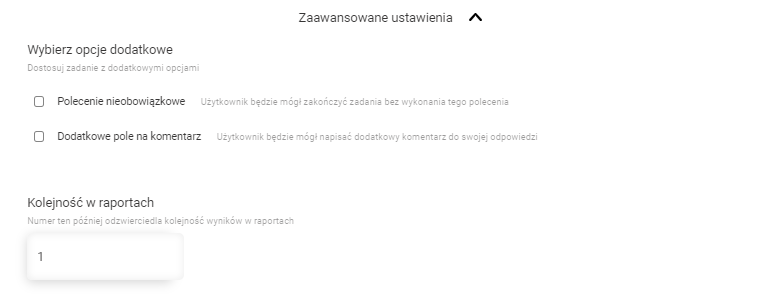
Advanced command settings:
- Optional command
- Additional comment field
- Order in raports
Process
The application works in a similar way for the following types: ScanWithoutEdit, ScanWithEdit, PhotoWithoutEdit and PhotoWithEdit. The process of user behaviour is the same. Only the way the prices are read (RTR and AI or AI), the way the photo is taken (from photo library or a photo taken with the camera in the app) and the possibility to edit the prices manually are changed.
The process for ScanWithoutEdit is presented below.
Price validation
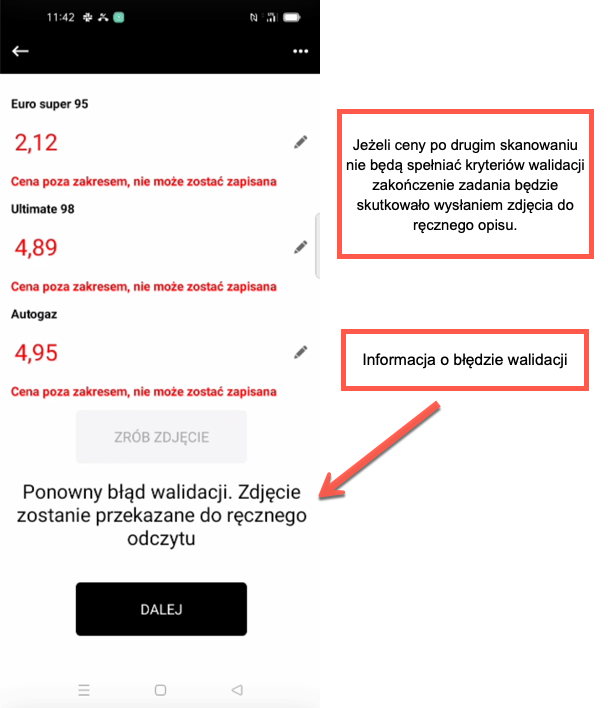
Price validation takes into the following parameters into account: Minimum price, Maximum price and Offset. Before scanning, it is necessary to configure products for a given location by describing them in the web panel. One of the parameters to be entered is the minimum and maximum price. Moreover, in a task where you use the RTR command, you should configure the Offset. Recognised prices should be in the +/- offset range from the average of the last three correctly sent scans.
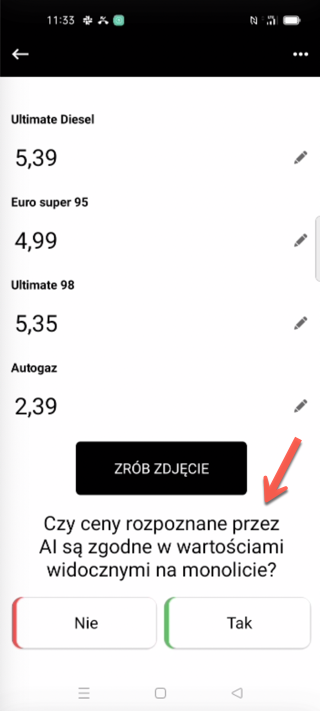
Information about price recognition
If all prices are recognised the message “Do the prices recognised by the AI match the values shown on the monolith?” will appear. Selecting NO takes you back to scanning, while YES accepts the command and proceeds to further commands/completion of the job.
If the price read in the mobile app does not fall within the above mentioned spreads then sending such a price will not be possible and will be marked red. The user will have to scan the price again, and in the case of another validation error, the message “Validation error information” from the Generator will appear in the input. After completing the task, the prices will be sent for manual description by TakeTask employees.
**Please Note:**The validation requirements work the same for each of the possible scan types, which are described below.
Type
After clicking on the “Type” input, the list of possible types of command action will appear