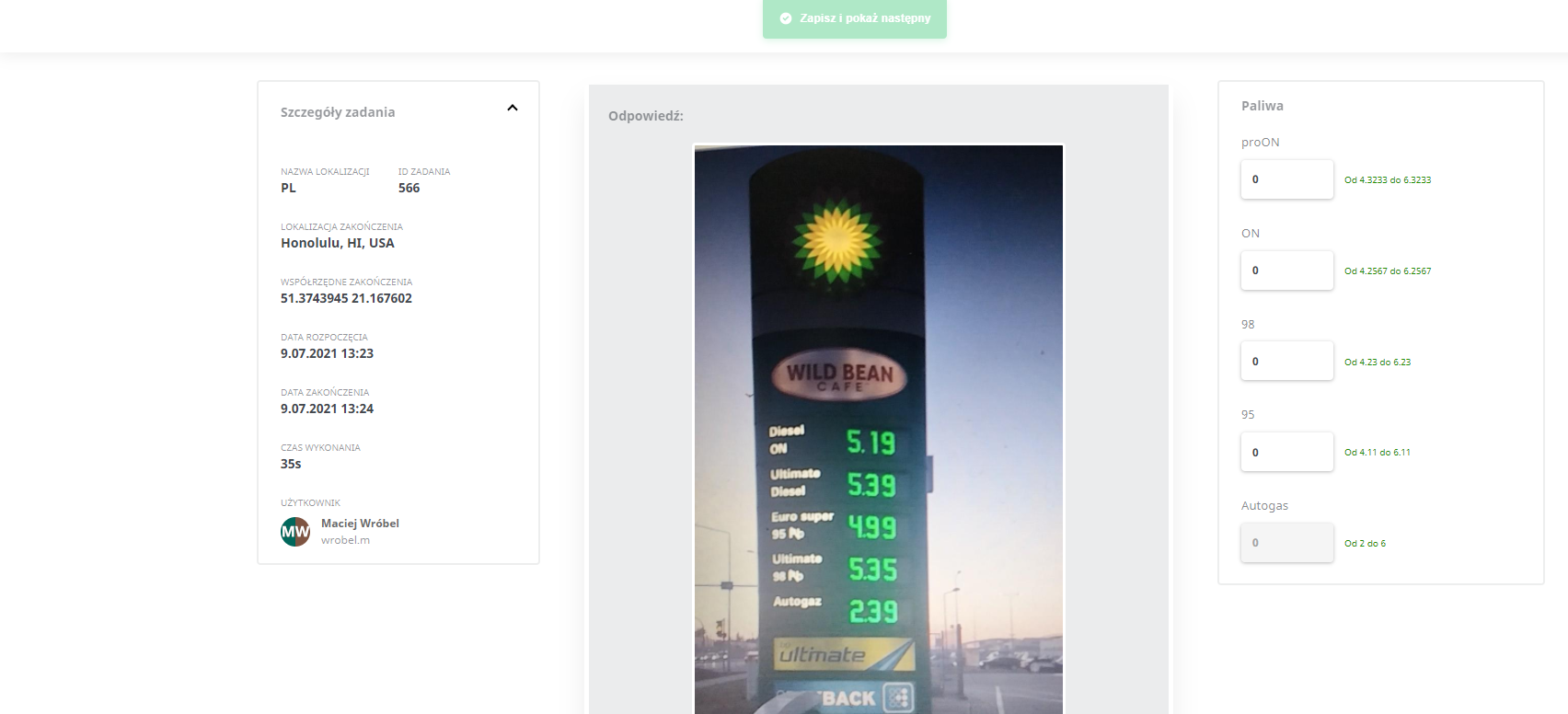
Fuels in location editing
This functionality is available within the task of scanning prices from price monoliths. To configure locations, select the Locations tab in the panel. Select the location group by clicking its name. The locations in that location group will be displayed. To enter the configuration of a given location, click “Edit Settings”. Then go to the fuels tab. A view like the one shown below should appear.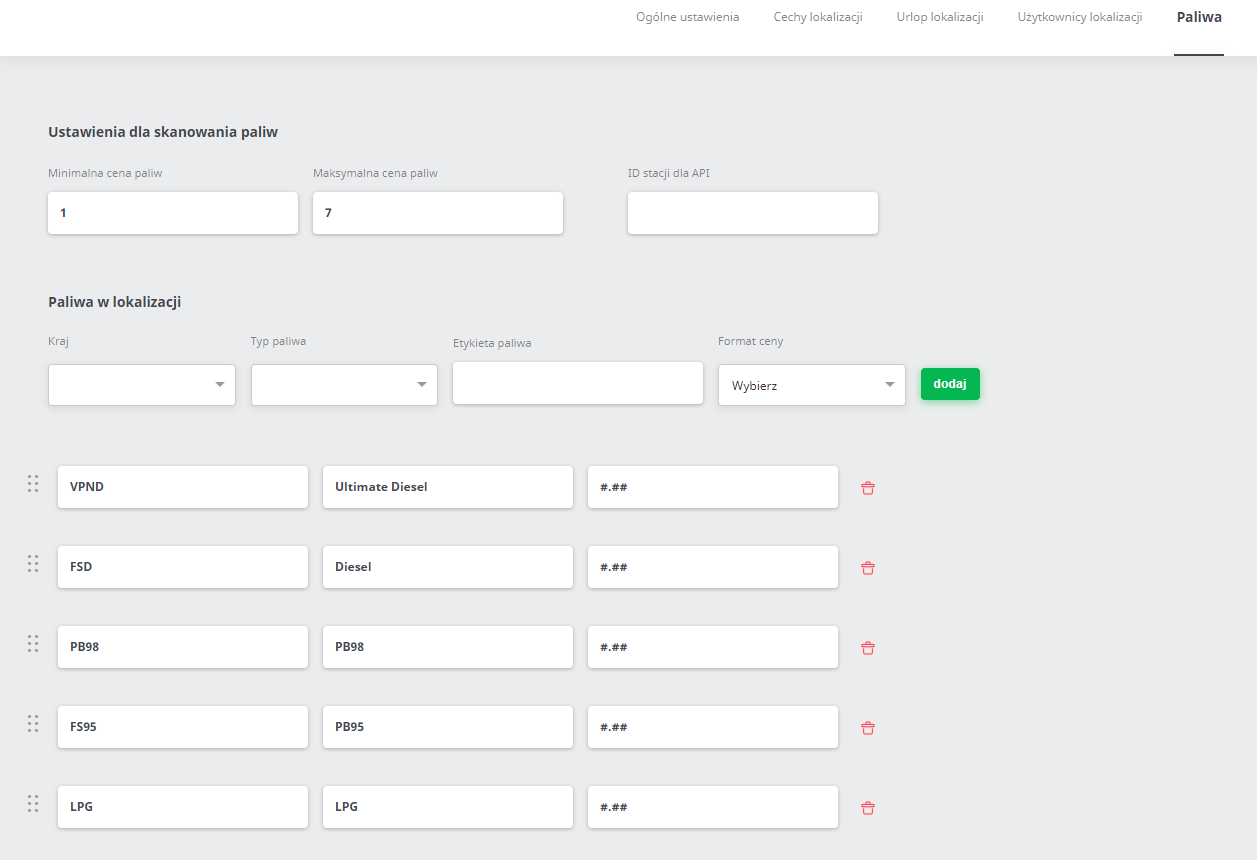
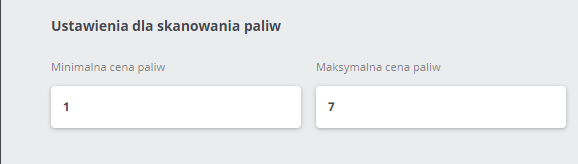
Settings for fuel scanning
As part of the configuration, you can set the minimum and maximum fuel price. Fuel prices below or above the specified price will be displayed in the application as a price validation error. The invisible price (described below) in the application, “Undefined”, may be above it - the application should not show an error for the invisible price.
Fuels in the location
To add a specific fuel type, first select the country from the drop-down list. Then select the fuel type. The fuel type is the technical name of the type of fuel. In the “Fuel label” field you can enter the name of the fuel type that will be displayed in the mobile application. Finally, select the price format for the given fuel. The price format is selected from a drop-down list. The prices read from the price monoliths must be selected from the drop-down list one by one, keeping the correct order (the first selection will be the price read from the top of the monolith).
Further down the panel, the number, kind and order of the fuel types appearing in the application in the given task are shown.
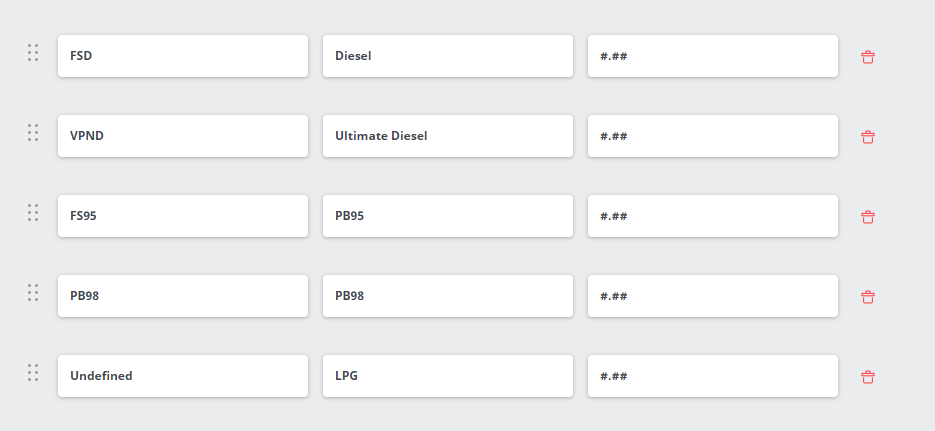
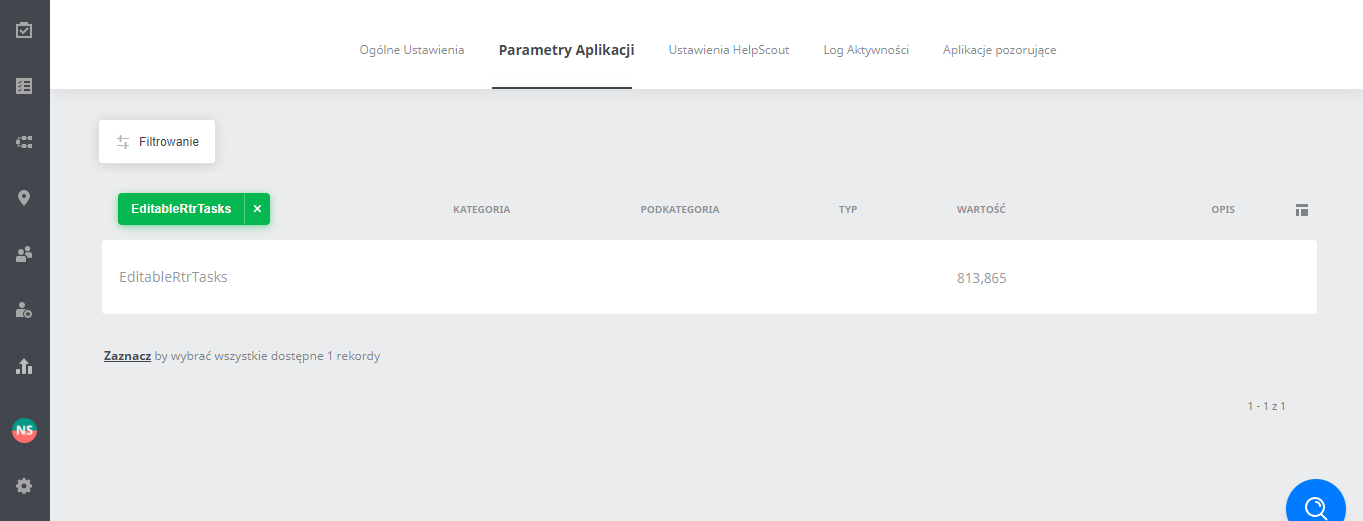
In the configuration, you can set a fuel type that will be neither read nor displayed in the mobile application. To do this, select “Undefined” from the drop-down list for the fuel type in the appropriate place (position in the order). Finally, select “Save” and go to the mobile application. After creating a new location, remember that the first 2 scanning attempts should be performed with the option of changing prices manually in the application. To do this, go to the Application Settings. Then to “Application Parameters”. Find “EditableRtrTasks” and in its value (editable after clicking the pencil), add the command ID in the task after a comma.
Mobile application
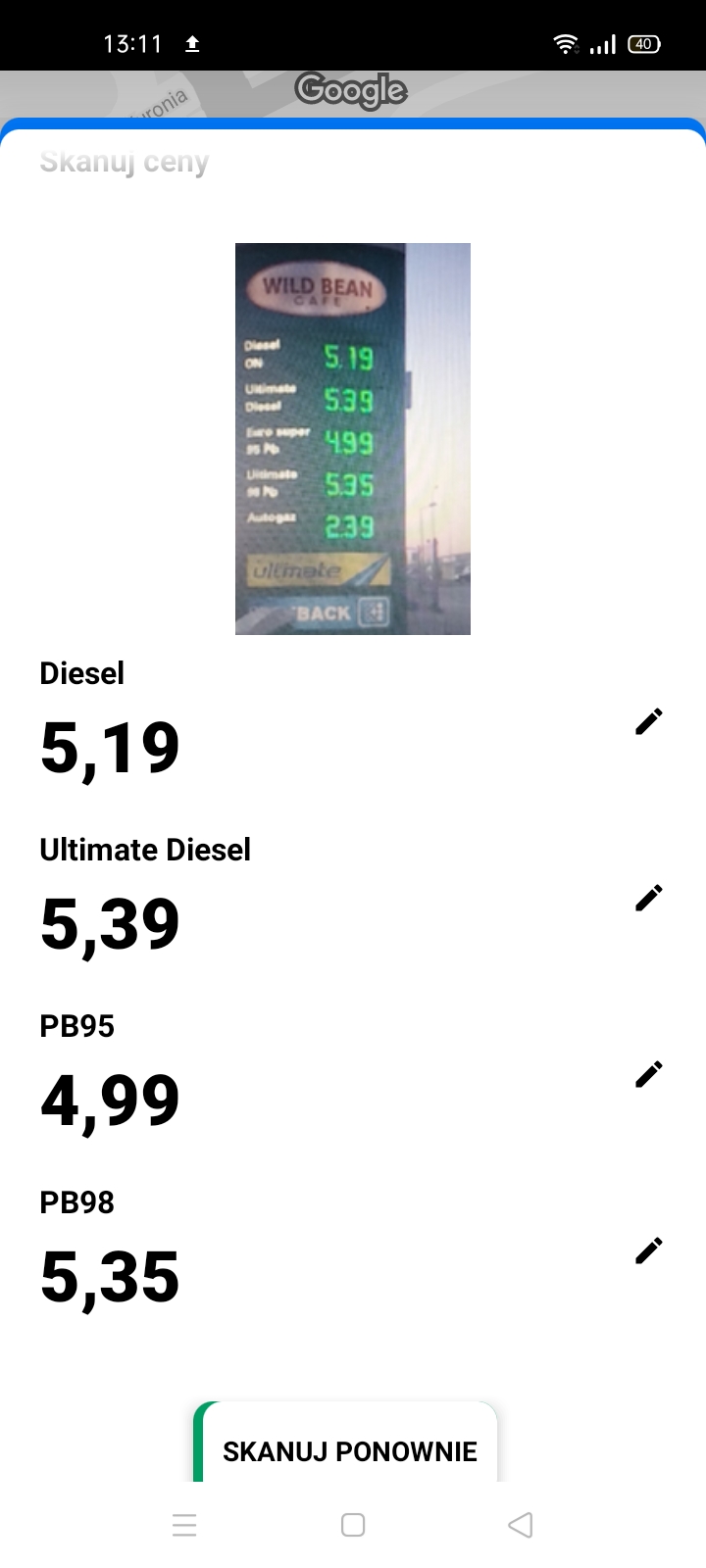
In the mobile application, the price marked as “Undefined” is not displayed. It is the last price on the monolith according to the order set in the location configuration. Prices can be changed manually, as shown below.
After the prices are sent Manually, the view below should be displayed on the task list. The price previously defined as “N/A” appears, but it cannot be edited - it is greyed out.