
Adding locations manually
Locations can be added manually in the location manager. To add a location, select the Locations section in the main menu (on the left-hand side). Then select the location group in which you want to create the new location and click New location. The user can also create a new location group. More on this here.
 After this step, the user will be taken to the location creation window.
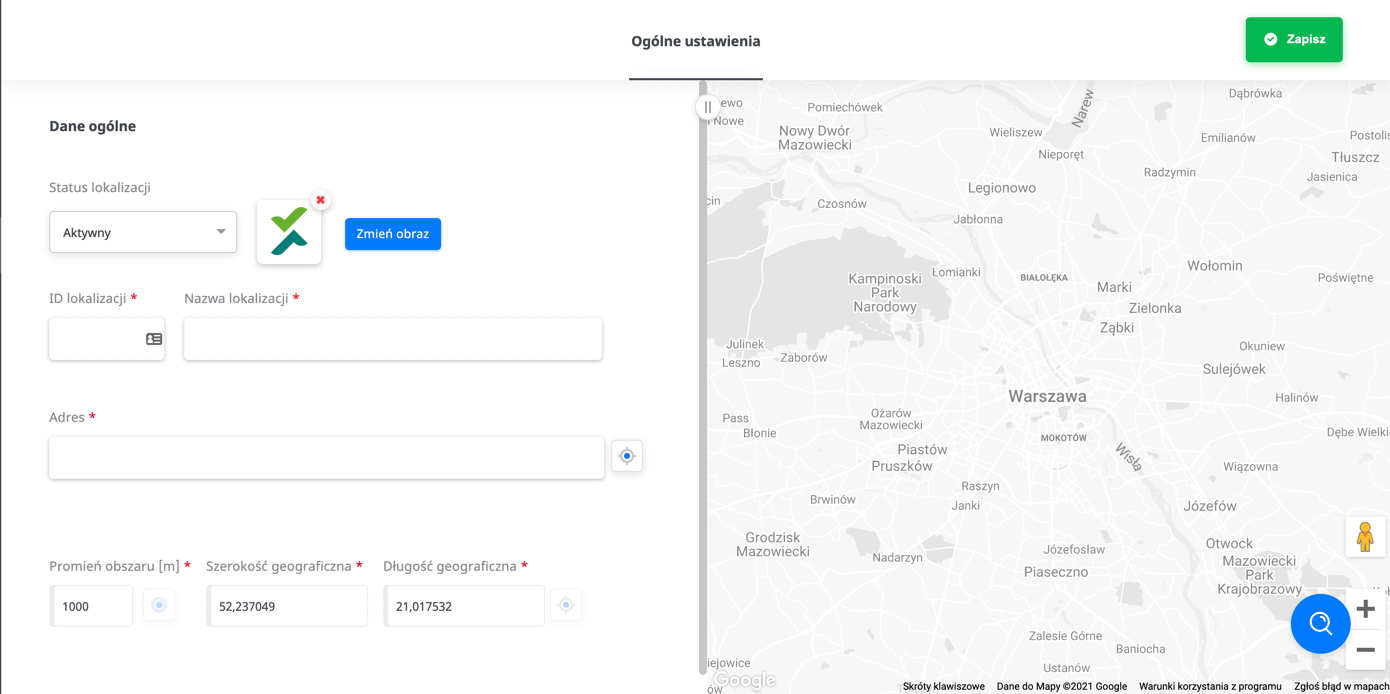
To create a location, the following sections must be filled in:
- Location status (active or inactive)
- Location ID
- Location name – the name of the place that is displayed in the application. You can enter your own location ID in this field.
- Address – the address of the location you want to add. Once added, it will be placed on the map. It is important that the address is described as precisely as possible, because the address entered is sent to the Google Maps API and the coordinates are set based on Google’s response. If the address is not precise enough, the Google Maps API may not return coordinates.
- Task area radius – the maximum distance, in metres, that the user may be from the location in order to start the task.
- Geographic coordinates of the location - latitude and longitude are filled in automatically once the location is entered.
IMPORTANT: The location name and address must not contain special characters other than: space, comma, minus, forward slash (slash). Otherwise some functions may not work correctly.
Notes:
- If the location address is XYZ and the pin on the map shows point A, moving the pin on the map does not change the address entered.
- Editing or deleting a location affects the entire location group - the changes will also apply in every other task in which this group is used.