
Photo evaluation task - reject and return
Direct superiors of stores can return incorrectly taken photos for correction. At the same time, they cannot simply reject a given photo, only accept it or reject and return it.
The function is supported only for a process in which the store takes only one photo in the given task.
This applies only to the first evaluation level. Higher levels can still accept or reject photos.
When evaluator 1 (level 1) returns a photo but the store does not correct it, the task receives the rejected status.
The same applies when the store takes a new, corrected photo, but evaluator 1 does not accept it during the cycle.
Example scenario:
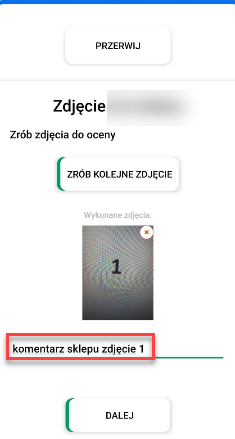
1. The store took a photo, added its comment and sent it for evaluation.
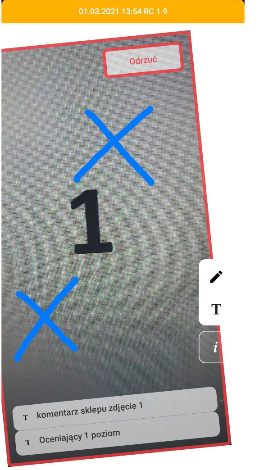
2. Evaluator 1 added their comment and a drawing, and then returned it for correction.
The view when returninghas not changed – when returning, we swipe left – “Reject”
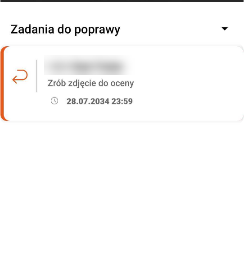
**3.**The store sees the returned task in the “Tasks to correct” tab.
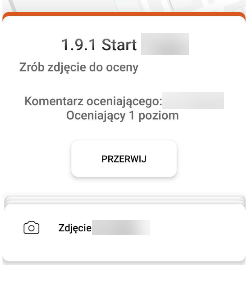
4. After opening the task we can see:
- The command
- The comment of the person who rejected and returned the photo, and their login
- An expandable section:
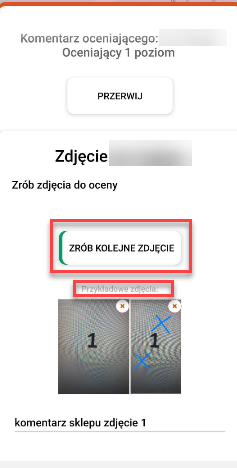
**5.**When we tap “Photo”, we can take a new photo by tapping “TAKE ANOTHER PHOTO”.
Under “Sample photos” the following are visible:
- the photo taken by the store
- the photo with the evaluator’s drawing
IMPORTANT - if we delete any of the sample photos, it will not be visible later in task verification in the panel. The plan is for the entire history of the completed task to be available there (verification in the panel). Only the NEW photo taken goes to the evaluator.
6. Then the store adds a new photo. It can also edit its previous comment.
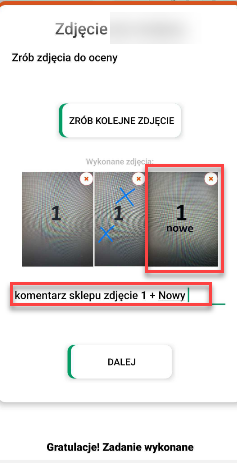
7. Evaluator 1 receives the new photo taken by the store. Again, they can return or accept it.
Evaluator 1 accepts the photo, which goes to Evaluator 2.Configuration
- In the application settings tab, go to Application Parameters.
2 Then search for the parameter: RatePhotosReturnWhenRejectedTaskIds.
- In the value column, enter the IDs of the tasks for which returning instead of rejecting should be enabled (tasks in which photos are taken).
