
MFA login
On this page
What is MFA for?
Multi-factor authentication (MFA) provides additional protection when logging in. When gaining access, users complete an additional identity verification step, for example entering a code received from an authenticator app.
Where and how to download the MFA app?
The app is available on both Android and iOS. To download an authenticator app, go to Google Play (on iOS - the App Store) and type phrases such as MFA, Authenticator or Authorization into the search field.
Example and recommended apps:
- Google Authenticator
- Microsoft Authenticator
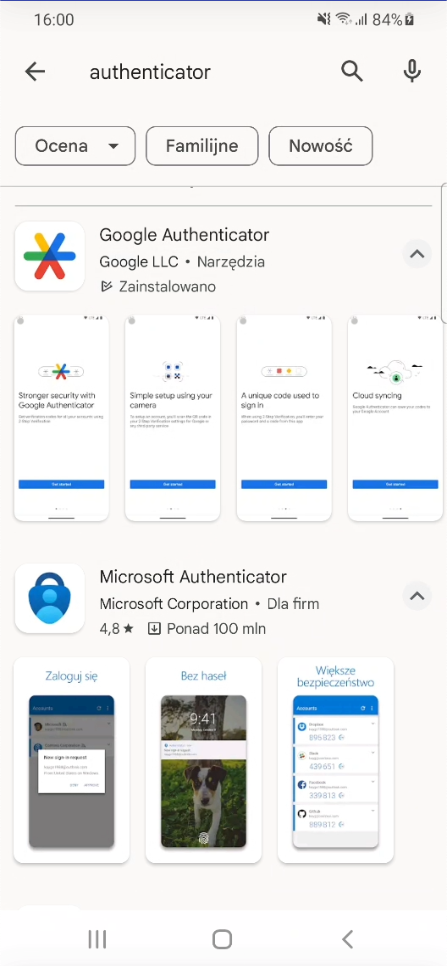
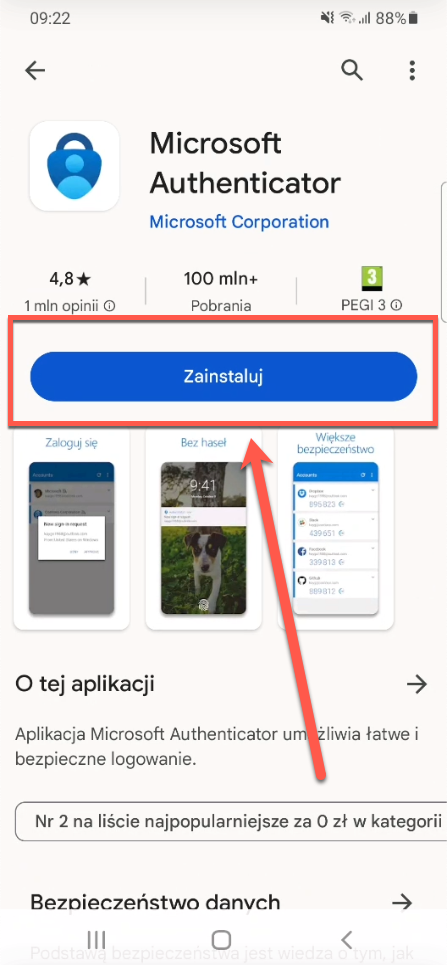
After finding the right app and tapping Install/Get, the app will be installed on your phone.
First login with MFA on Mobile
-
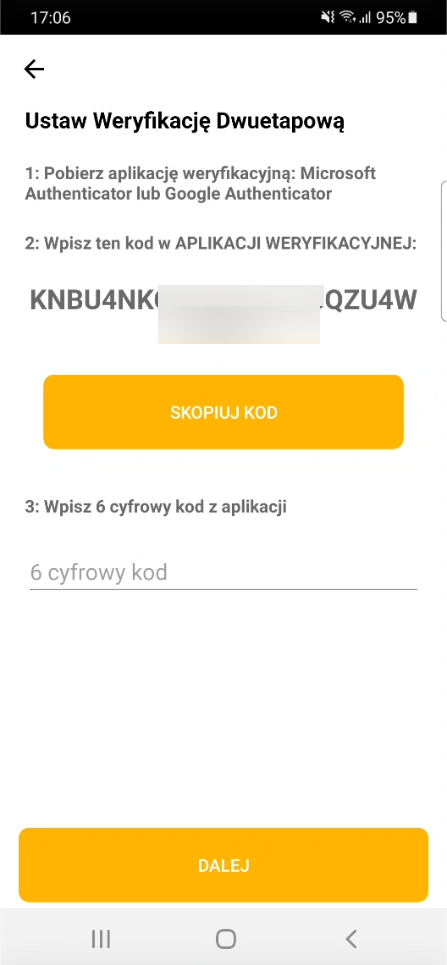
After you open the TakeTask application and enter your login and password, an additional message appears if two-step authentication is required. The TakeTask application will ask you to set up two-step verification.
-
Add the code to the authenticator app you downloaded earlier.
To do this:
-
tap the Copy code button and then minimise the TakeTask application (the middle button at the very bottom of the phone screen)
-
open the authenticator app,
-
tap add code and then select the Enter a setup key option.
-
When the Enter account details screen appears, paste the previously copied code into the field
Your key and enter the account name in the field above.
After completing the steps above, the authenticator app will display a six-digit code that you must enter each time you log in to the TakeTask application.
First login with MFA on Web
-
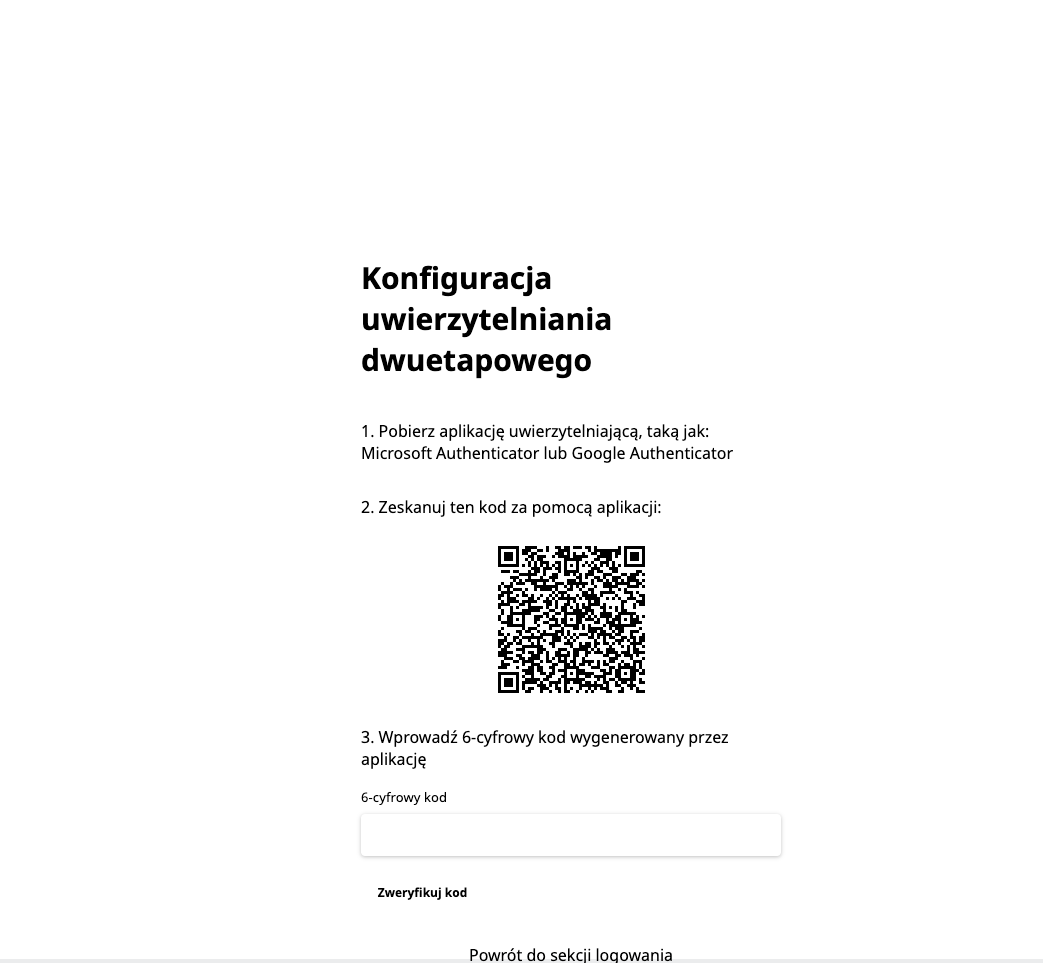
After you open the TakeTask panel in a browser and enter your login and password, an additional message appears. The application will ask you to configure two-step authentication.
-
Scan the QR code with the authenticator app you downloaded earlier.
To do this:
-
open the authenticator app and tap Add code
-
when the account setup screen appears, select the Scan a QR code button. In this case the account is added automatically and there is no need to enter the account name manually.
-
After completing the steps above, the authenticator app will display a six-digit code that you must enter each time you log in to the TakeTask application.
Subsequent logins with MFA
Subsequent logins to the mobile or web application look different from the first login with MFA. A user who has already added an authenticator app does not need to repeat this step (creating the MFA account is a one-time action).
When you try to log in to the application and enter your login and password, the application moves to the next view, where it asks for the six-digit code from the authenticator app.
After entering the code, click the Next button.
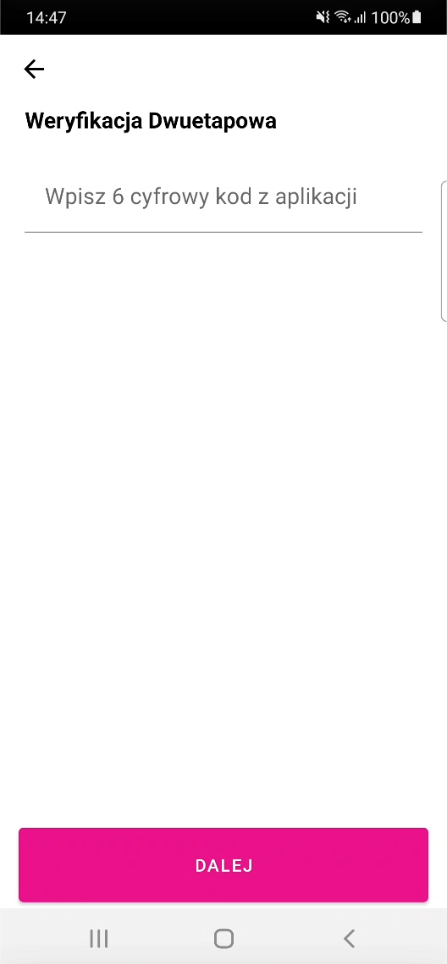
Code verification step in the mobile application
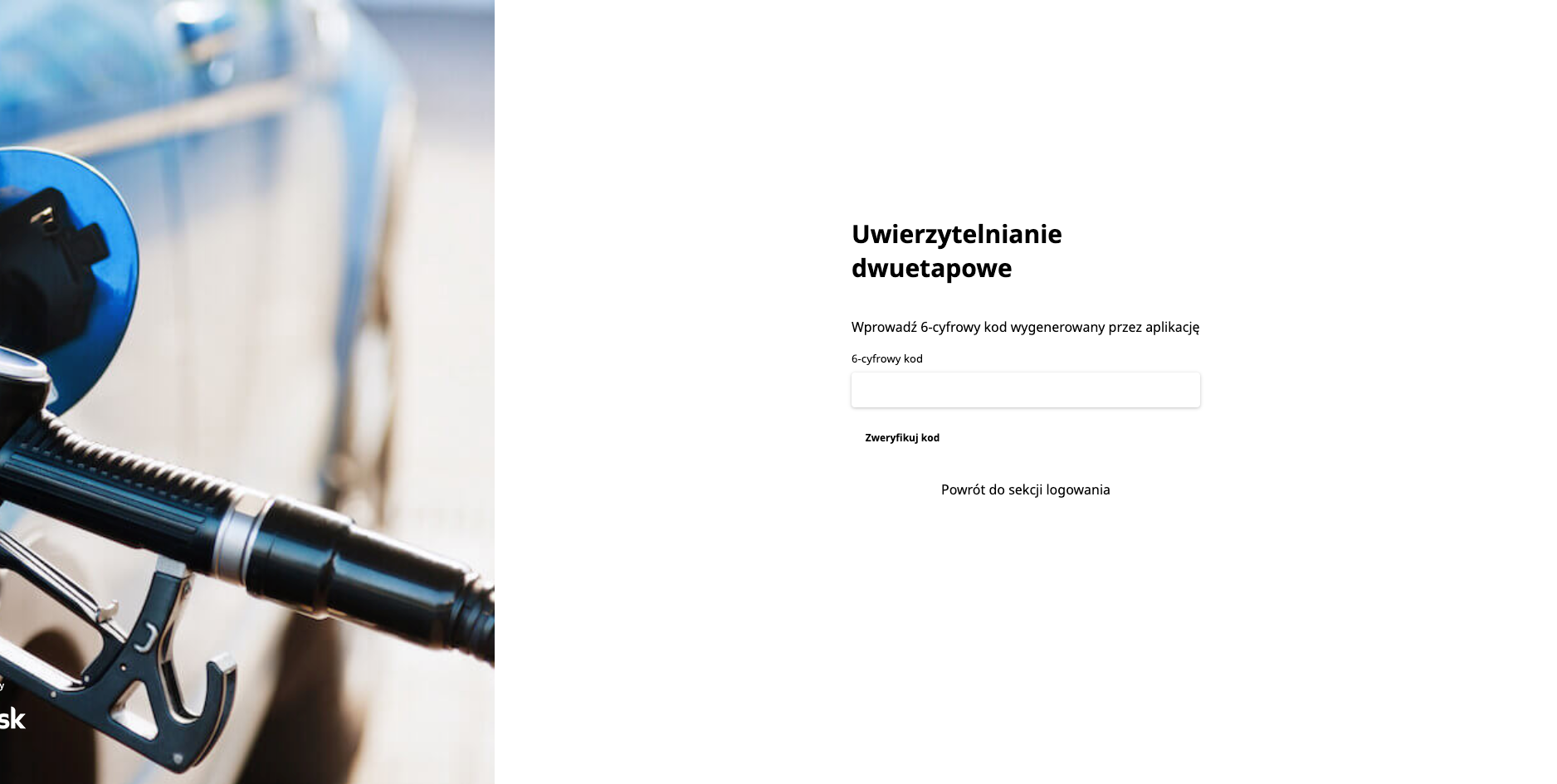
Code verification step in the web panel
Adding another authenticator app
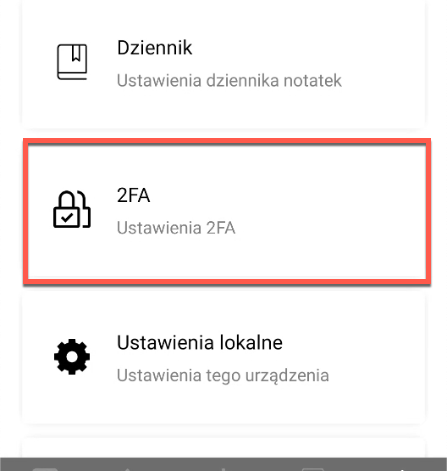
The option to add another MFA app to a user account lets several people use the same account on different devices. Each person logging in to the application has their own authenticator app and does not need to ask anyone else for the code.
To add another MFA app:
- log in and open the web panel
- go to your user account profile (top right corner of the screen)
- in the user profile, below your details, there is a section for adding another authenticator app
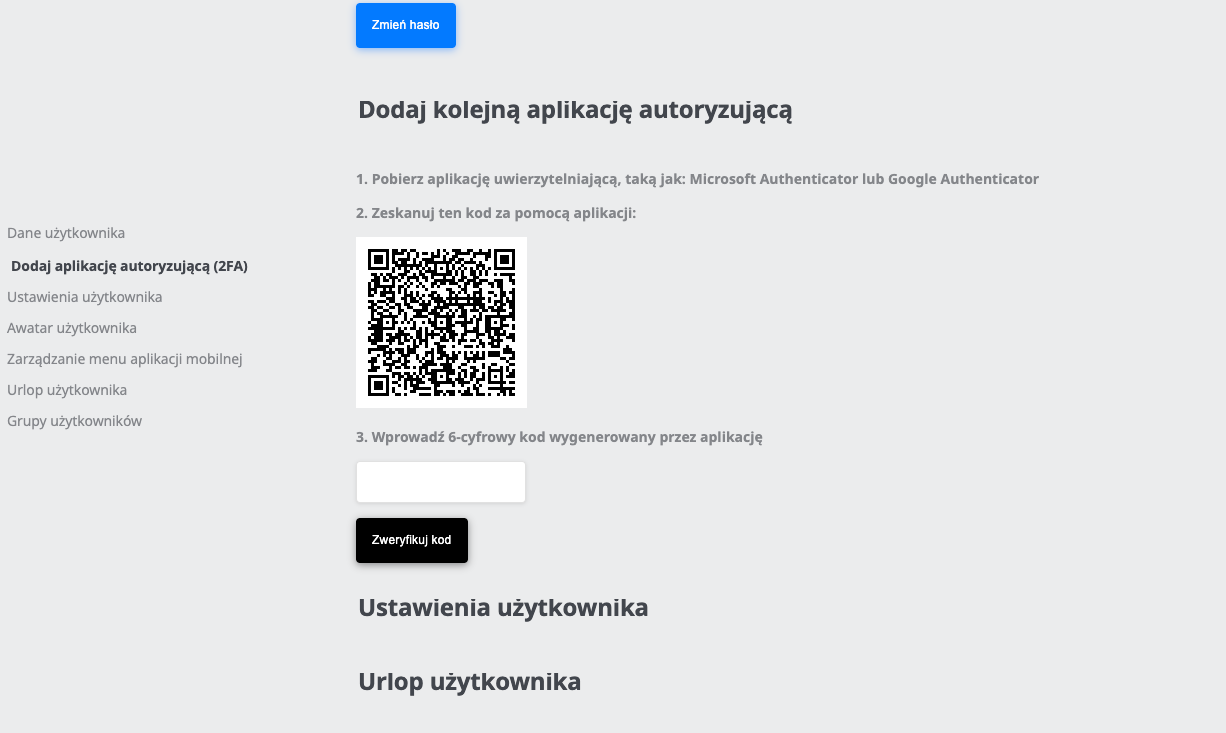
To add another MFA app using the mobile application, go to the More tab and then select 2FA.
How to turn on MFA? - Administration
To turn on MFA in the application:
- in the panel, select the Settings tab and then Application configuration
- in the Application parameters, find the TFAEnabled parameter and turn it on by clicking the slider
To log in with MFA, log out of the panel/application and then follow the instructions.