Journal
On this page
Using the Journal
The Journal is a feature of the mobile application used to create simple to-do tasks and lists, such as a shopping list.
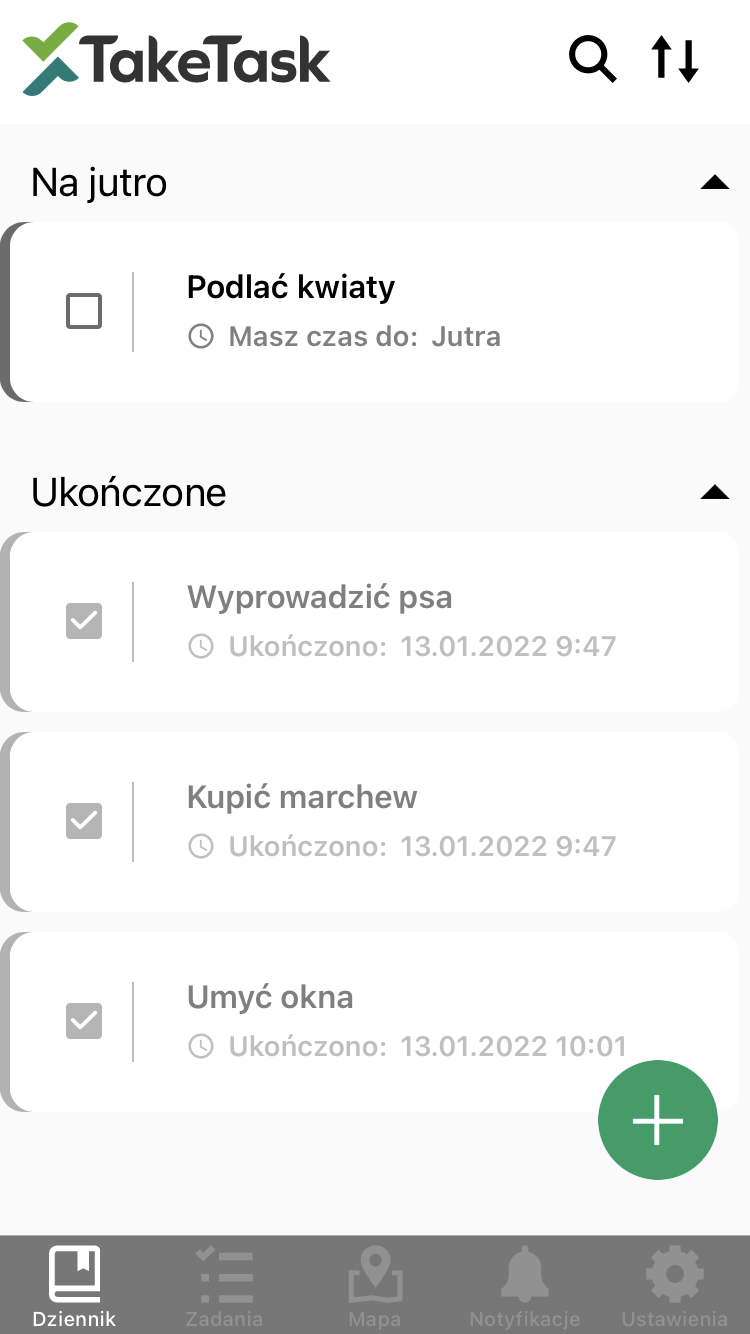
Journal screen view
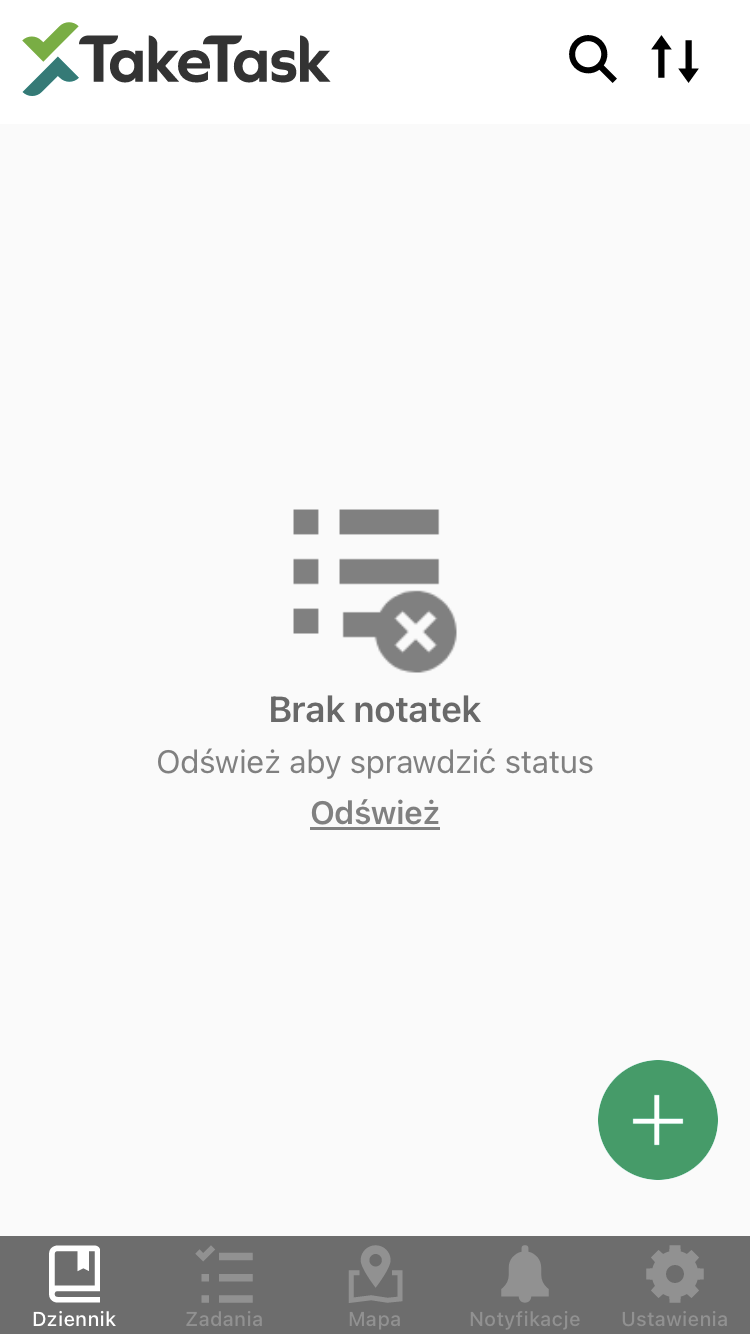
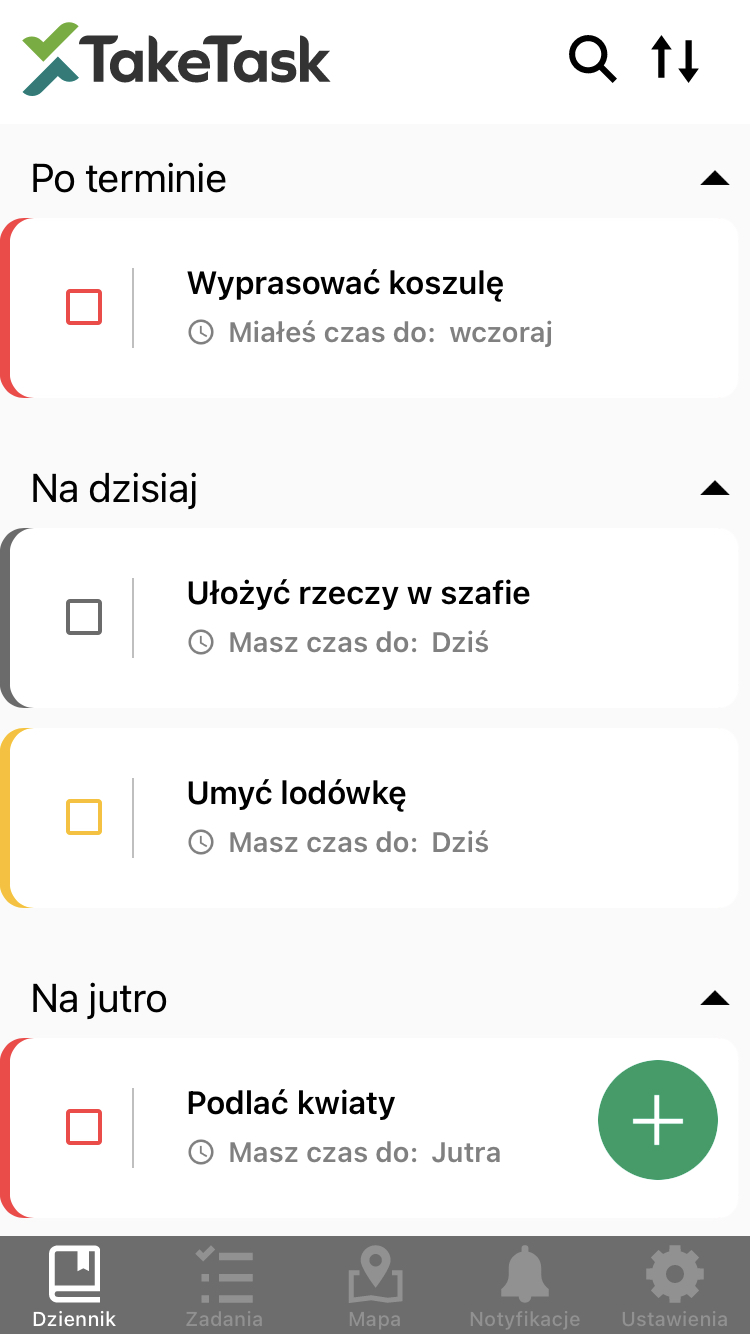
The screen view appears after you open the Journal tab, which is available on the bottom tab bar once you have launched and logged in to the application. If the tab is not visible and you want to use this feature, contact your application administrator.
Adding tasks/notes
Adding a single note
To add a task/note, tap the round green button with a white cross in the middle, located on the right at the bottom of the Journal view. After tapping this button, the following view appears:
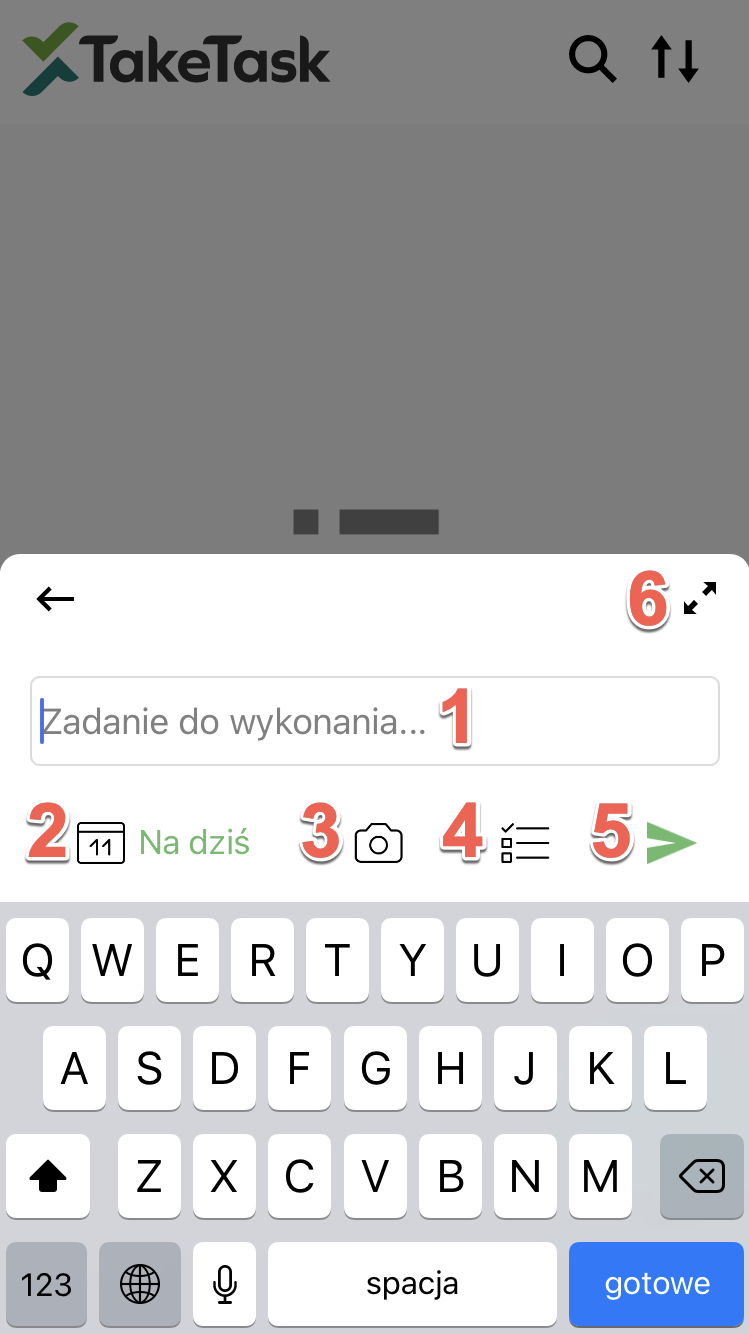
- Task title and description field
- Task end date selection
- Button for adding or taking a photo that will be attached to the task
- Button that turns on the mode for adding multiple tasks at once
- Button for adding the task
- Full task editing mode
Adding multiple notes at once
You can also switch to a mode for adding multiple tasks one after another without having to open the window after each task. To switch to this mode, tap the button marked with the number 4 in the image below.
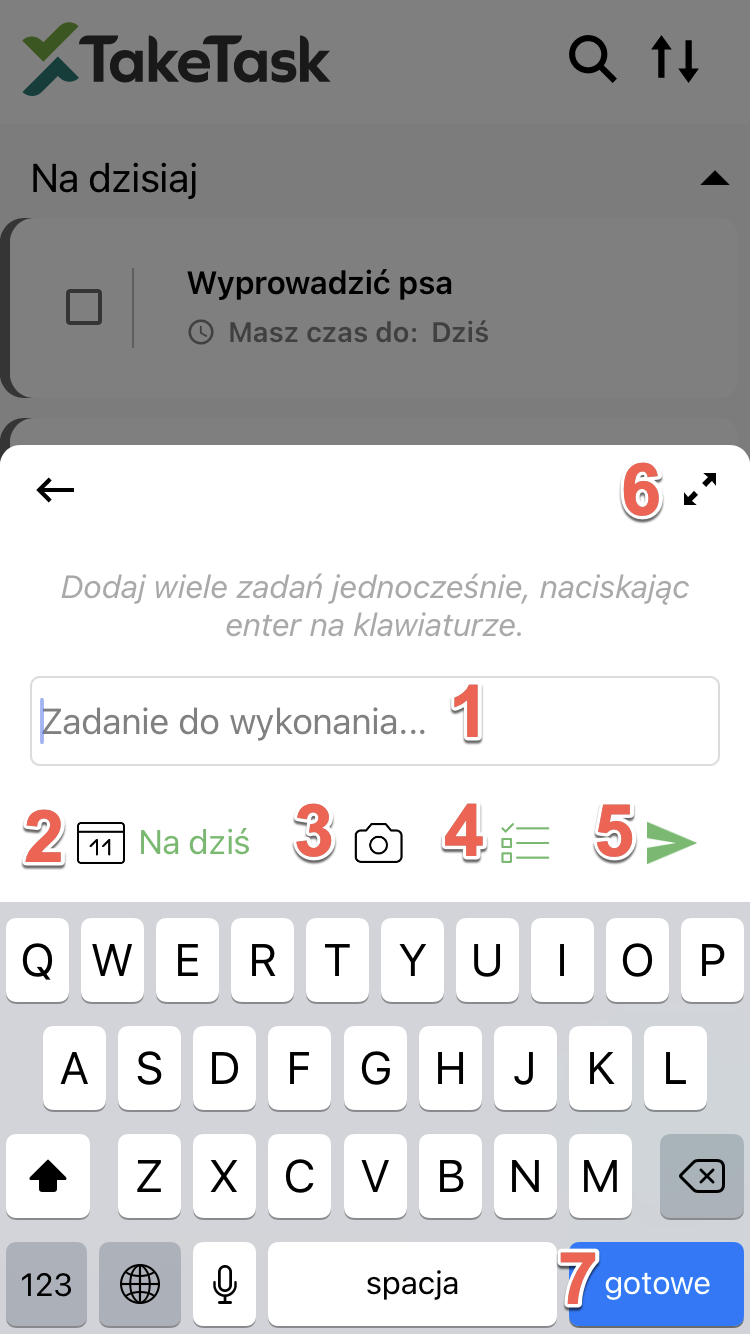
- Task title and description field
- Task end date selection
- Button for adding or taking a photo that will be attached to the task
- Button that turns on the mode for adding multiple tasks at once
- Button for creating the added tasks
- Full task editing mode
- Button for adding another task/note (the button may differ depending on the phone model)
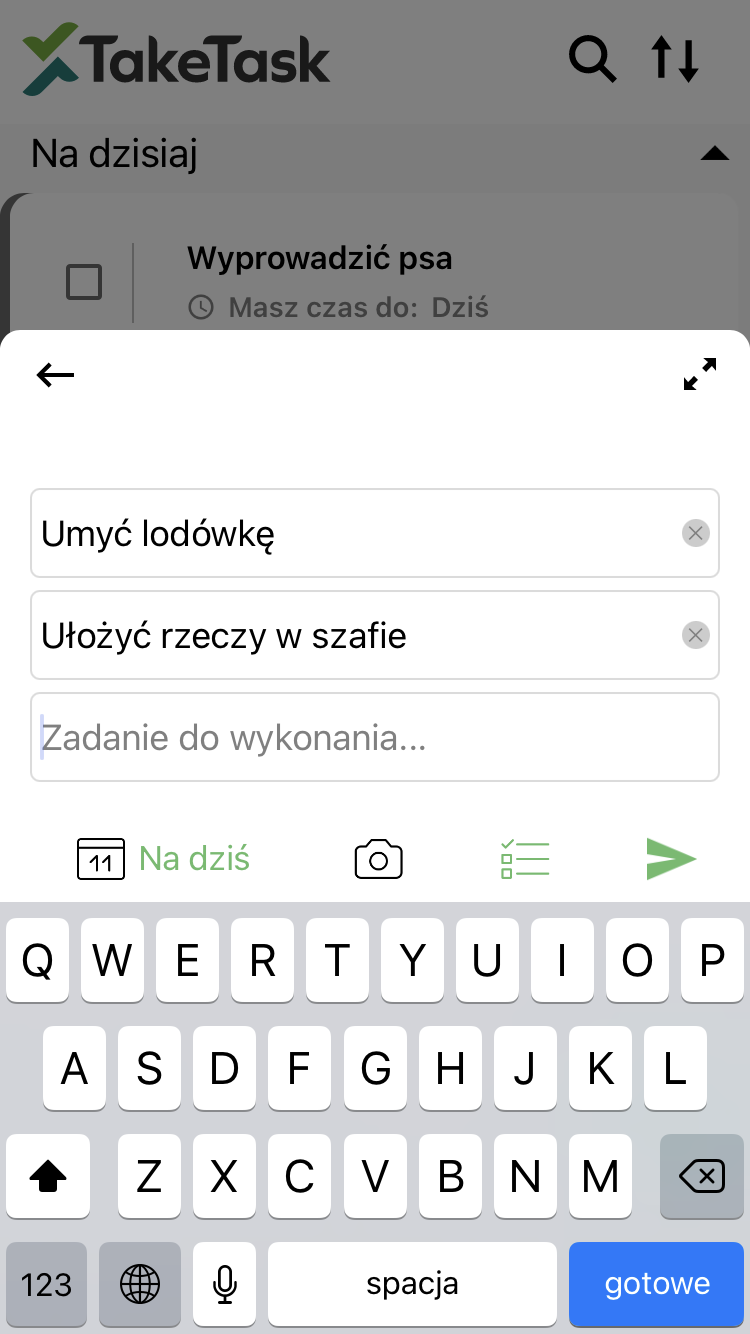
When adding multiple tasks/notes at once, the following view appears:
After tapping the Done/Enter button, a new field for adding another task always appears. To finish adding multiple tasks, tap the button marked with the number 5 in the screenshot above.
Full task editing mode
The application also lets you set additional task parameters in the full task editing mode, available after tapping the arrows in the top right corner of the basic task adding mode. After tapping this button, the full mode opens, where you can set additional variables and, for example, add a note or a drawing on the photo attached to the task.
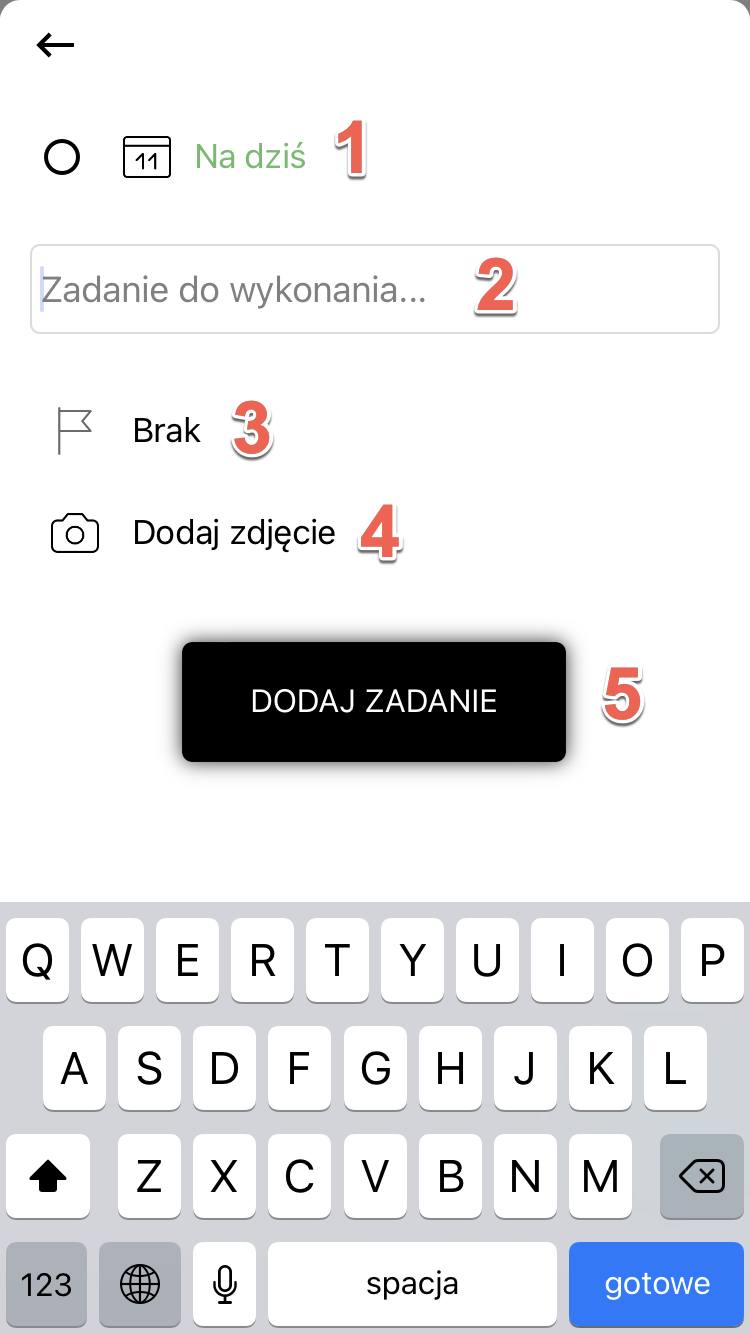
- Task end date selection
- Task title and description field
- Priority selection (none - grey, high - yellow, urgent - red)
- Button for adding or taking a photo that will be attached to the task
- Button for adding the task
How to mark a task as done
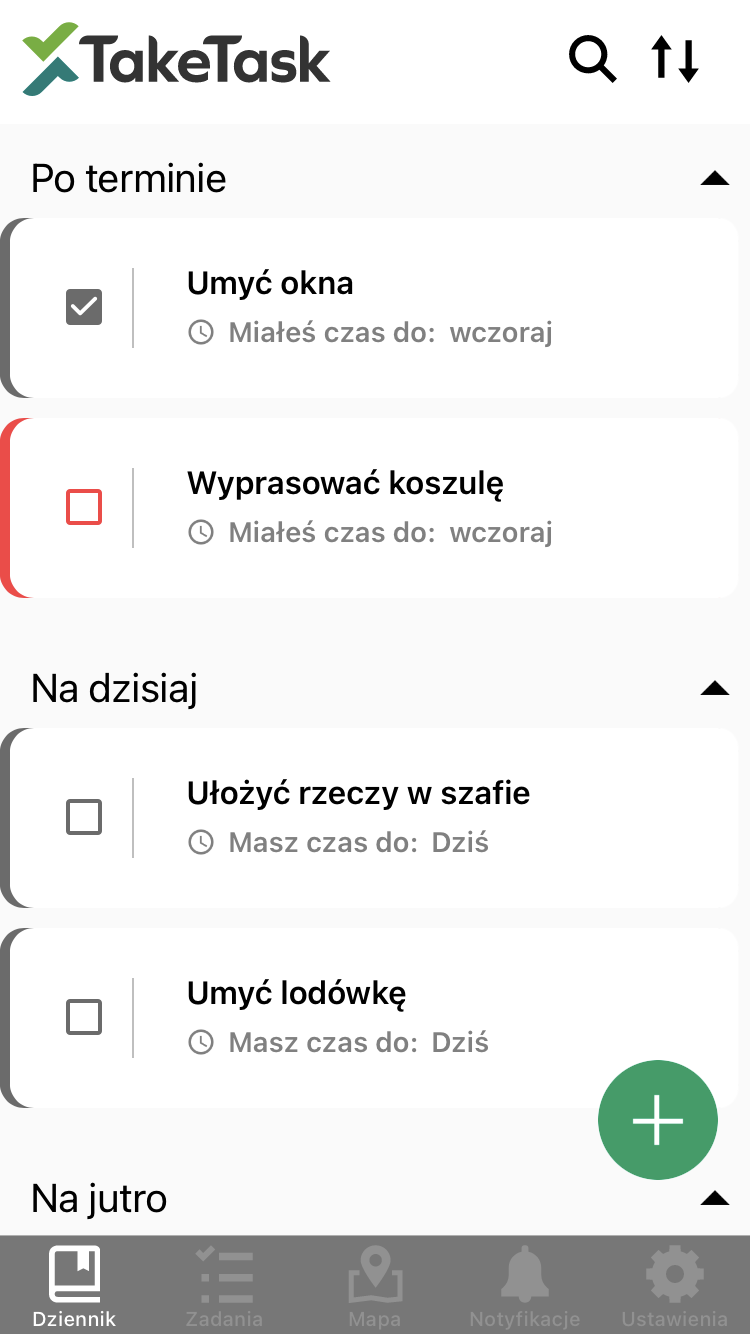 To mark a task as done, tap the small square on the left side of the screen in front of each task. The box gets a tick, and the whole task is then moved to the Completed section at the very bottom of the task list.
Settings
The journal/notes feature has a number of settings. They are available in the mobile application after opening the Settings tab on the bottom bar.
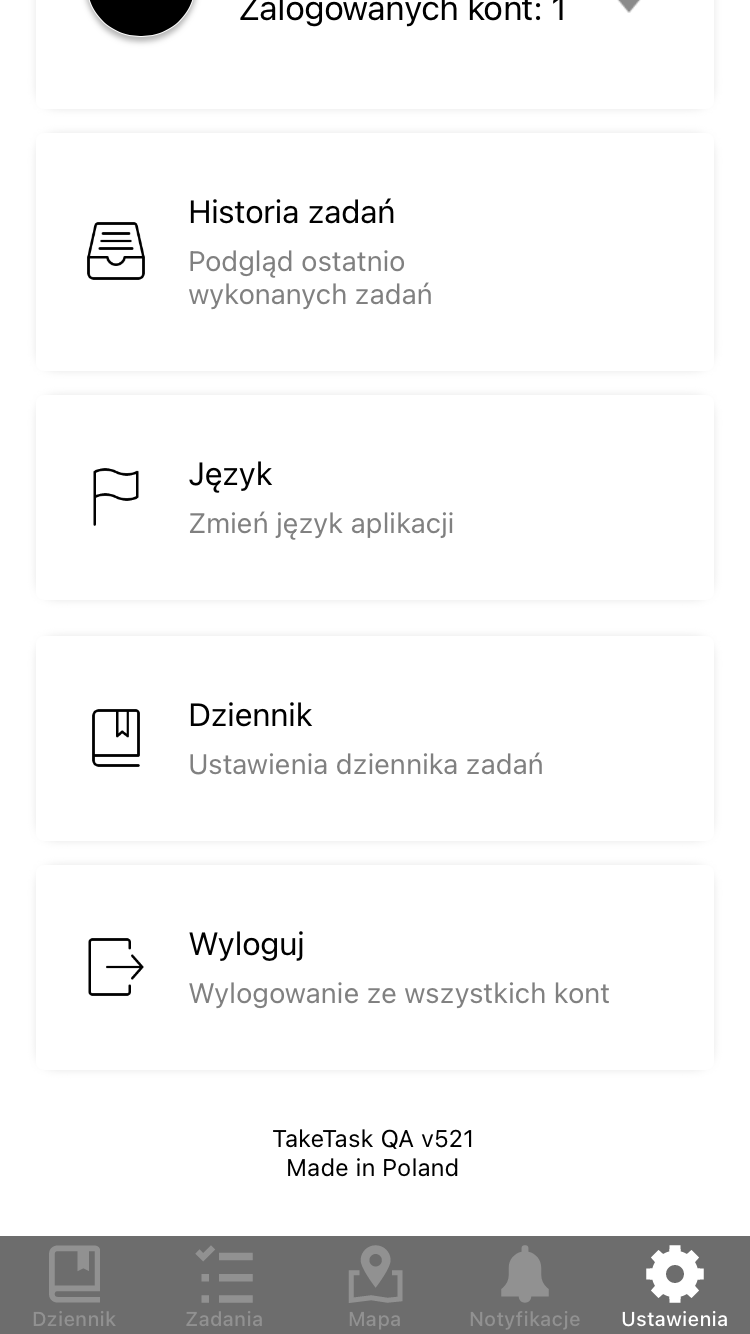
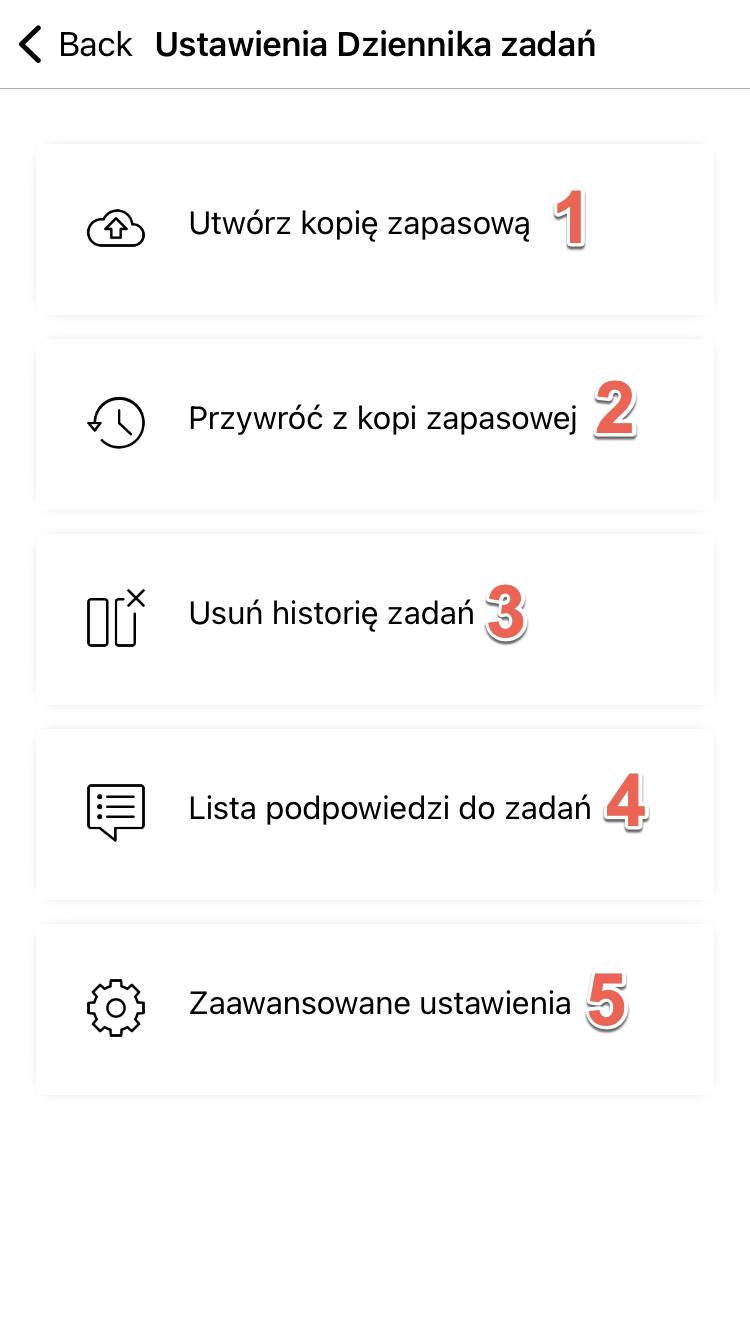
The Settings tab contains a journal settings section. After selecting this section, the following view appears:
-
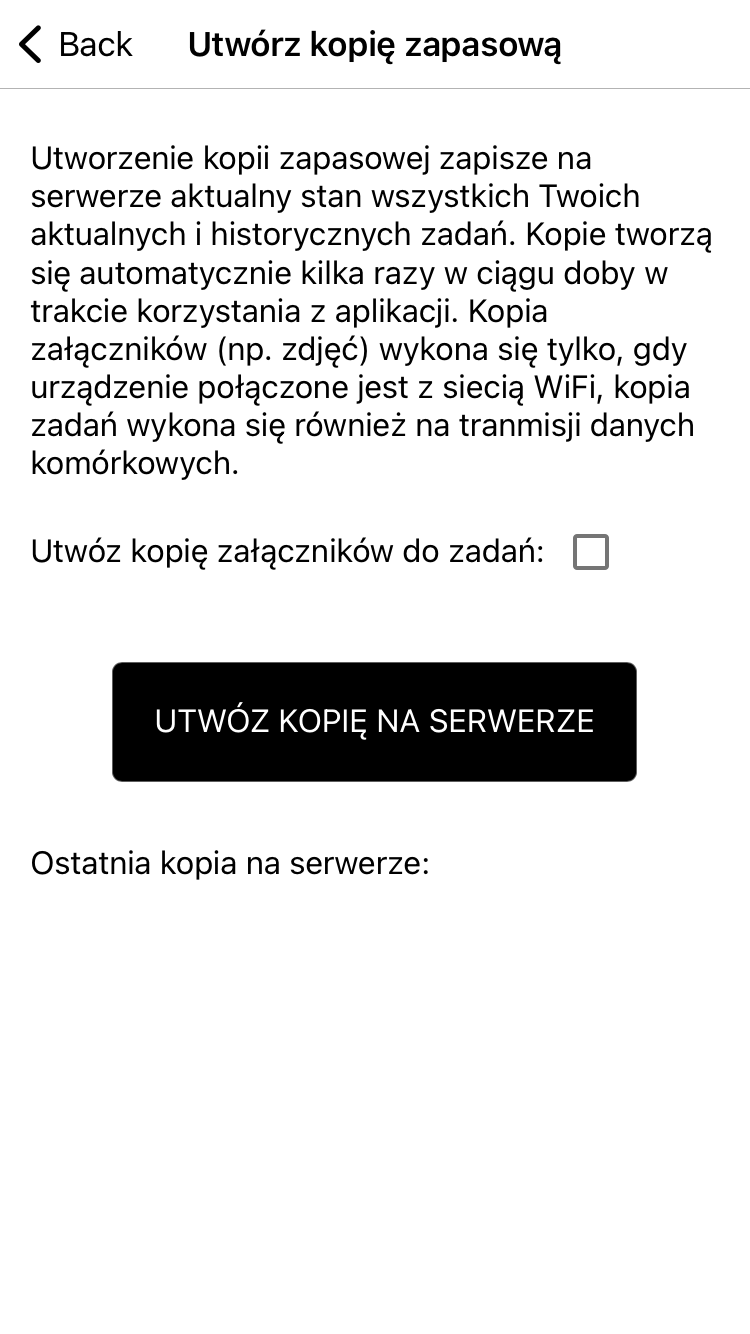
Button for creating a backup, which can be restored on another device using the same account. The notes backup is created both on WiFi and on mobile data. The backup of photos attached to tasks is created only when connected to a WiFi network.
-
Button for restoring a backup. Only one backup is created per account. The backup is used to restore tasks on the device it was created on or on another device the given user is logged in to.
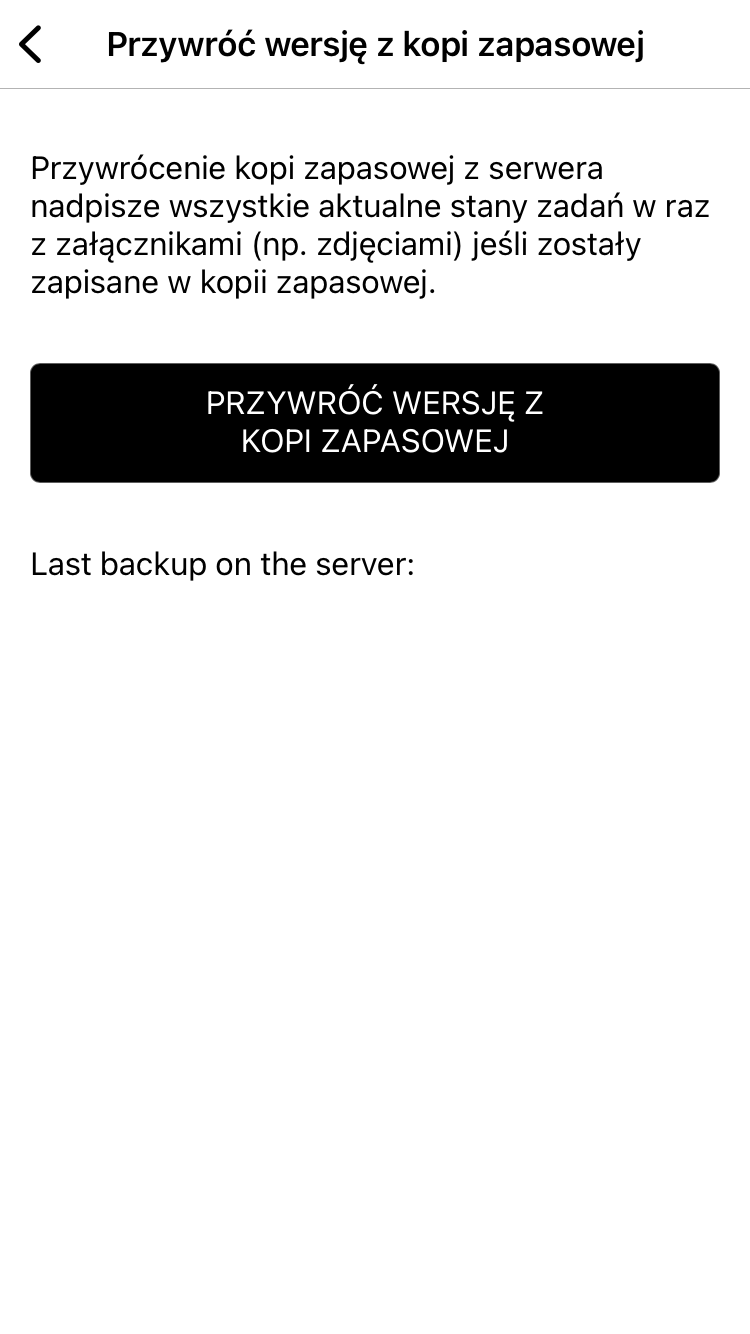
-
Button for deleting the task history
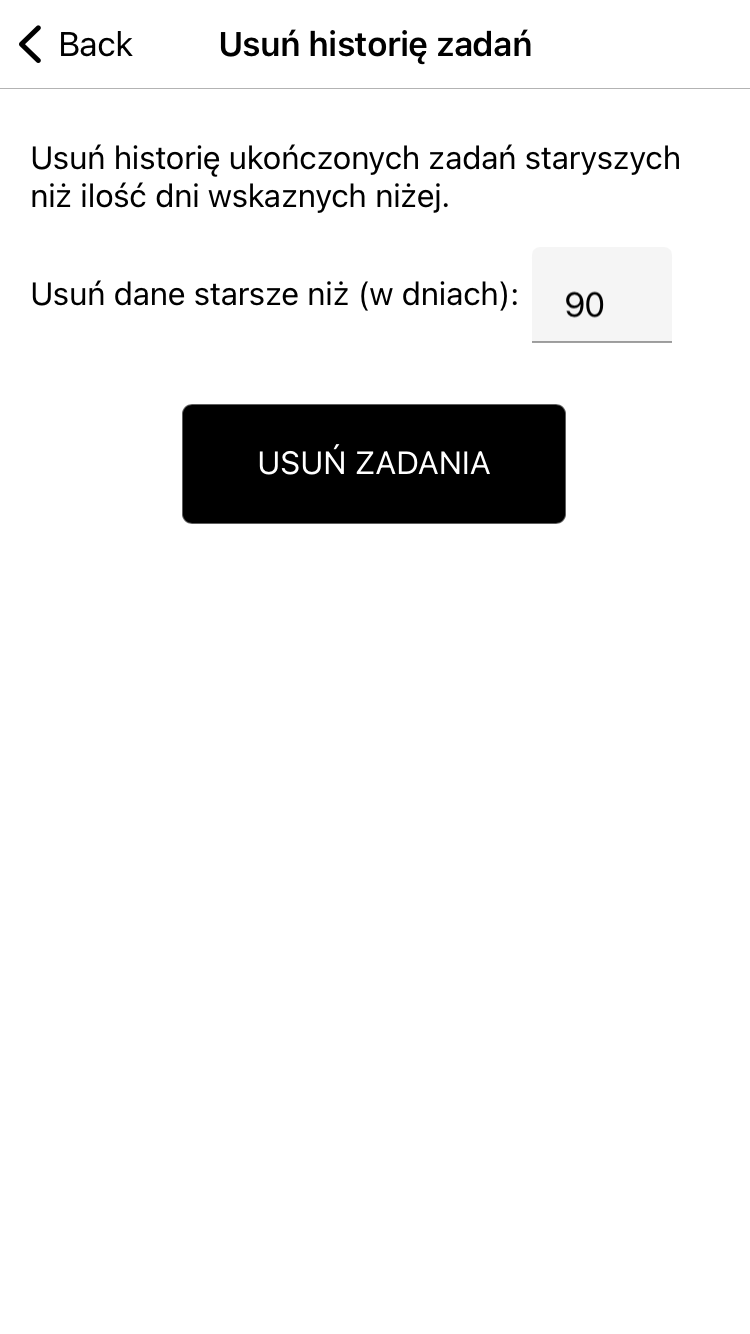 4. List of saved task suggestions
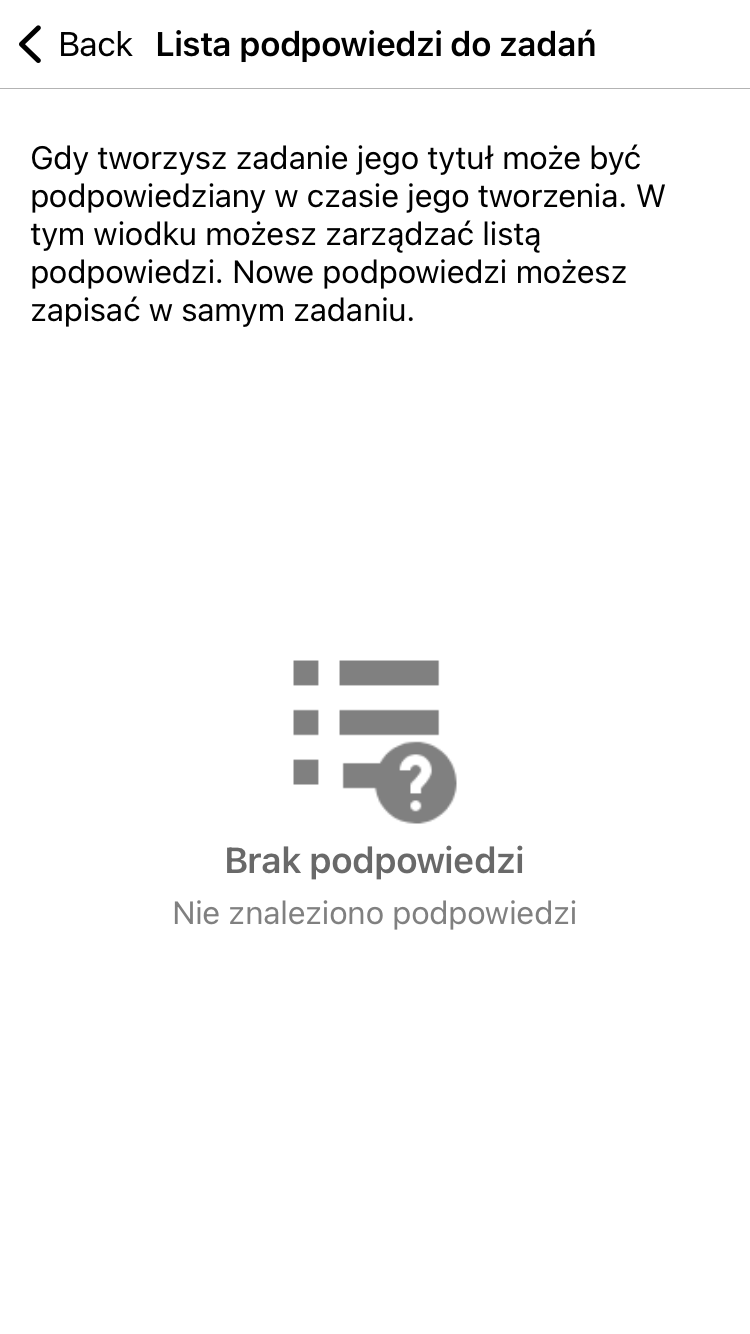
-
Advanced settings
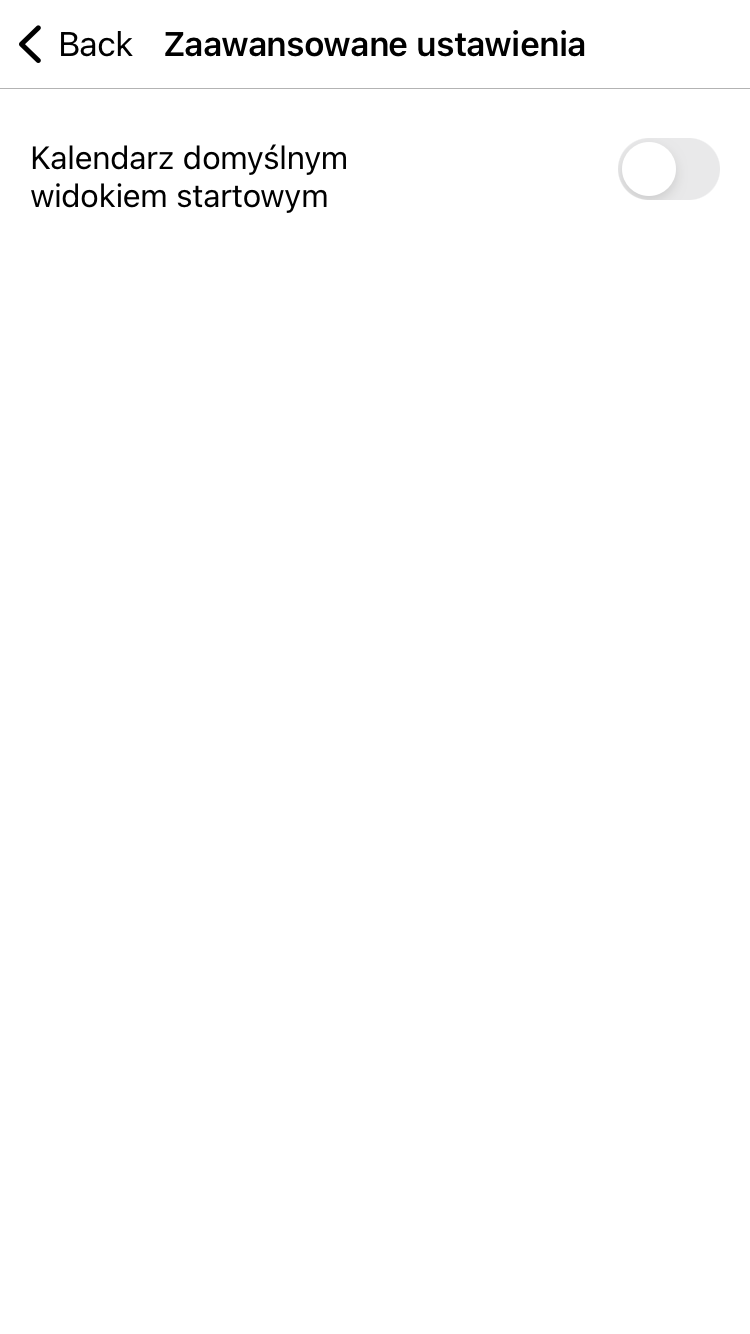 This button lets you show the calendar view on the start screen. With the calendar turned on, the start screen looks like this: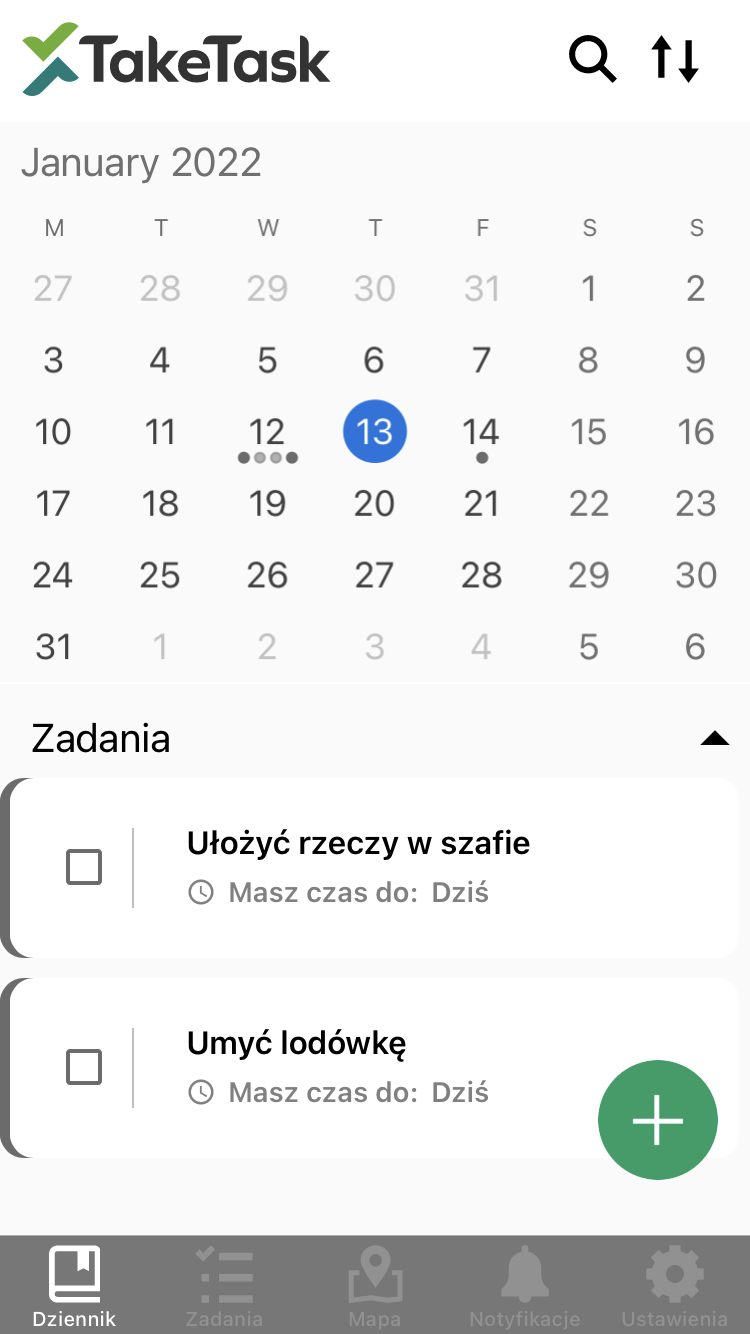
Additional
Tapping any task opens a view where you can edit the task.
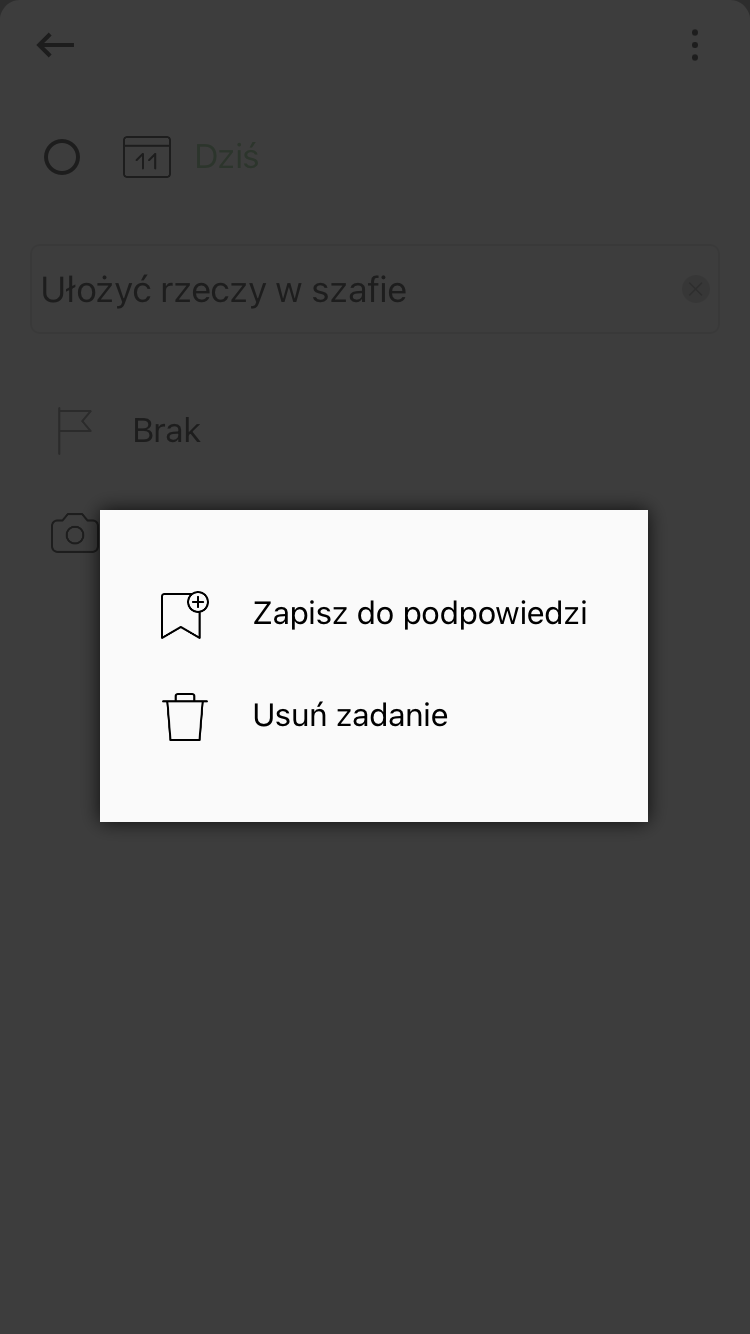
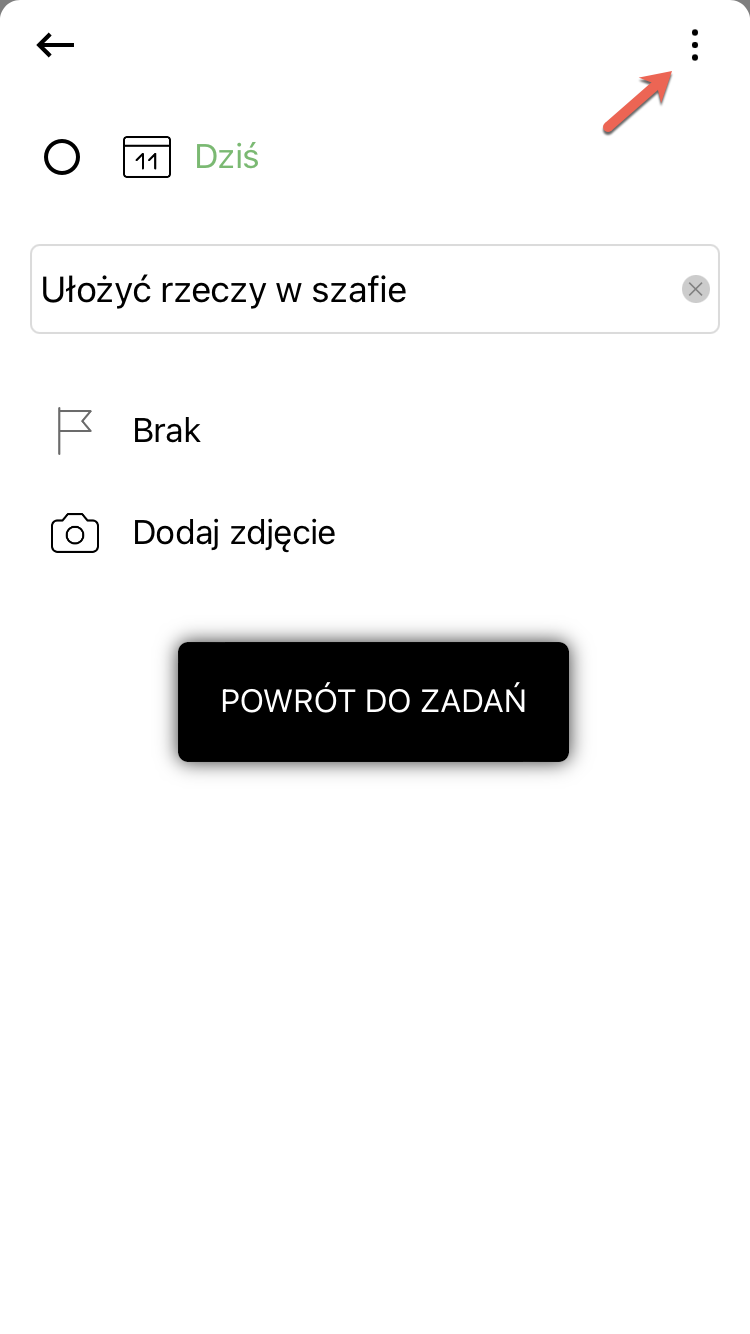 Tapping the dots in the top right corner opens a panel with buttons for saving the task as a suggestion and a button for deleting the task.