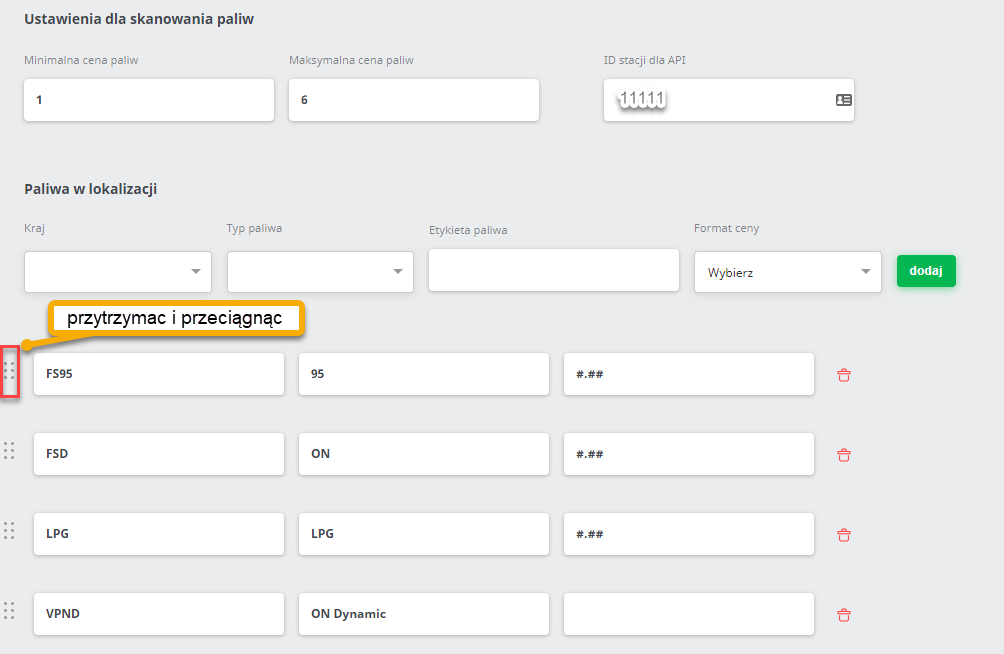
Fuel Section - view description
The “Fuels” section - step by step
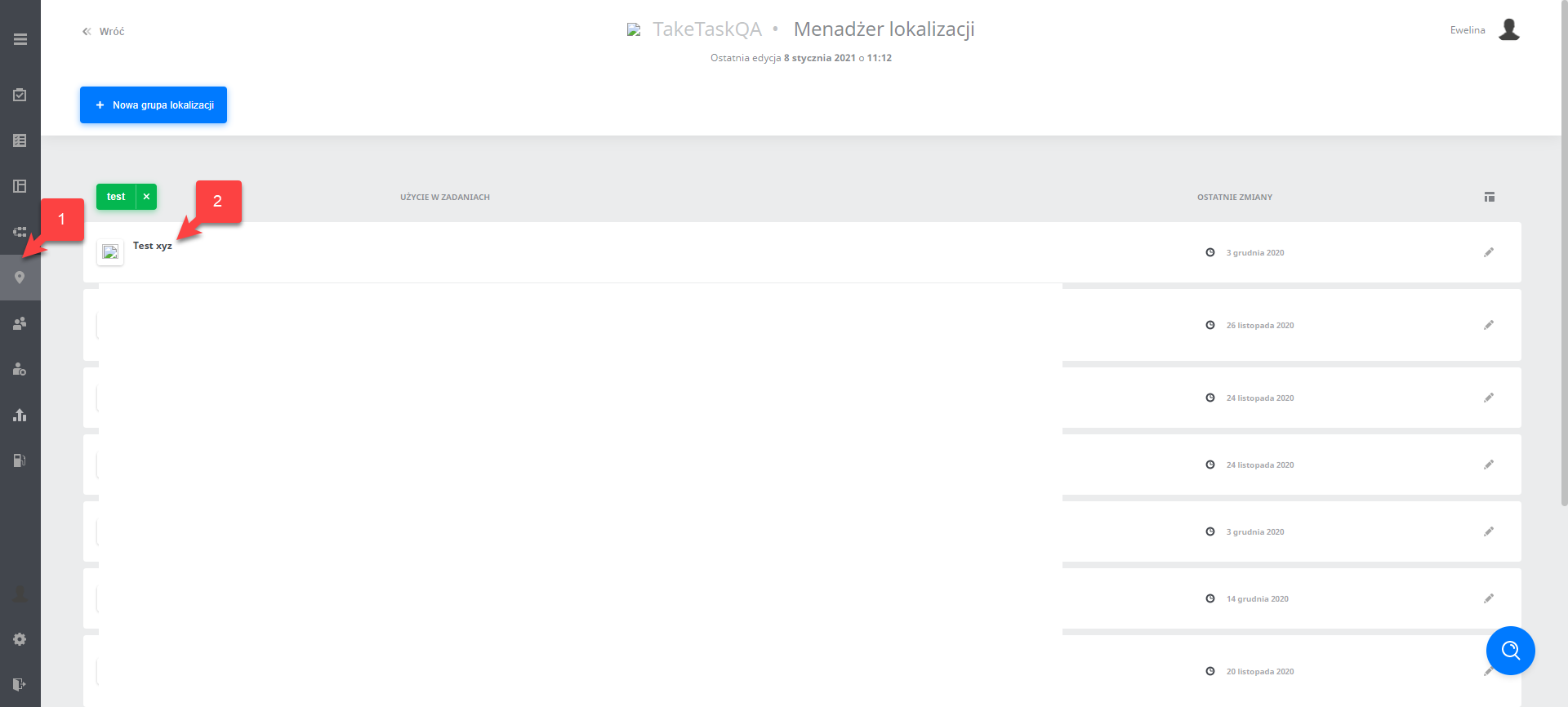
From the tab on the left, select “Locations”, then select the location group you are interested in:
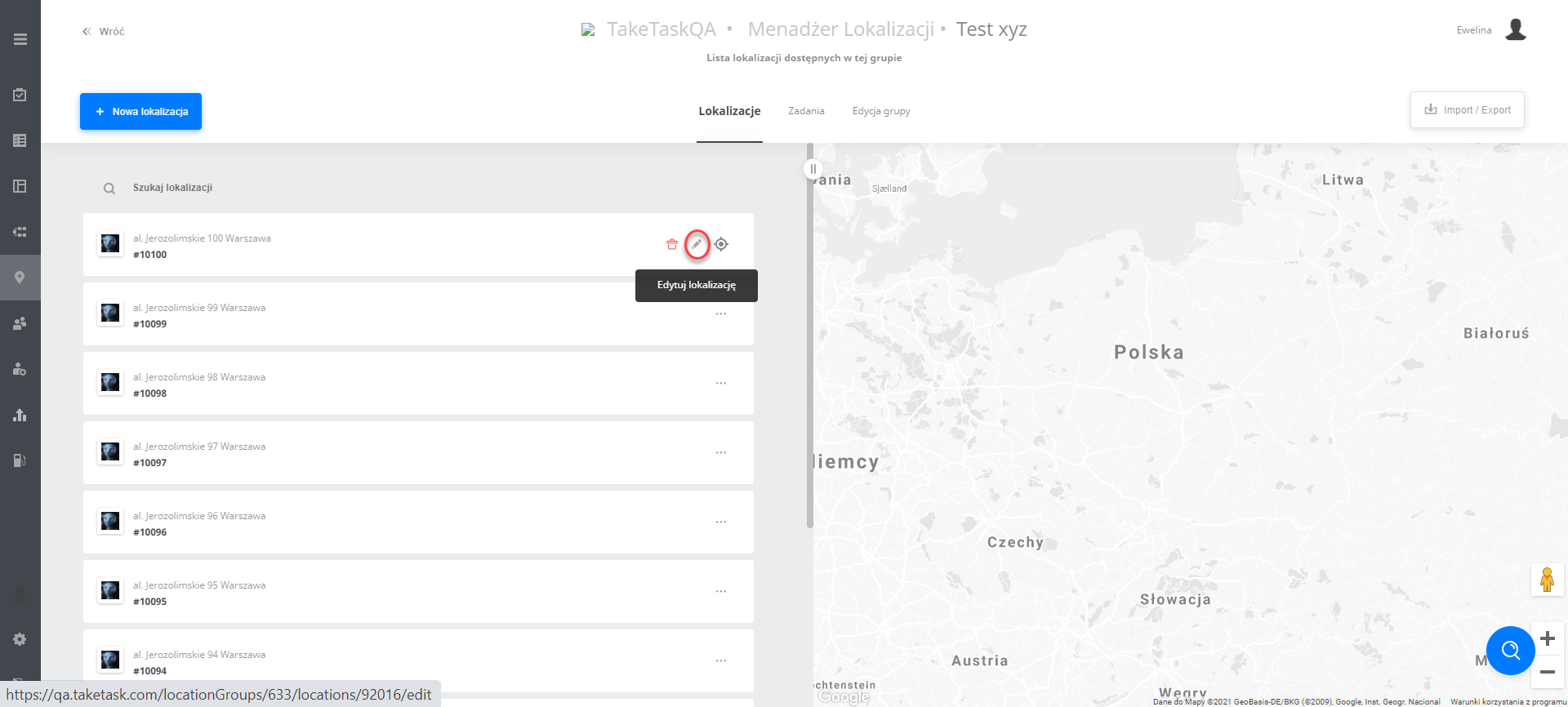
 Then go to the location edit view:
 After completing all the steps, we go to the available “Fuels” section:
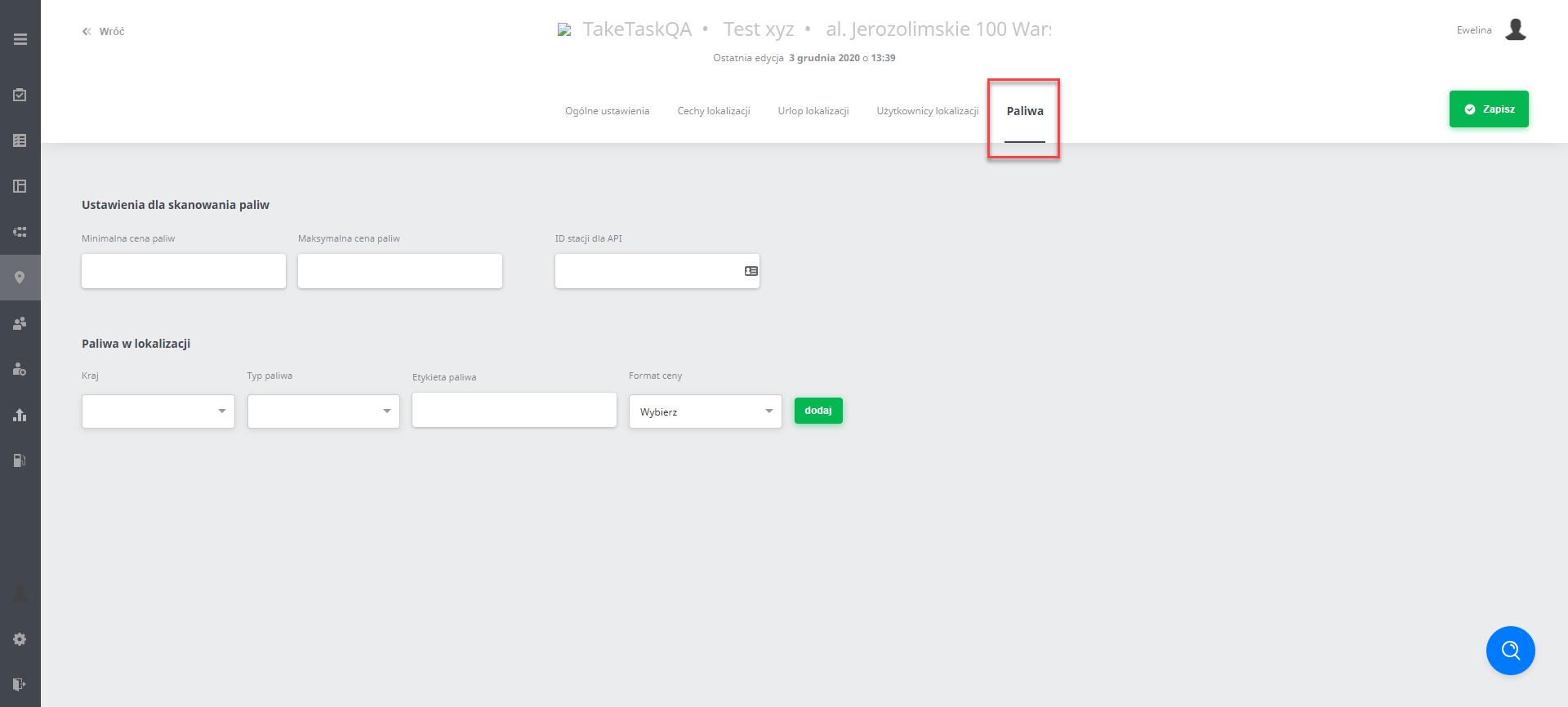
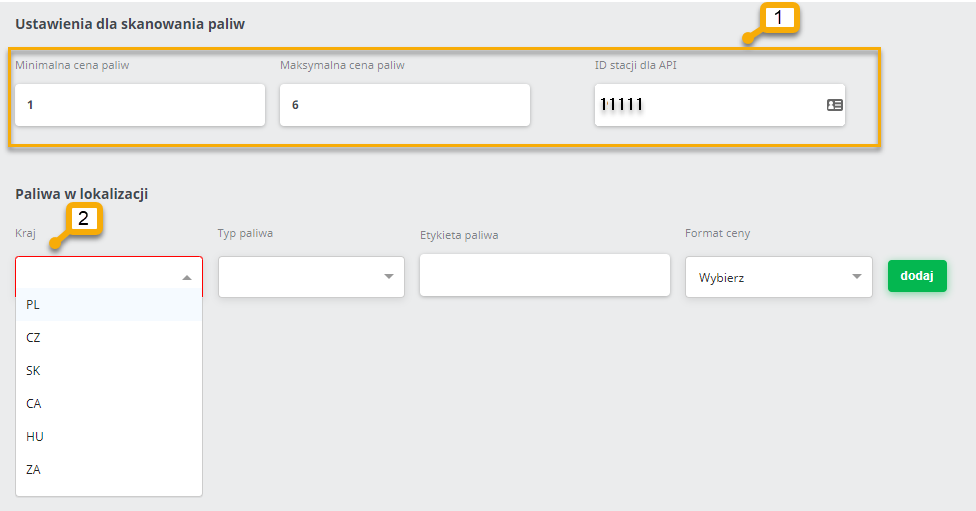
First, we fill in the “Fuel scanning settings” by setting the minimum and maximum fuel price and entering the station ID.
Next, we fill in the detailed data of the fuels shown on the monolith. From the “Country” drop-down list we choose the appropriate option. The next choices will be adjusted to the selected country.
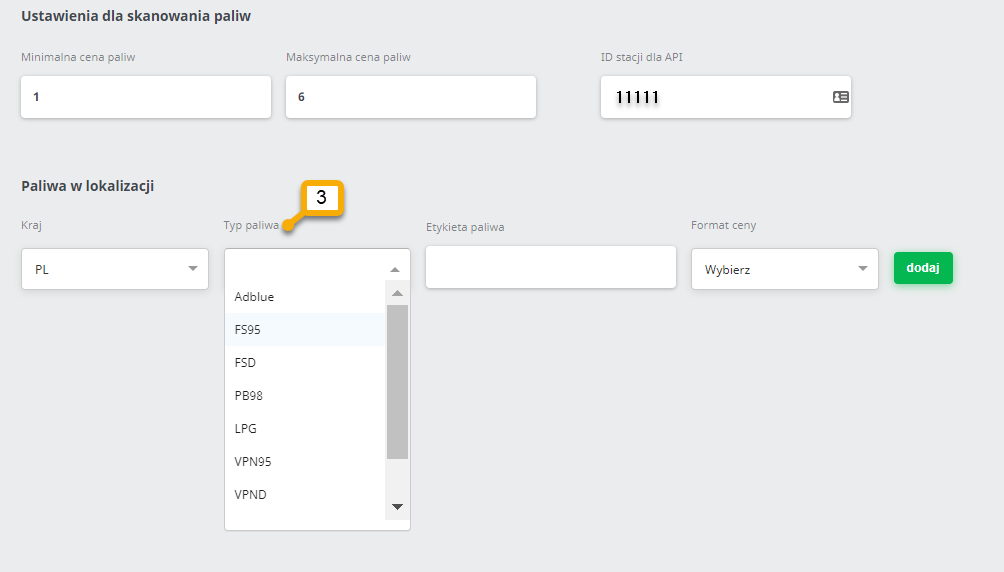
 Next, we choose from the “Fuel type” list
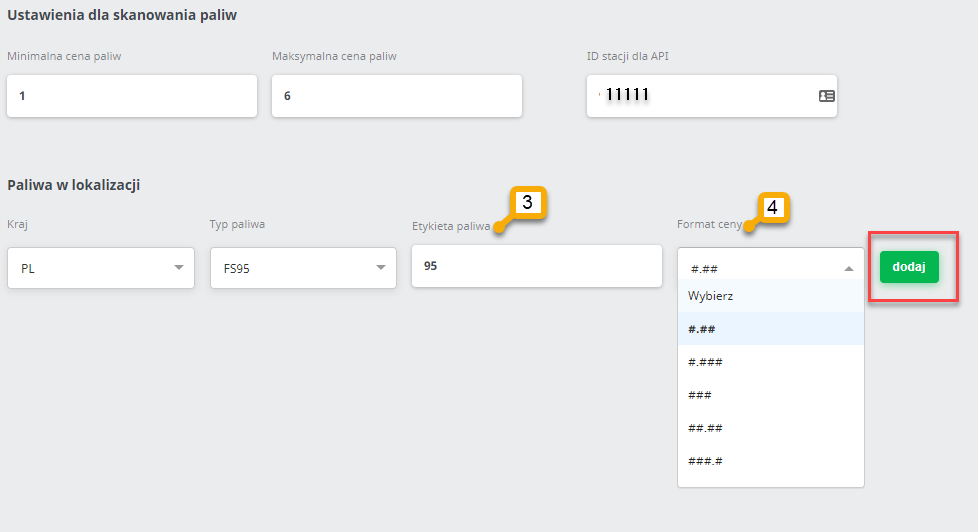
 We fill in the displayed fuel label by typing it manually.
Next, we fill in the price format (this field is not *required by the system)
Finally, we press the “add” button
note! The order of fuels can be changed quickly. To do this, click the 6 dots visible on the left, then hold and drag to the right place.
Important! The order of fuels should match the order of fuels on the monolith.
The completed data looks as follows: