
Template import
In the Templates tab there is an import button that lets you import a new template. The function is particularly useful when you want to move a task from a test instance to a production instance.
The first step is to export the template that is to be imported on another instance. This can be done in two ways:
-
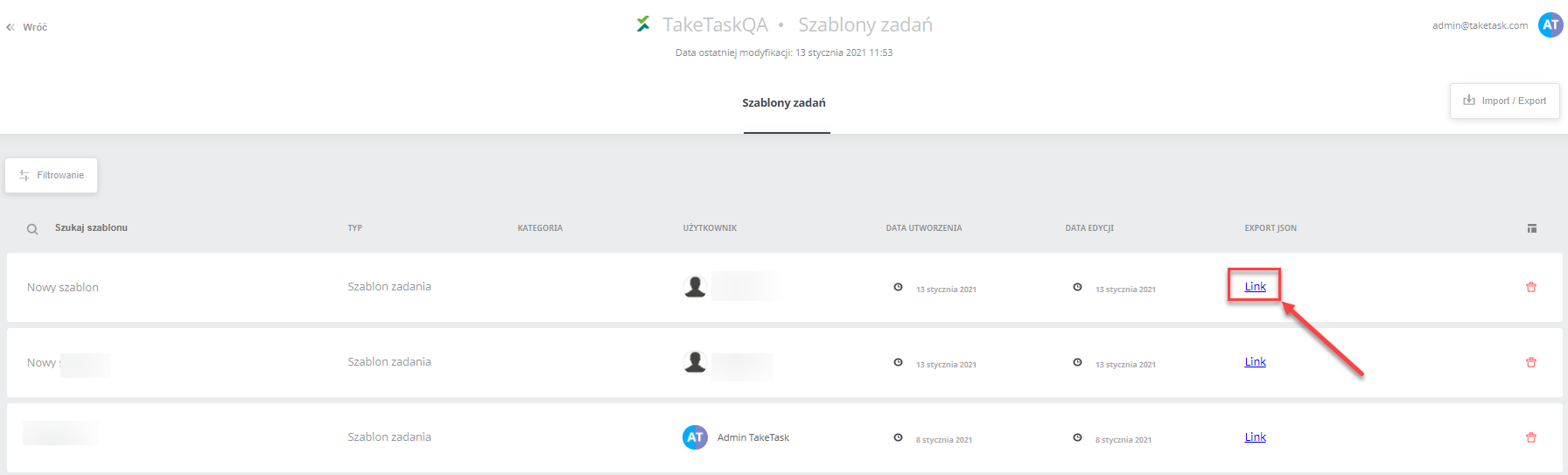
In the list of items, click the link next to the template you are interested in. A file with the template will be downloaded
-
Click the Export button. This button downloads a folder containing all available templates
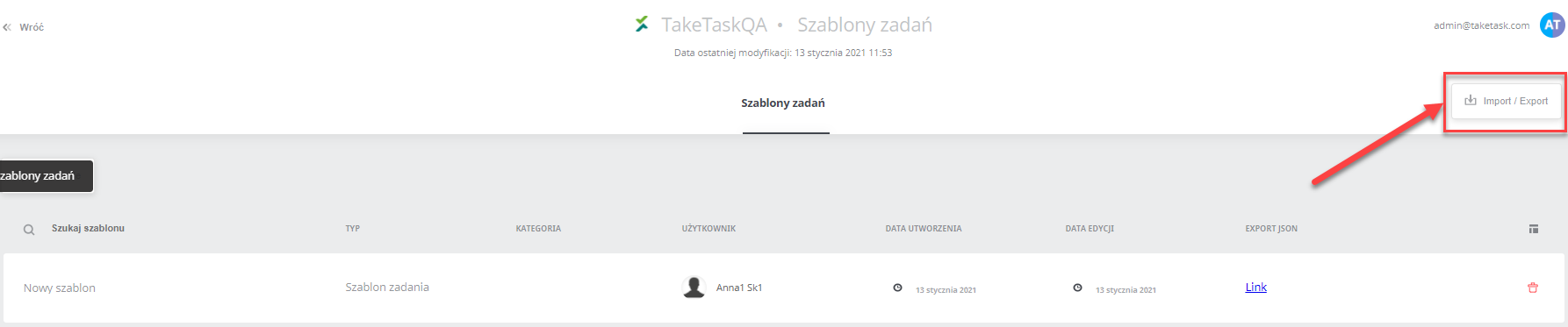
Each time, a compressed folder (zip.) is downloaded. The folder contains a file in JSON format. This file can be opened with any text editor (e.g. Notepad)
Note! We are not responsible for errors caused by editing the contents of the files
Once you have downloaded the json with the template, you can upload it to the new instance. To do this:
- Click the Import button
-
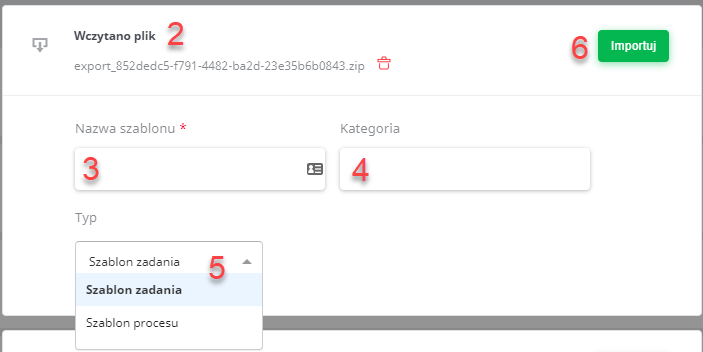
To import the template on another instance, use the compressed folder (zip.)
-
Then enter the template name. The template name does not have to match the name of the exported file
-
If the user wishes, they can enter a template category. This field is not mandatory
-
Select the type of the imported template (task template or process template). NOTE! Pay close attention to whether you are selecting the correct template type. If you import a process template and mistakenly mark its type as a task template, uploading such a wrongly marked template will fail.
-
After selecting the file and entering the name, type and, optionally, category, confirm everything with Import
Note! The template contains a location group. Remember that a group with exactly the same name must exist on the instance to which the new template is imported. If there is no such group, it will be created, but you will need to upload the individual locations.