Mapping values for location / Dynamic values per location
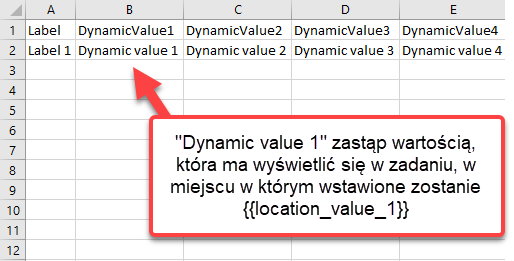
The mapping values allow for displaying different text in the task at each location of the task. Mapping values can only be used in titles and in the following command descriptions: Open Question, Yes/No, Add Price, Number, Counting Question, Take Photo, Repeated Selection, Single Selection, Rating, Record Audio, Read Text, Date, Signature and External Link. To use the mapping values, they must be imported (the import file is at the end of this article). The import file is filled in and saved as a CSV UTF-8 file. In the ‘Label’ column, enter the location ID to which the values are to be assigned, and in the cells below DynamicValue, enter the text to appear in the location, one line corresponds to the values for one location. The first row in the file must remain unchanged, while the second row in the file presents the relations and the value of Label 1 must be replaced by the location ID number. Dynamic value 1 etc. can be replaced by text for one of the locations.
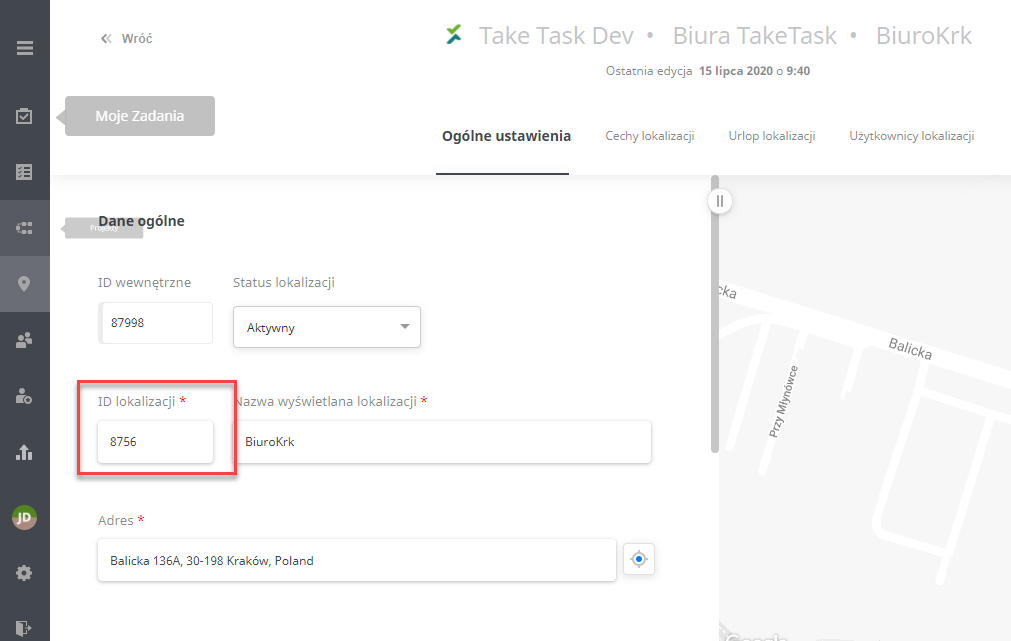
The location ID is located in the following place:
Please Note: The location and address must not contain any special characters other than any of the following: a space, a comma, a dash, a slash - otherwise some functions may not work properly.
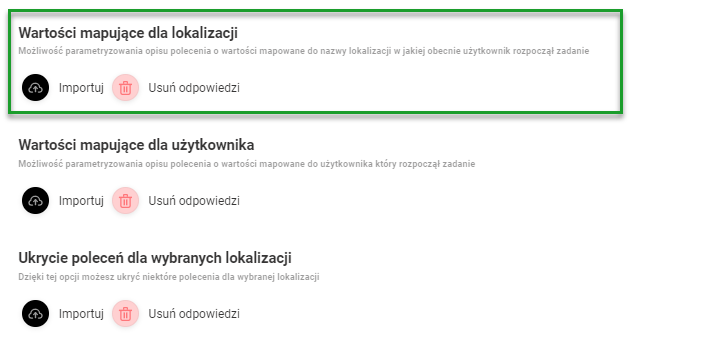
Mapping values are imported in the Task Generator, within the ‘Start’ command:
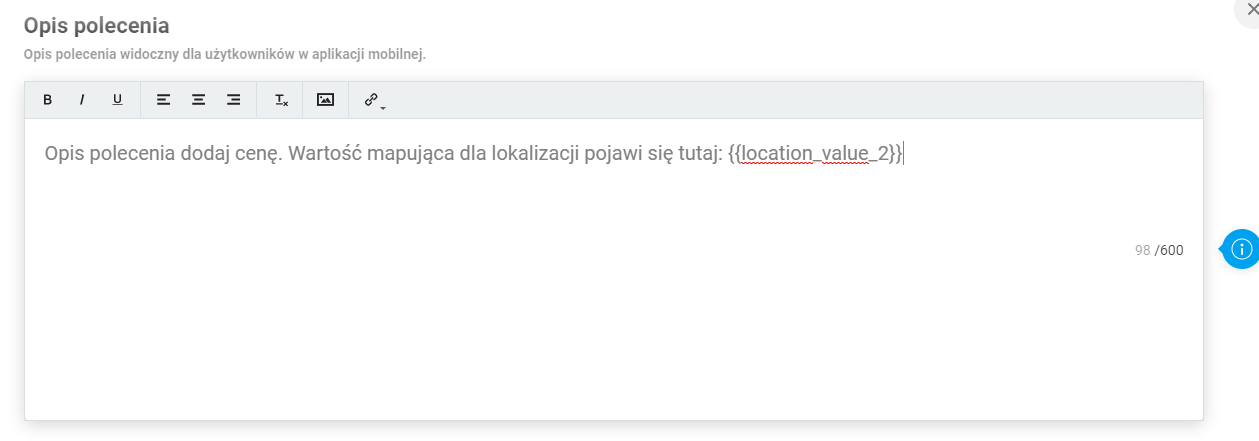
To put a value assigned to a location in the task text, type {{{location_value_x}} where x corresponds to the DynamicValueX column number in the imported file. For example, if you want to show the value placed in the DynamicValue2 column in a given place of the command, insert {{{location_value_2}} in the text of the command.
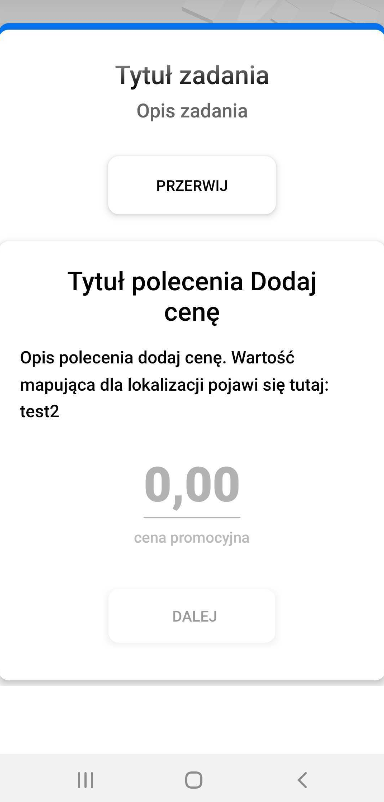
The user will instead display the cell content from the import file:
Please Note: Dynamic values are not included in the basic report of the tasks performed. However, they are displayed in task verification
Mapping values import template for location
The functionality enabling mapping of responses after ExternalID location - Dynamic Selection command
In the MappingValue column you can insert ExternalIDrather than the name of the location - so that the values are displayed according to the location in which the task is being performed.
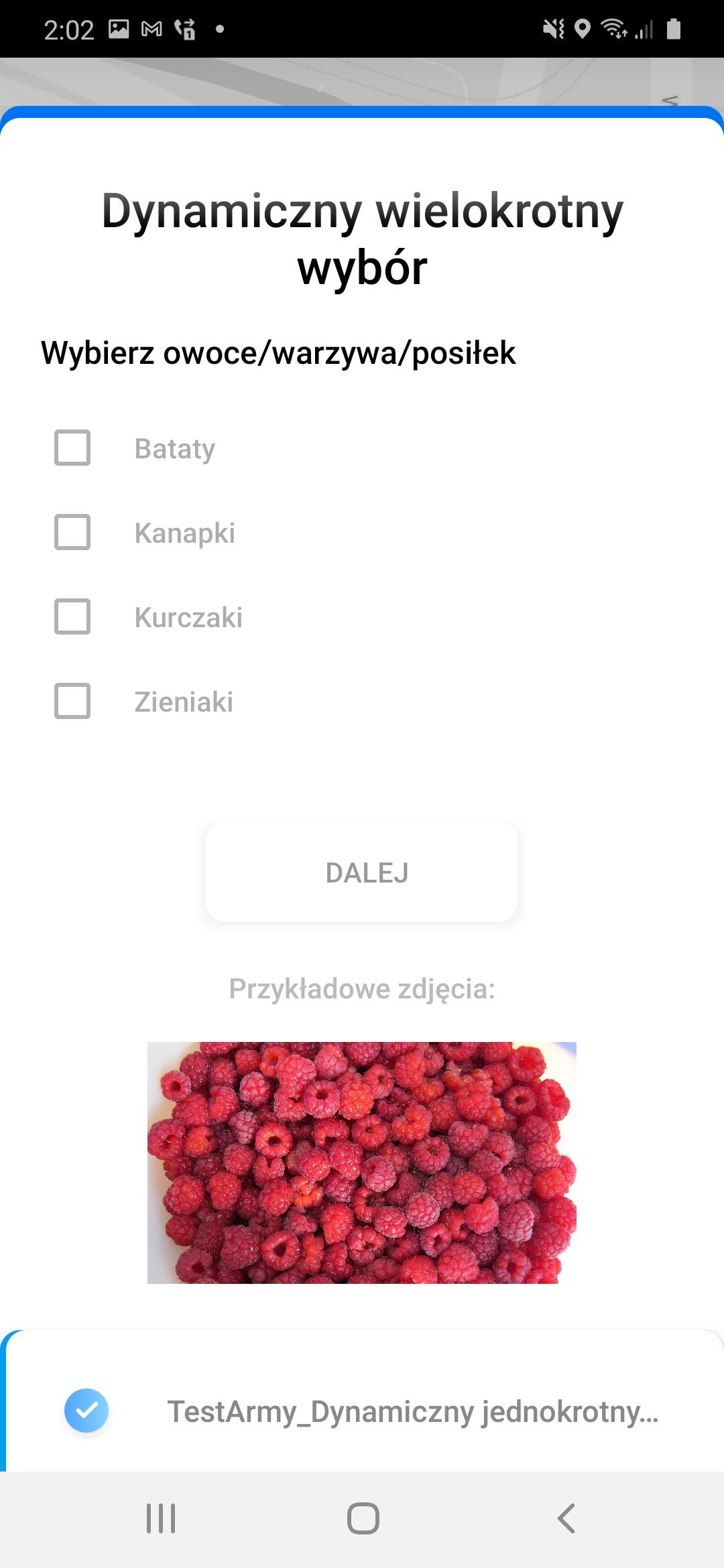
View in the mobile app:
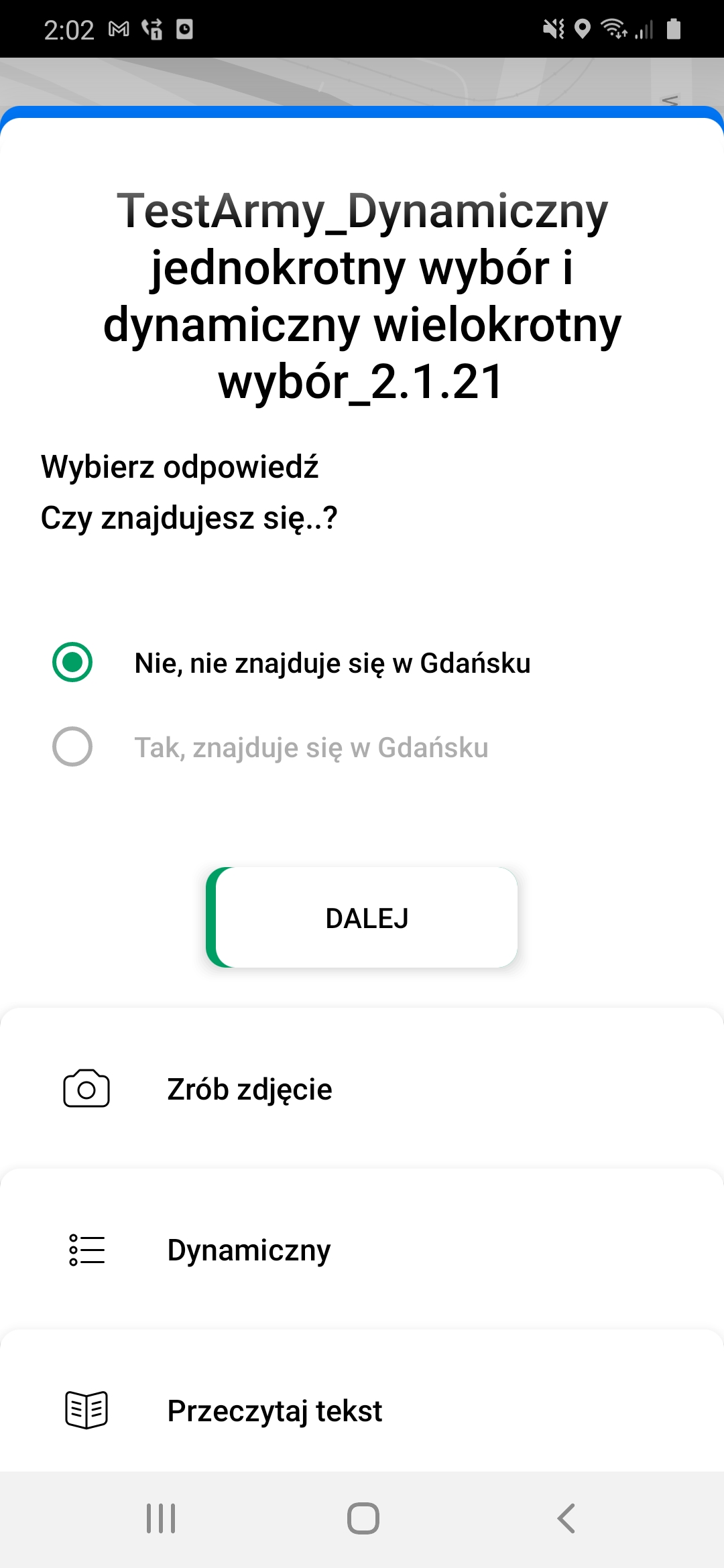
A dynamic choice thanks to ExternalID: