
Deleting users
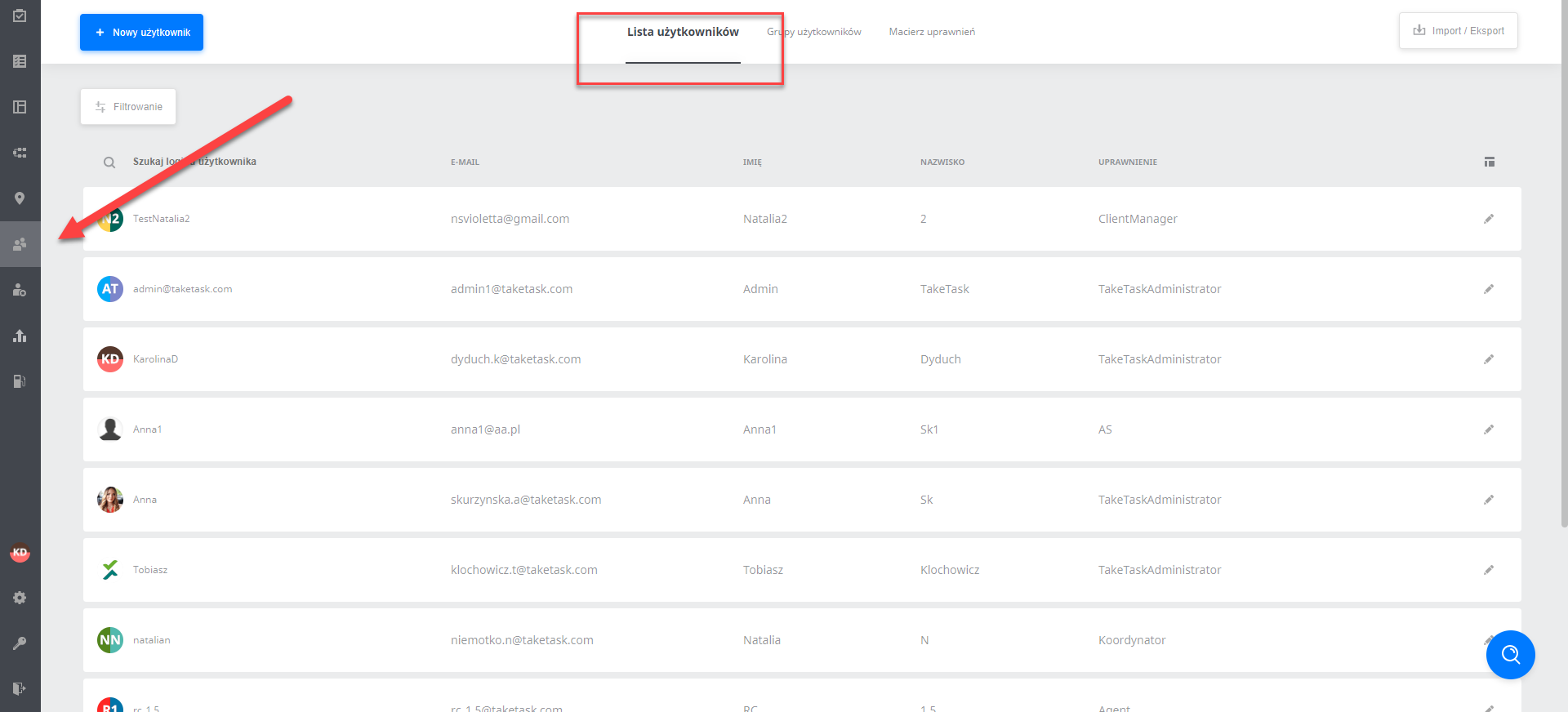
To delete a User, open the user list, then find the user you want to delete. Tick the checkbox of that user on the left; after pressing edit you can choose from five options: edit settings, assign groups, assign tags, change status, delete. Pressing delete will erase the user. Deletion erases all data with no possibility of restoring it, and the user loses access to the mobile application. Remember, however, that deleting a user also deletes all results of the tasks the user has performed. If you want to keep the results, you can change the user’s status to inactive, so that they cannot perform any tasks.
Step 1: Users -> User list
Step 2: Tick the checkbox -> Edit -> Delete
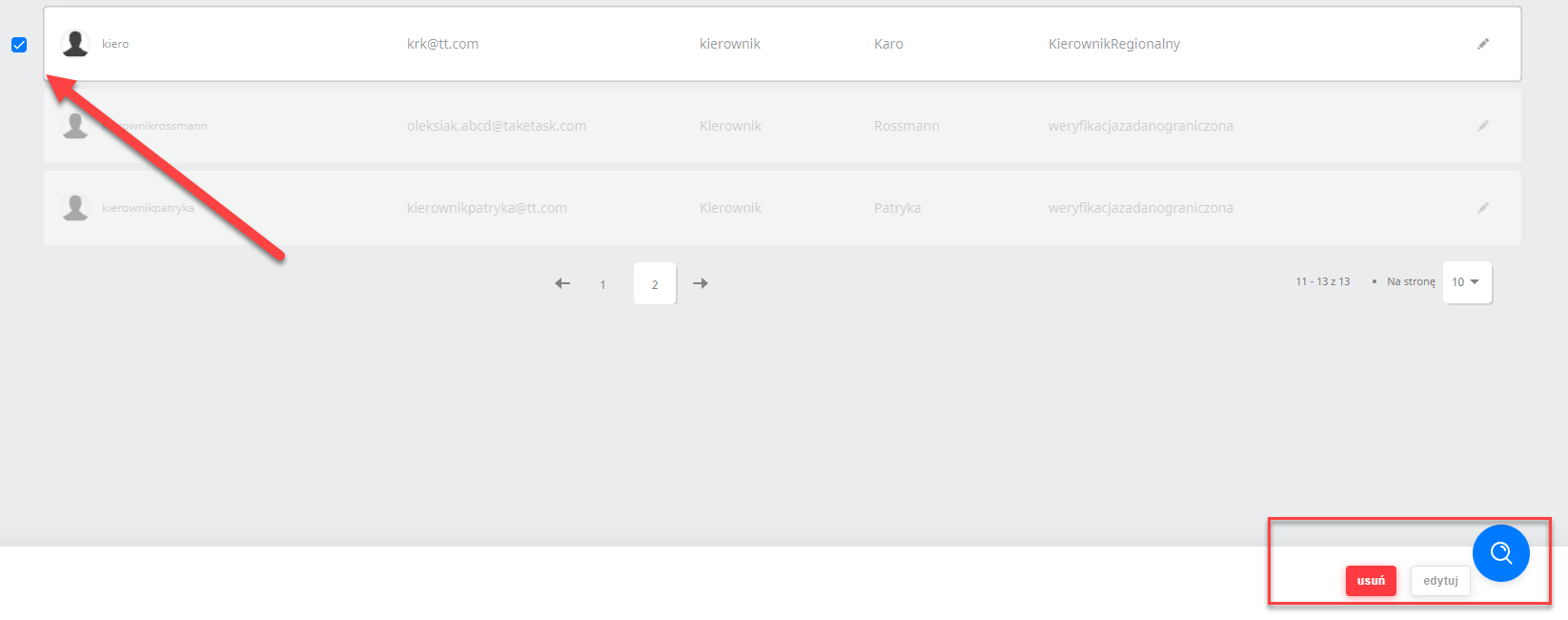
To delete a User, open the user list, then find the user you want to delete. Tick the checkbox of that user on the left; after pressing edit you can choose from two options: edit settings and delete users. Pressing delete users will erase the user. Deletion erases all data with no possibility of restoring it, and the user loses access to the web panel.