
Narrowing task locations by location features
When editing the selected task, in the task’s Locations tab, select the Fi****ltering button.
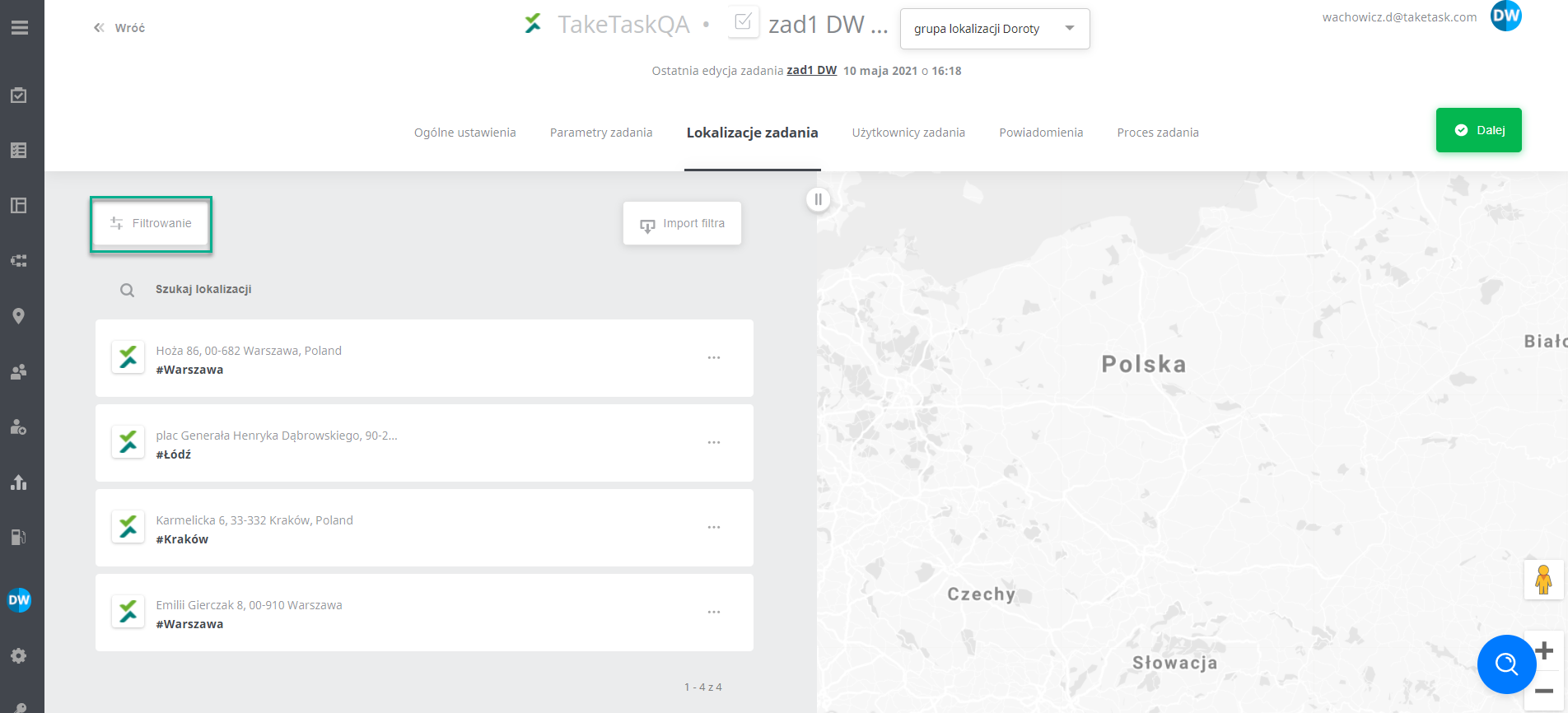
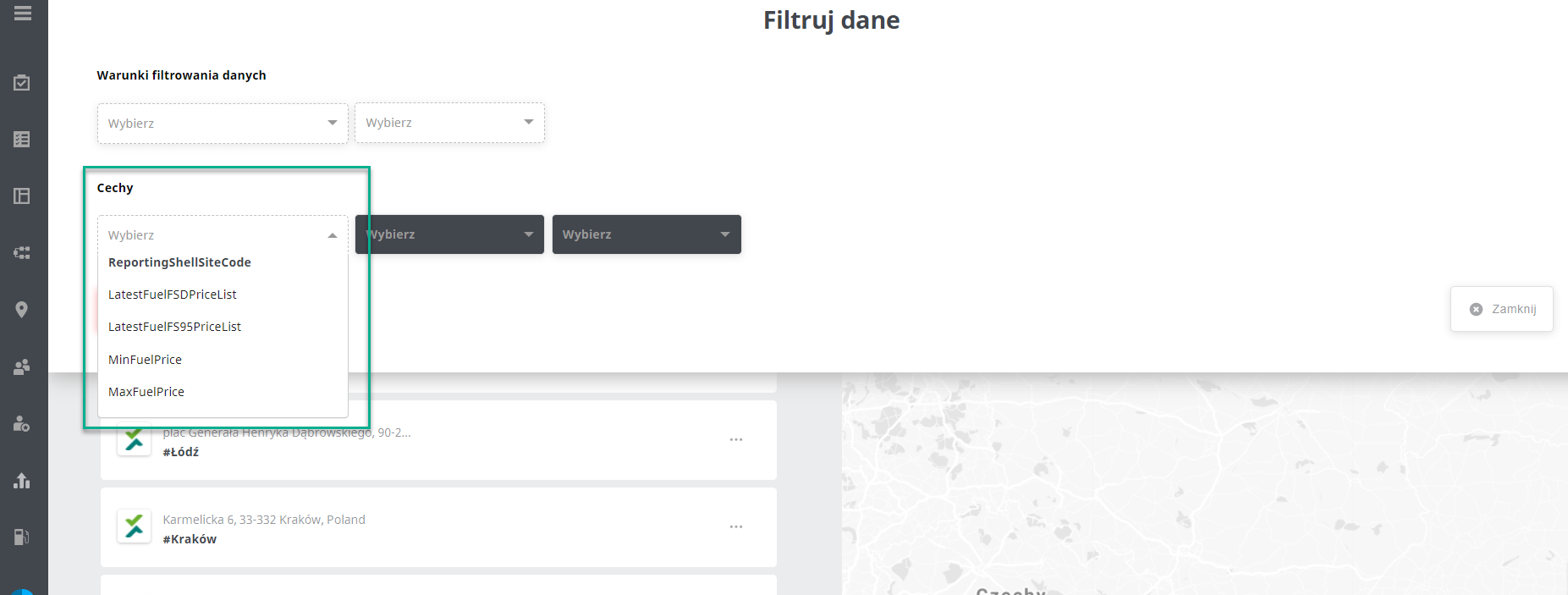
Selecting the Filtering button opens the Filter data window, which contains the Data filtering conditions and Features options. From the drop-down list in the Features option, select the feature you need. Note that when selecting location features during filtering, only those contained in the given location group are available.
Example: A location group contains three locations, and only one of them has a feature added. So when you want to filter by location features, only that one feature will be available to choose from the drop-down list.
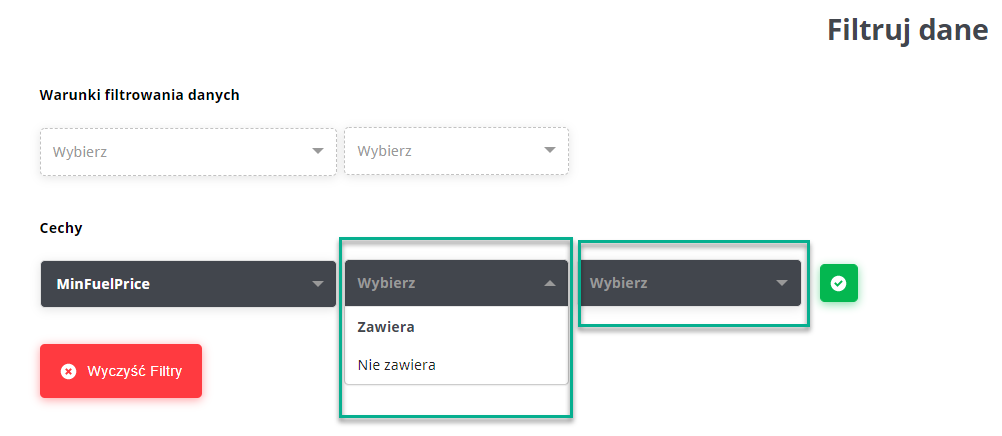
 In the next field on the right, specify whether the location should contain this feature or whether it should be excluded. The next window lets you select the value of this feature.
 To add more features, just confirm with the green button. To go to the results you are interested in after entering the feature data, just press Filter.
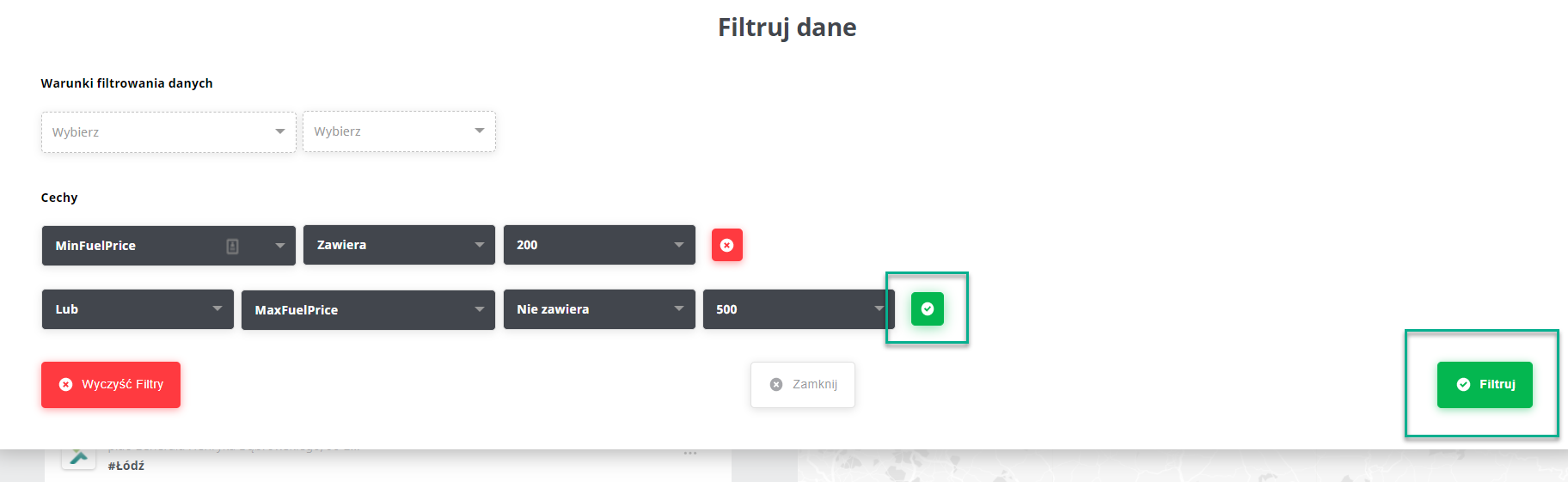
The Filtering tab works correctly both when all filters are added in one filtering and when they are entered one at a time.
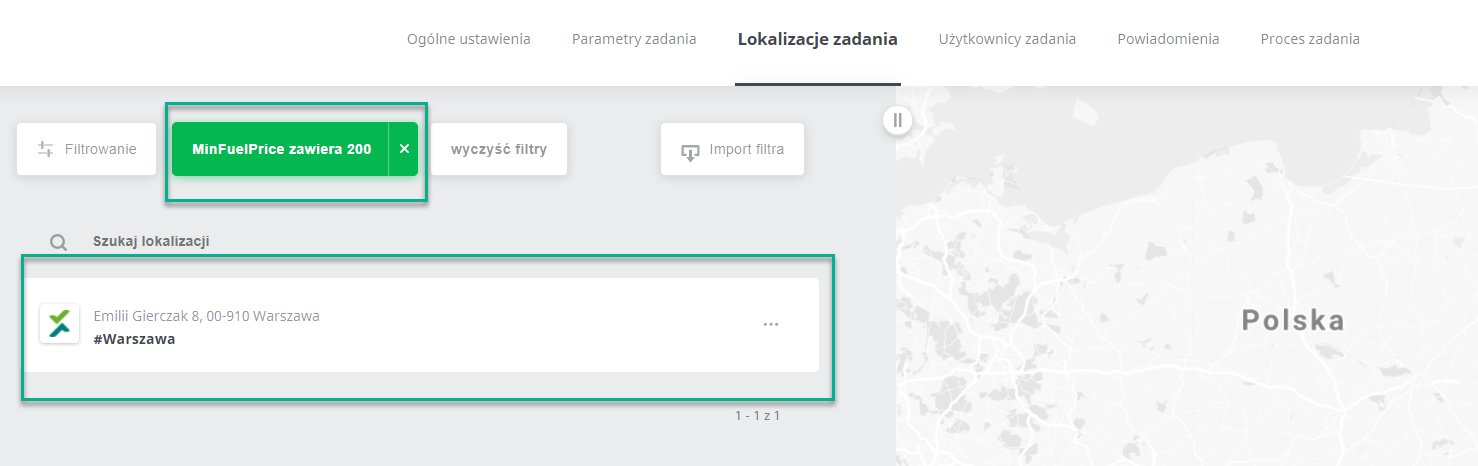
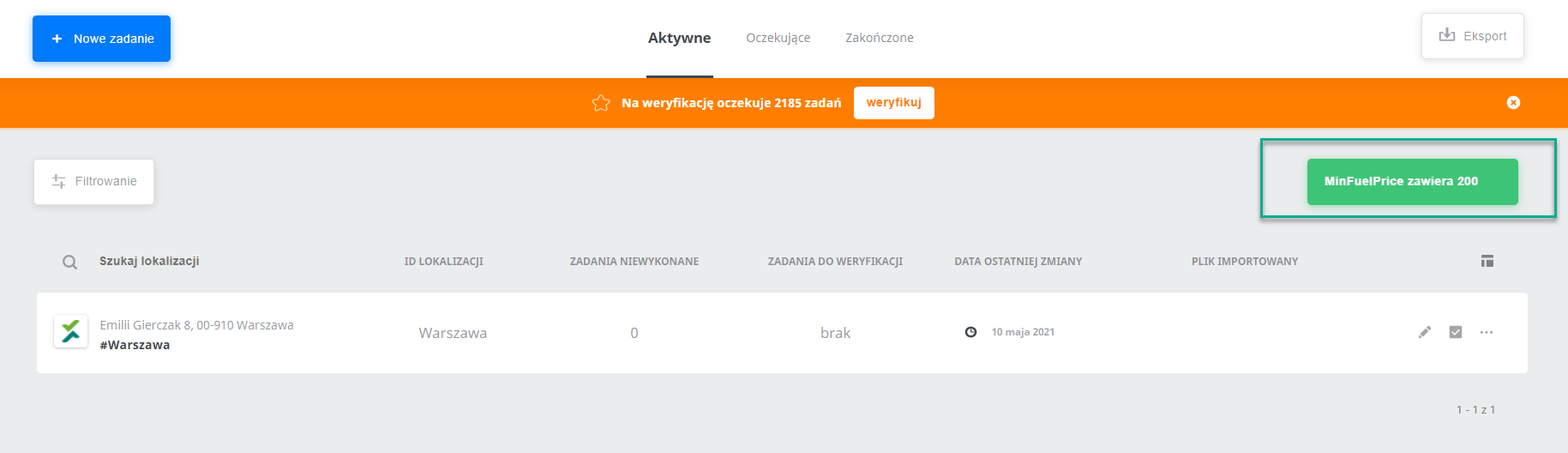
After a filter is added, only the locations containing the given feature appear. Setting a feature filter in task editing means they are also visible when you go to the task locations from the All tasks view.
View in the mobile application
Setting filters by location features narrows down the locations. So if a user sets a filter that narrows the task locations down to two locations, then in the mobile application they will be able to perform this task in two locations (if they are assigned to them; if they are assigned to only one of them, the task can be performed in only one location). If the filter is removed, the user will be able to perform the task in the application in all locations to which they are assigned.
Note,
The Filtering button in the All Tasks tab view is also used to narrow down locations (when filtering, e.g., by Name, in the mobile application the current view of all locations will be narrowed down to only those filtered in the panel). The filtering button in the All tasks tab view offers, among others, the following filters:
- Name
- Location ID
- Location address
- Date of last change
- Tasks to verify
- Tasks to perform
To find a specific location on the location list in a task in the panel, use the quick search above the location list (magnifying glass).
Remember that filtering locations by both Data filtering conditions and Features narrows the view in the mobile application down to the filtered locations only.